- DATE:
- AUTHOR:
- S&P Global
December 2025 S&P Capital IQ Pro Release Notes
S&P Capital IQ Pro Release Highlights
In this release, we added new datasets and tools on Capital IQ Pro, designed to enhance our clients' daily workflows:
Fixed Income Ownership: Access quarterly ownership information of specific fixed income securities held by Funds and Asset Managers.
Enhanced Credit Default Swaps (CDS) Coverage: Introducing a new CDS Detail page with expanded pricing, analytics, and reference data for individual CDS tenors. CDX and iTraxx CDS Index price levels and constituents are now available across Index pages, Dashboard, and List Manager. We also introduced a Similar Securities feature driven by criteria-based model for S&P-rated Corporate Bonds and Notes.
Charting: View annotations for news in the Chart Explainer on the Stock Chart page. The Chart Builder now offers market cap and equal weight options, reindexing values from 0% to 100%, and the ability to select specific reindex dates.
Alerts: Set up alerts and receive push notifications for the latest Investment & Market Research on companies you follow. Earnings IQ newsletters now cover a broader range of non-US markets, and notifications include relevant data from various filing documents and earnings releases.
Industry Content Expansion: Introduced new data points for Banks, Credit Unions, and Bank Holding Companies, launched ISO Interconnection Queue page with ERCOT data to track project statuses and risks in the Energy sector, expanded the Mine Emissions Curve to include Manganese with detailed emissions reporting and enhanced coverage for Lithium and Steel in Metals & Mining, and transitioned to Comscore for TV Network Ratings data in Media & Telecommunications to improve data accuracy and audience insights.
Ownership
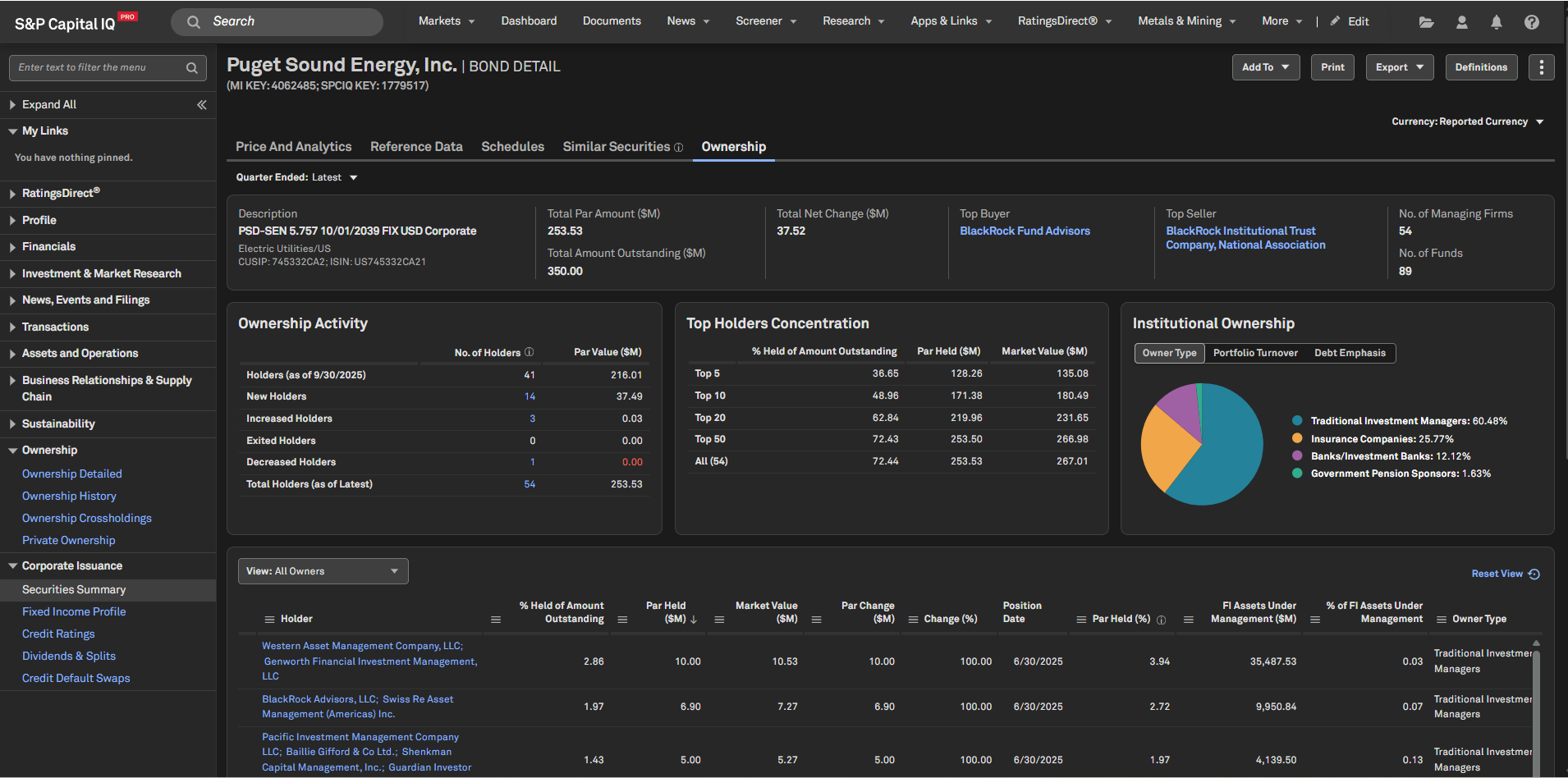
In this release, we introduced Security Level Fixed Income Ownership on the S&P Capital IQ Pro platform, enabling users to access Funds and Asset Managers' quarterly ownership information of specific fixed income securities.
Security Level Fixed Income Ownership
Users can now access holdings information at the security level for fixed income securities on the Bond Detail page and the S&P Capital IQ Pro Plug-in, using the SPGRangeV formulas in the Securities workflow.
Major Highlights:
Historical & Current Quarterly Ownership Information: Access quarterly security holdings data using the Quarter Ended dropdown menu
Insight into Ownership Aggregates: Key metrics available include Total Par Held, Total Quarterly Net Change, Total Number of Firm & Fund Holders, along with a summary of Entries, Exits, Increases, and Decreases in ownership of a security for a specific period
Holder’s Concentration: View the ownership concentration of the security for the Top 5, 10, 20, 50, and All Holders, shown as Percent Held of Amount Outstanding, Par Value, and Market Value
Distribution of Institutional Ownership: Gain insights into the distribution of security ownership across Institutional Owner Types, Portfolio Turnover Categories, and Debt Emphasis categories
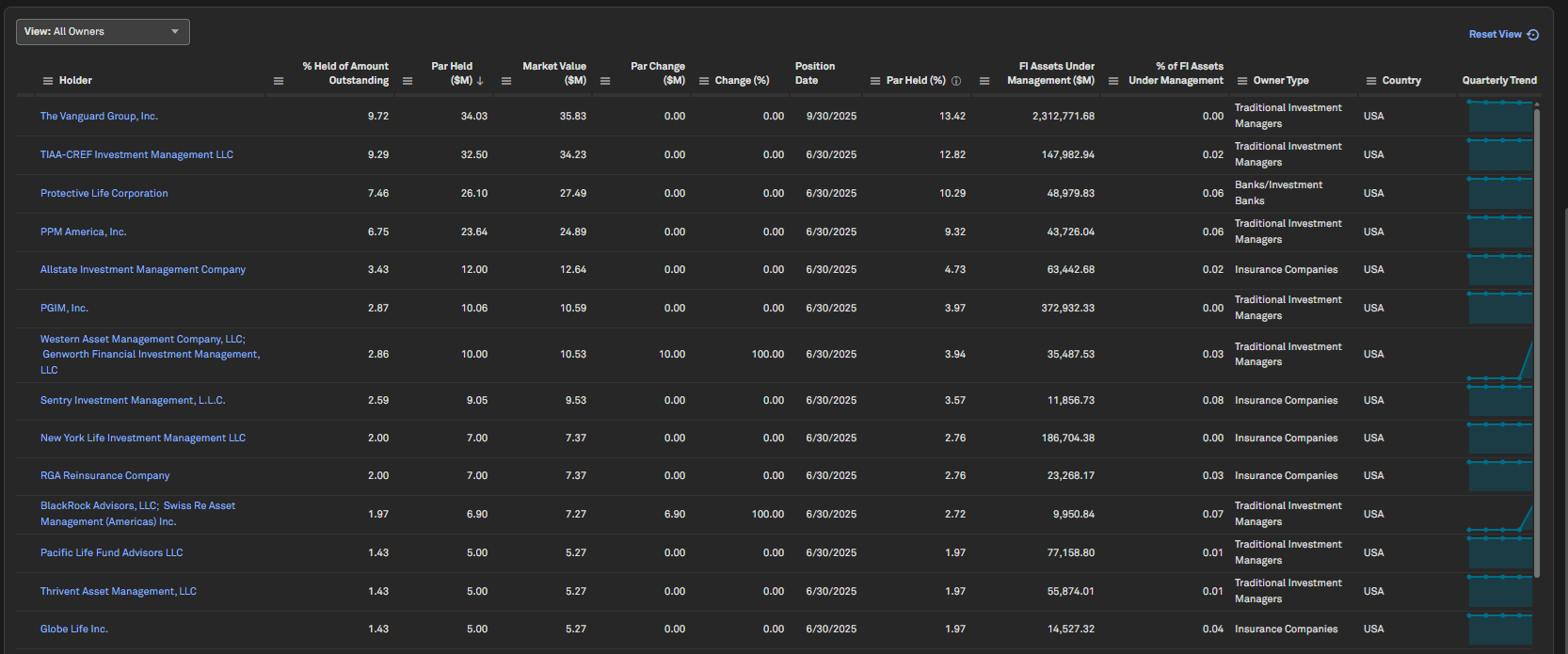
Detailed Holder’s Grid: A comprehensive list of holders for each security, including their holdings information such as Percent Held of Total Amount Outstanding, Par Held, Market Value, Par Change, and Position Date
Par Held Trend: Visualize the Par Held trend for each holder of the security over the past four quarters using a sparkline in the Detailed Holder’s Grid
Advanced Data Filter Options:
o Filter data on the Ownership tab with clickable aggregate values for New, Increased, Exited, and Decreased holders to refine the Detailed Holder’s Grid
o Filter the Detailed Holder’s Grid to view - All Owners, Institutions and their Funds in a Parent Child View, Only Institutions, Only Funds, State Owned, Public Corporations, Private Corporations
o Apply custom filters on the columns of the Detailed Holder’s Grid to view specific ownership information
Find it in the platform:
Search for and select a company from the top search to navigate to the Corporate Profile
In the left-hand menu, expand Corporate Issuance > Securities Summary and select a desired security
Alternatively, search for an ISIN or CUSIP in the top search to directly navigate to the security page
Access the Bond Detail page and notice Ownership as the rightmost tab
Security Level Fixed Income Ownership in S&P Capital IQ Pro Plug-in
Users can retrieve fixed income security ownership data in S&P Capital IQ Pro Plug-in through a range of SPG RangeV formulas. They can retrieve a ranked list of holders as of a specific date, along with corresponding Holder information in the Detailed Ownership folder. Additionally, users can access a ranked list of the top buyers and sellers of a security as of a specific date, including relevant Holder information through RangeV formulas in the Top Buyers/Sellers folder.
Find it in the platform:
In Excel, launch S&P Capital IQ Plug-in and open Formula Builder
Under Key Workflows, expand Securities > Fixed Income – Ownership to view fixed income ownership formulas

Fixed Income
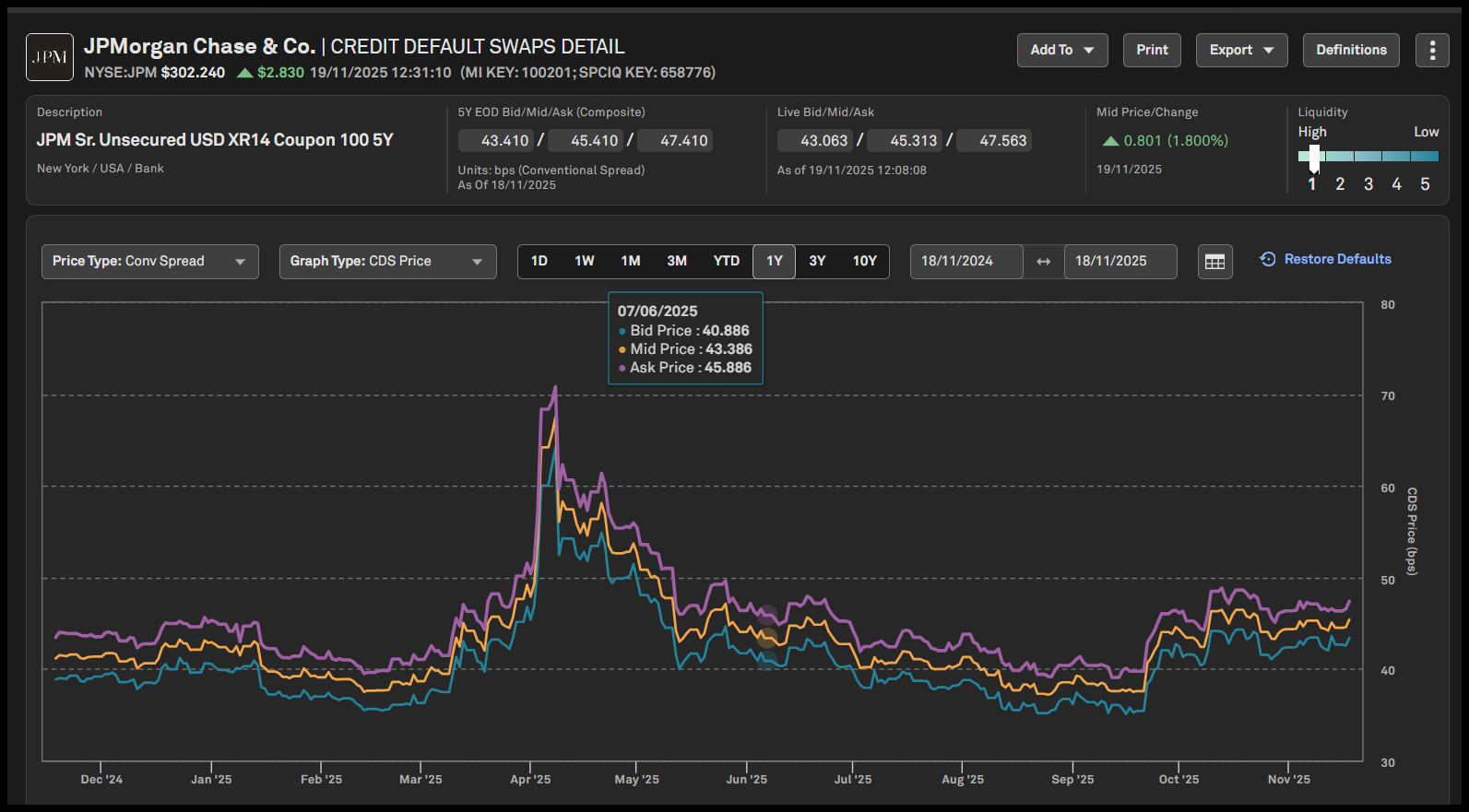
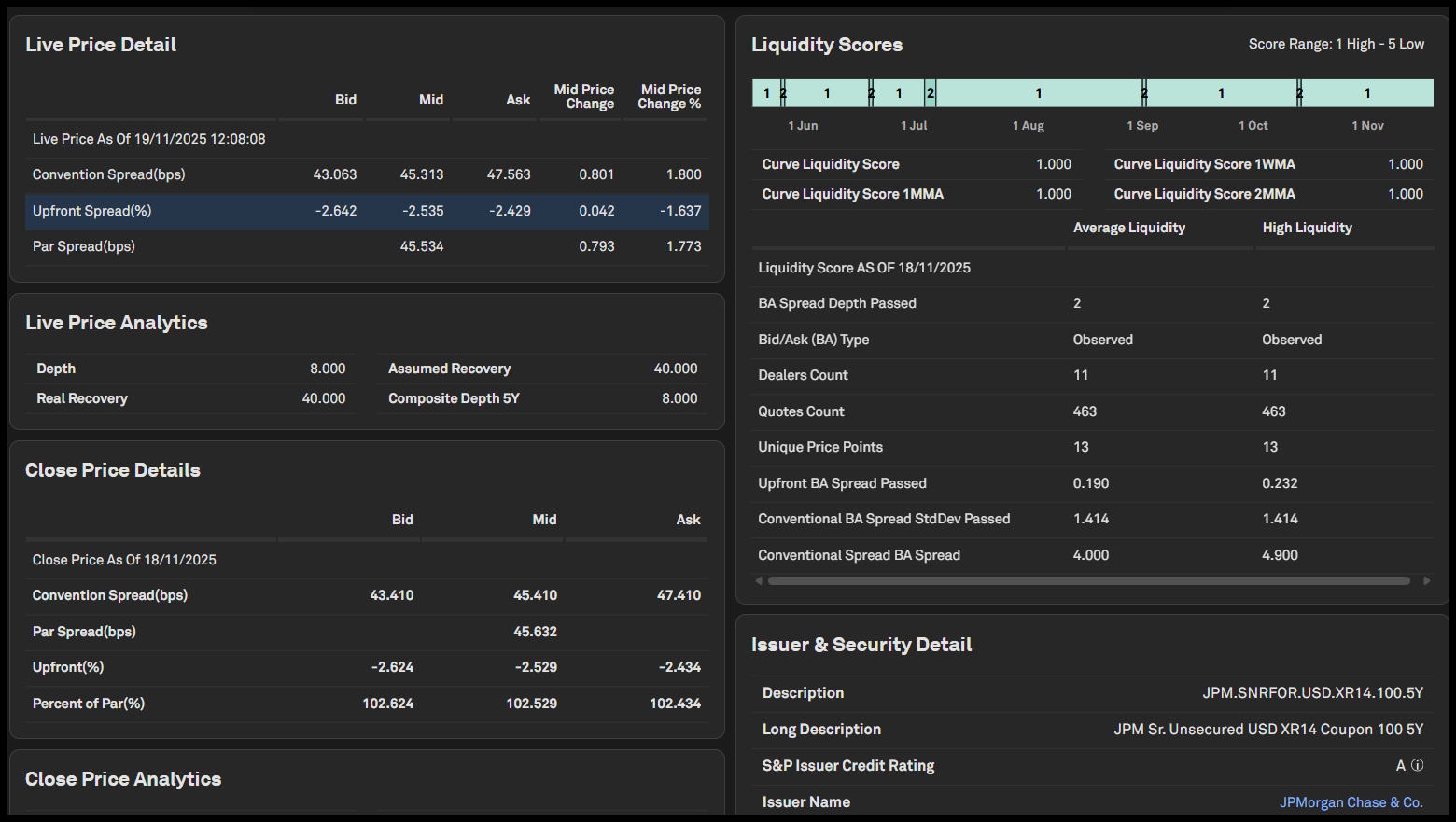
In this release, we enhanced coverage of Credit Default Swaps with a new Credit Default Swaps (CDS) Detail page that displays additional Pricing, Analytics, and Reference data points for individual CDS tenors across primary and non-primary curves. We also enhanced CDS instrument pricing, analytics and liquidity scores, and added the ability to include CDS instruments in the Dashboard List widget. Additionally, we introduced a Similar Securities feature driven by criteria-based model for S&P-rated Corporate Bonds and Notes and expanded Rates & Yields coverage to include 12 additional Risk-Free Rates.
Credit Default Swaps Detail on S&P Capital IQ Pro
Users can view tenor-level Credit Default Swaps (CDS) single-name pricing, analytics, and reference data, on our Credit Default Swaps Detail page, covering both primary and non-primary curves. This data is also accessible through Dashboard widgets, including List, Quote, Chart, and more.
Find it in the platform:
Credit Default Swaps Detail Page:
o Search for and select a company from the top search to navigate to the Corporate Profile
o In the left-hand menu, expand Corporate Issuance > Credit Default Swaps
o View summary data on the CDS Summary Data tab
o In the table, you will find a list of individual tenors displaying all CDS instruments, with the primary CDS curve listed at the top
o Click on any individual tenor’s description to navigate to the CDS Detail page and view additional instrument details along with a chart with pricing data
Dashboard
o Navigate to the Dashboard and select the Add Widget menu on the top right
o Pick List widget and open the Field Selector from the three-dot menu at the top-right corner of the widget
o Go to Market Data > Credit Default Swaps folder to view close prices as well as associated attributes for single-name CDS tenors
Similar Securities
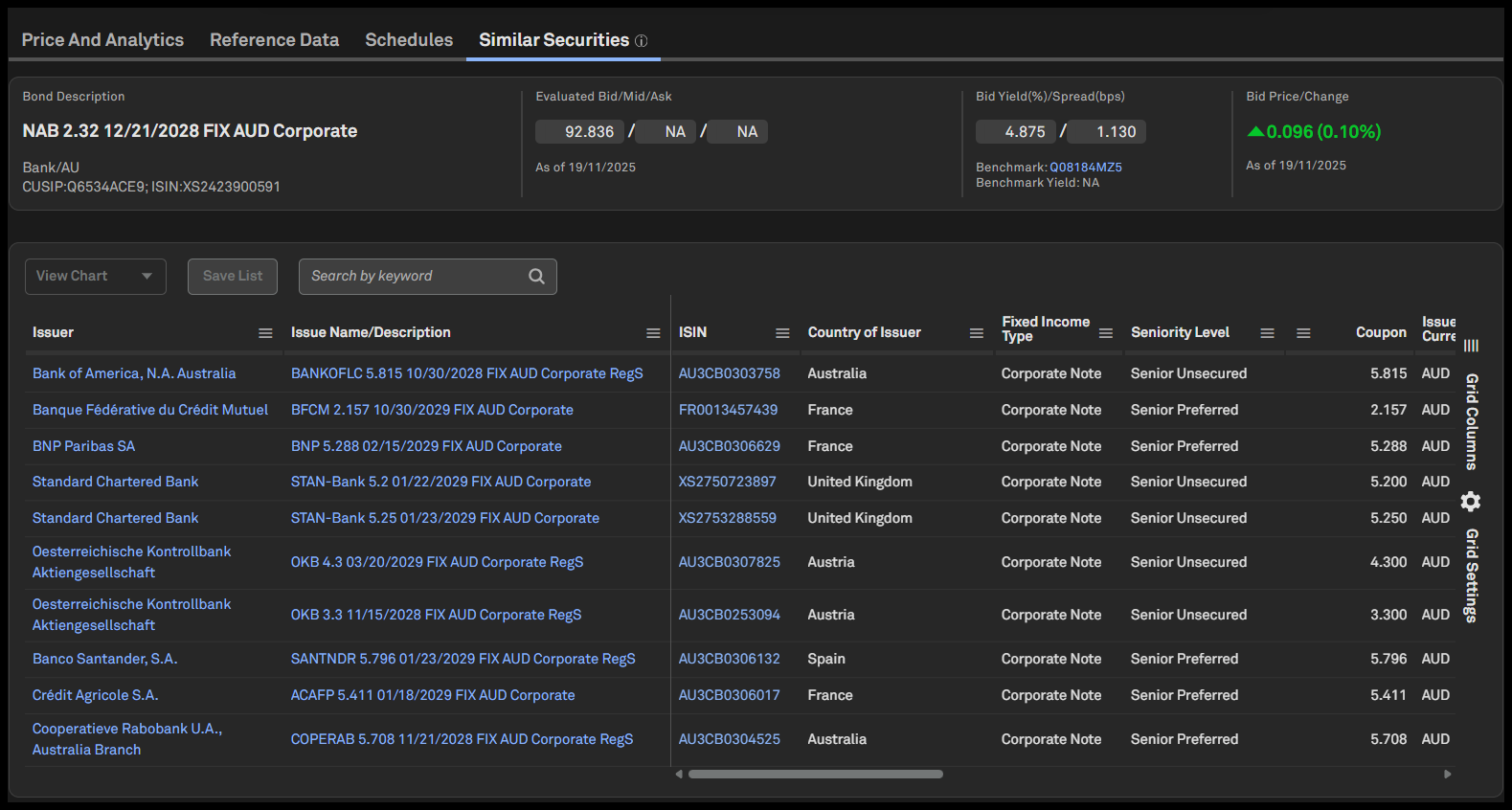
Users can now access similar S&P-rated Corporate Bonds and Notes using our new criteria-driven Similar Securities feature, available on a dedicated tab within the Bond detail page. The model presents similar securities in a customizable grid format, displaying multiple security attributes and pricing analytics. Users can save selected securities to an existing list or quickly create a new one. Additionally, they can visualize similar securities using line charts for trend analysis or scatter plots to identify correlations.
Find it in the platform:
Search for and select a company in the top search
On the left-hand menu, navigate to the Corporate Issuance > Securities Summary page and choose a Corporate or Note with S&P Rating and maturity date
Click on the Similar Securities tab and view the grid with the Similar Securities list for the reference security
Click the check box for the securities to view in a Chart or List
Addition of Zaronia Risk-free Rates
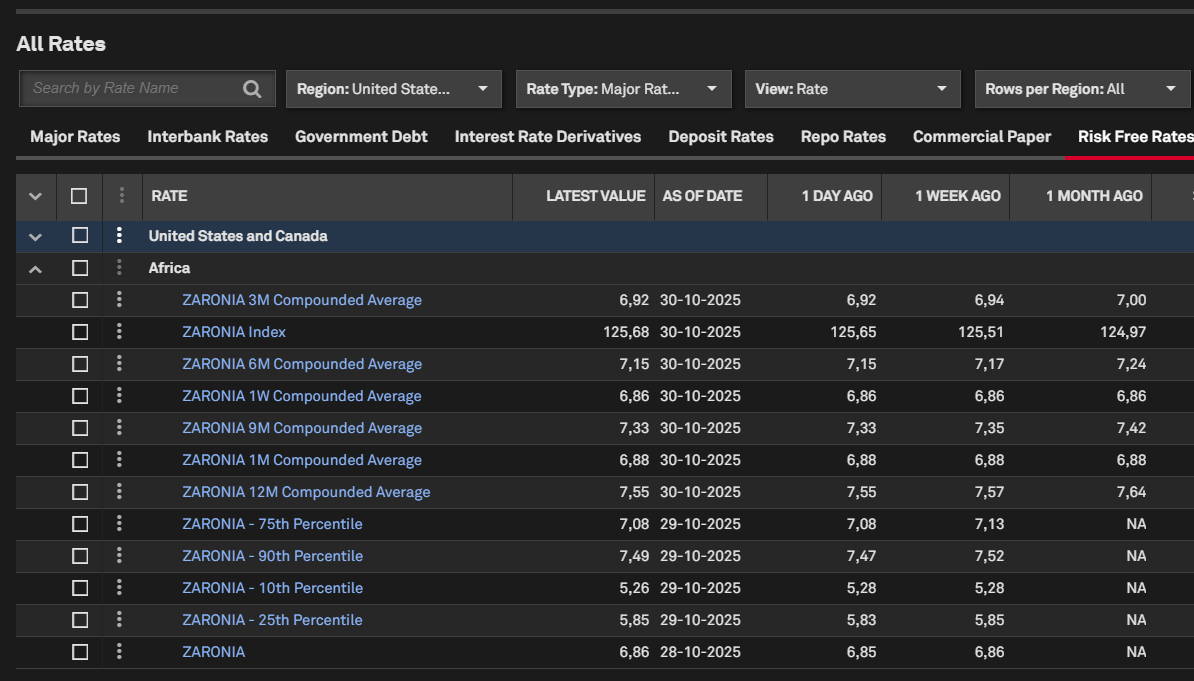
Users can now access 12 tenors for the Zaronia Rates within the S&P Capital IQ Pro platform. The new South African Overnight Index Average (ZARONIA) risk-free rates replace the Johannesburg Interbank Average Rate (JIBAR). These rates can be accessed from the Rates & Yields, Market Charts, Screener and Dashboard pages.
Find it in the platform:
Rates & Yields page:
o Navigate to the Markets tab from the top navigation and select Rates & Yields
o Scroll down on the page to view All Rates
o Search for Zaronia Rates, available under Risk-free Rates
Market Charts page:
o Navigate to the Markets tab from the top navigation and select Market Charts
o Expand Filters and search for Zaronia Rates in the Rates & Yields filter
Screener:
o Navigate to Screener from the top navigation or the Apps menu
o Select Market Data > Pricing Data
o Select Rates & Yields as a Display Column and search for Zaronia Rates and hit Apply
Dashboard:
o Navigate to the Dashboard and open Add Widget menu on the top right
o Select List widget and open Field Selector from the three-dot menu at the top-right corner of the widget
o Expand Market Data > Interest Rates Data and select Rate Value or Rates as of fields and hit Apply
o Go to the company search in the List widget, select Rates & Yields tab and search for Zaronia Rates, and add it to the list
Document Intelligence
In this release, we enabled the retrieval of prior user-generated prompts within the chat function of Document Intelligence.
Prompt Retrieval in ChatIQ within Document Intelligence
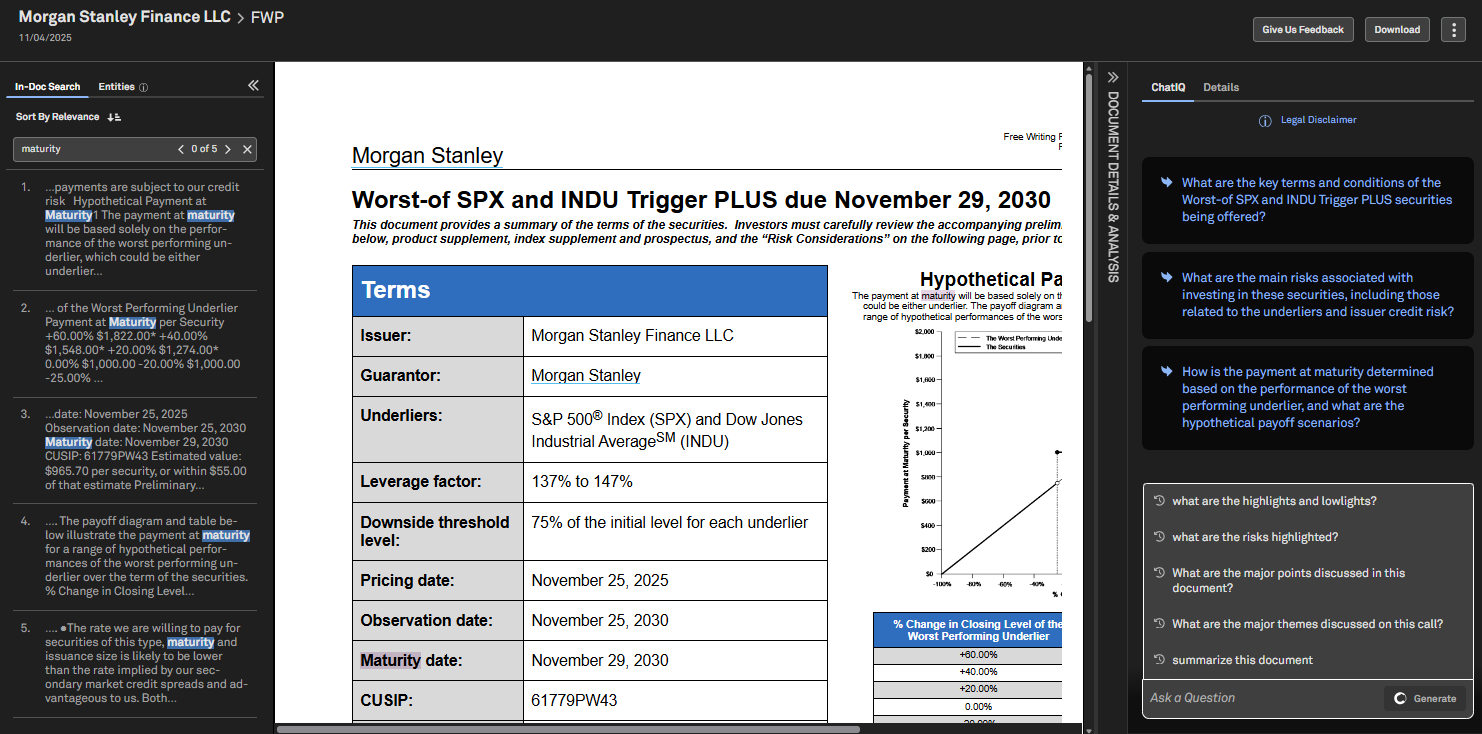
Users can retrieve their own previously generated prompts in ChatIQ within Document Intelligence in two ways. First, by clicking on the question box, users can view the five most recent prompts, providing quick access to prior inquiries. Additionally, as users begin typing their questions, a dynamic search function will retrieve and display exact matches of the input, streamlining the process of finding relevant prompts.
Find it in the platform:
Navigate to the Documents tab in the top navigation to access Document Intelligence page
Open any document by clicking on it or opening it in a new tab
Navigate to the ChatIQ tab
Click on the question box or start typing to retrieve previous prompts, then hit Enter or click the Generate button
Private Markets & Private Company
In this release, we created new Headcount Analytics screens in Idea Generation, allowing users to evaluate companies using workforce-based metrics when private company financial data is limited. We also added three new topic tags to help users identify niche-market companies and streamlined navigation from screening results to Fund Sponsor profiles. These enhancements augment private company analysis and screening.
Headcount Analytics in Idea Generation Screens
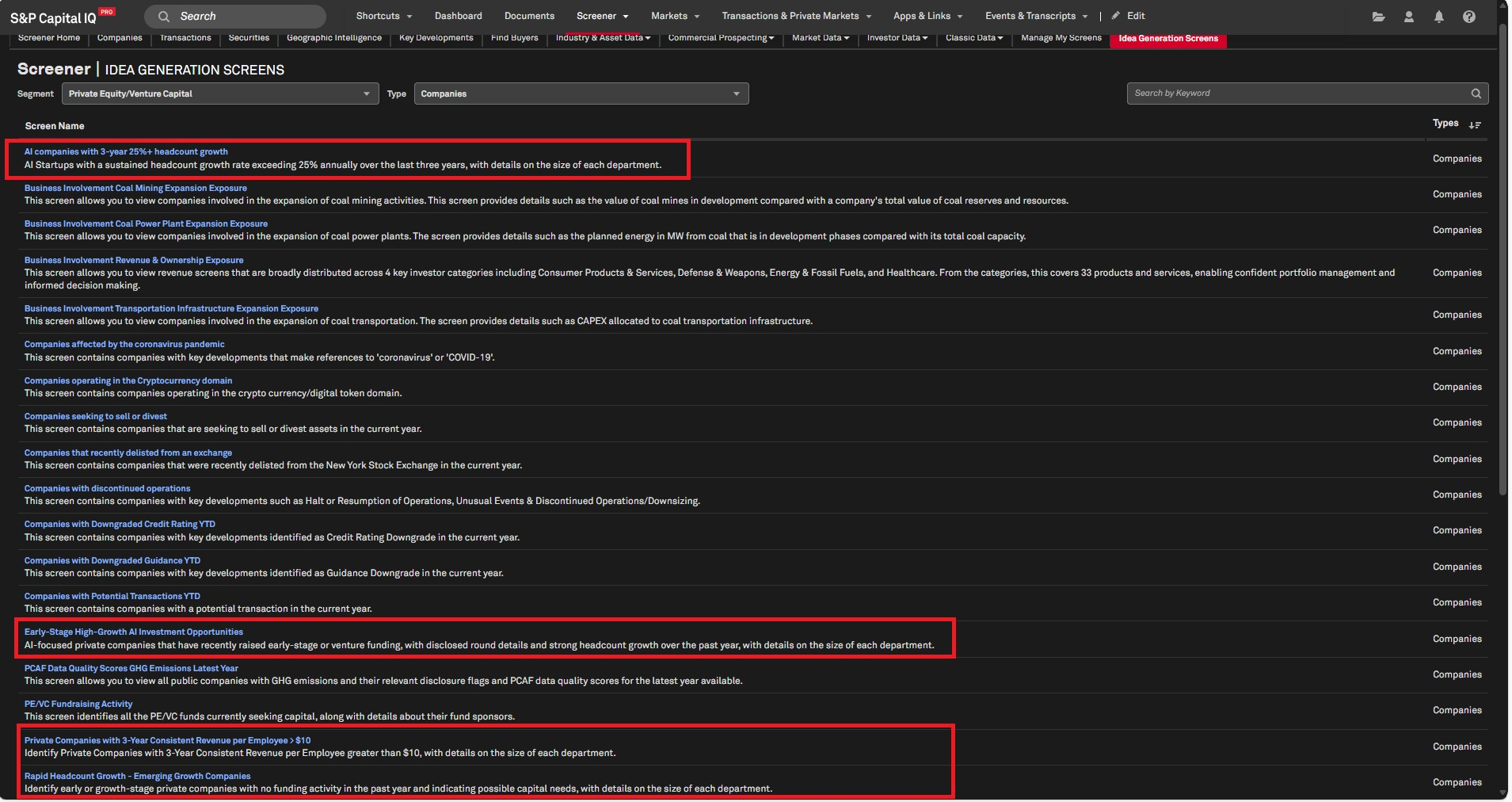
Users can now access new pre-built headcount analytics screens on the Idea Generation Screens page to easily identify relevant private companies based on growth and size metrics. This enhancement helps evaluate private company performance through workforce-based metrics when financial data is limited, providing insights into historical headcount trends and organizational growth patterns.
Find it in the platform:
Navigate to Screener from the top navigation or the Apps menu
Click on Idea Generation Screens and select Type as Companies
New Topic Tags
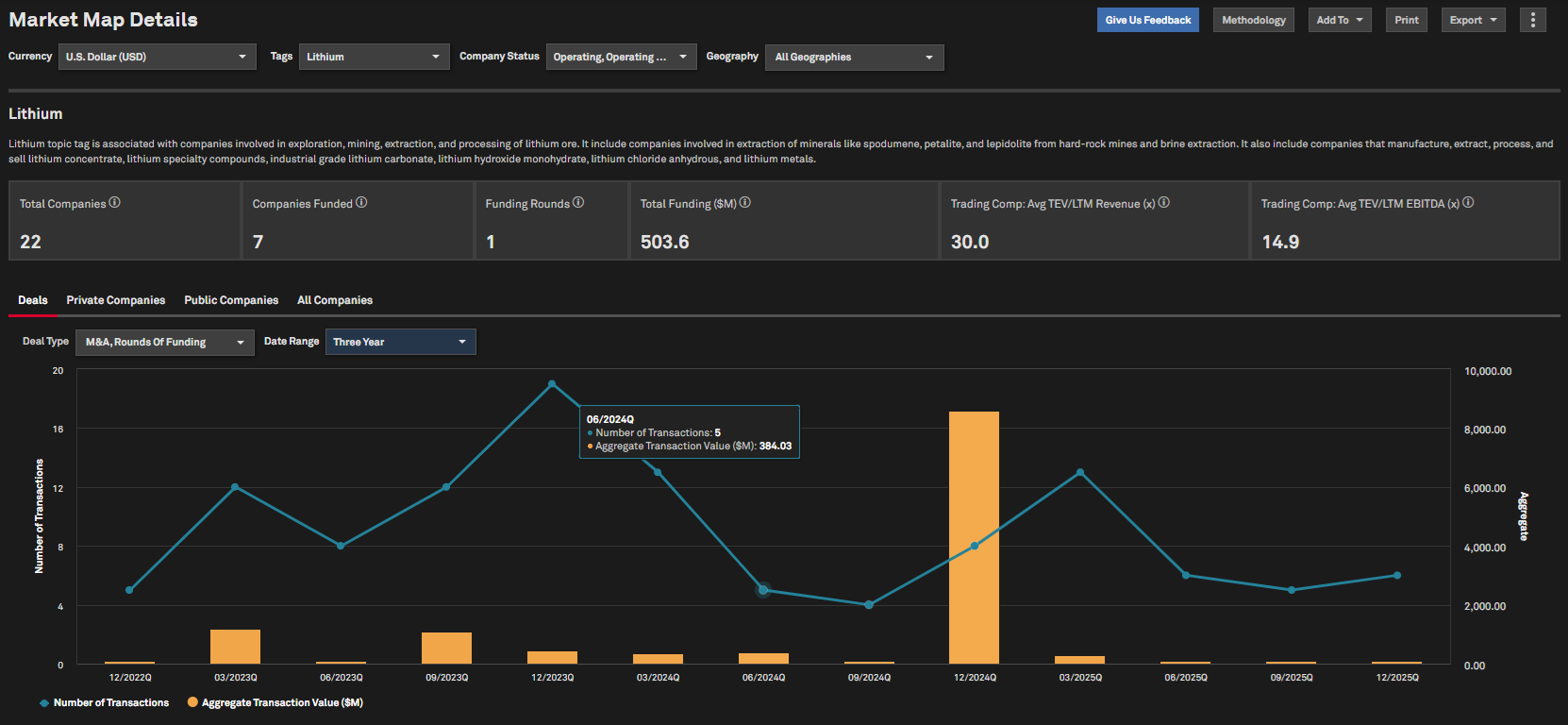
Users can now access three new topic tags: HVAC Services, Injection Molding & Lithium in Market Maps. The new tags enable users to identify companies that operate in these niche markets to support the deal sourcing workflow.
Find it in the platform:
Navigate to the Markets tab from the top navigation menu
Select Market Maps and choose a Topic Tag to deep dive into the deal activity
Fund Sponsor Profile Navigation via Screening Results
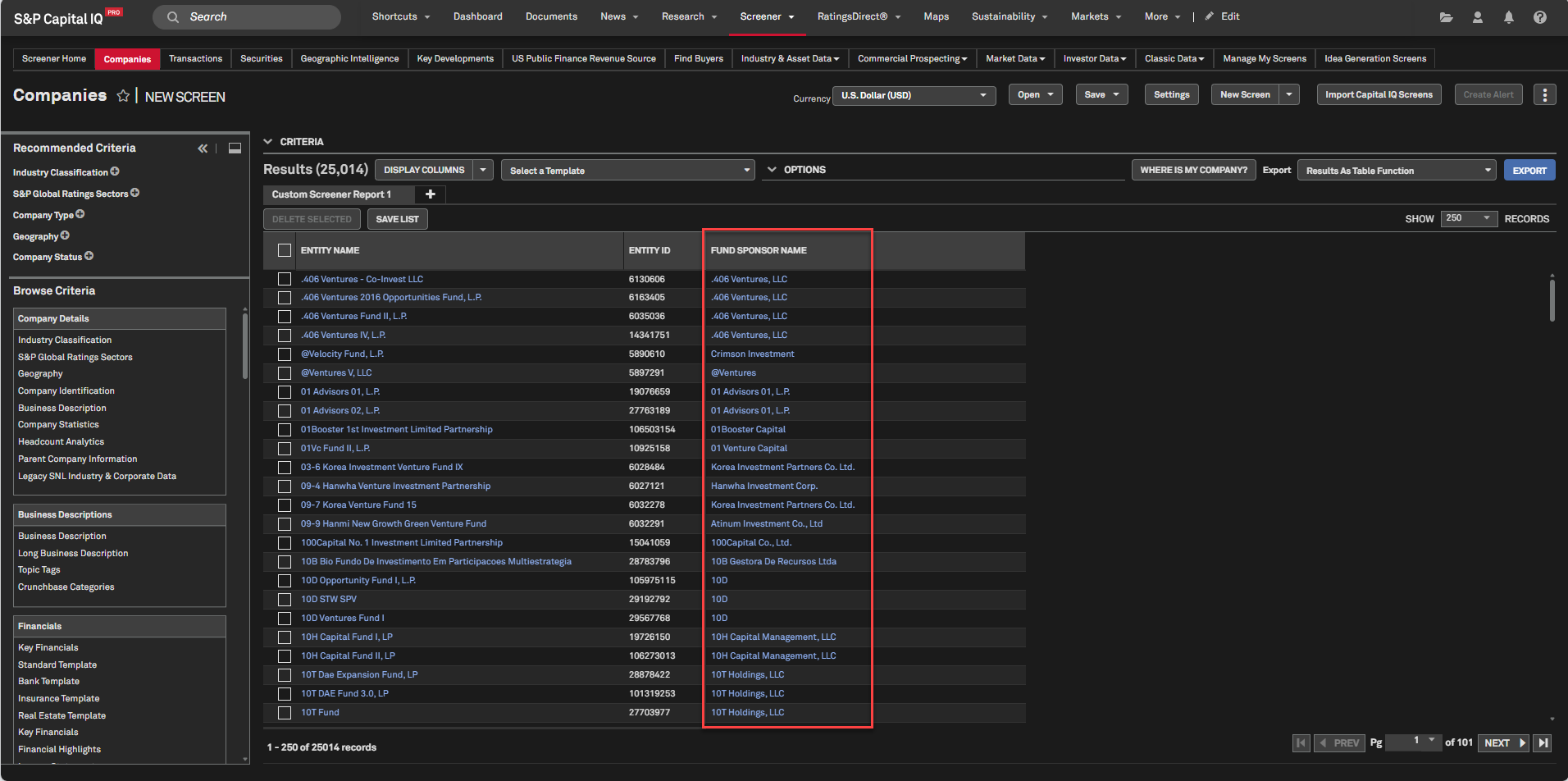
Users can now directly access Corporate Profile pages of fund sponsors by clicking on fund sponsor names within Fund and Fund Manager screening results. This enhancement streamlines the private markets research workflow by providing quick access to detailed fund sponsor information, enabling efficient relationship analysis.
Find it in the platform:
Navigate to Screener from the top navigation or the Apps menu
Select Companies and click on Investment Firms/Funds
Add required criteria and add Fund Sponsor Name as Display Column
Click on Run Screen to view the results
Alerts
With this release, users can set up alerts and receive push notifications for the latest Investment & Market Research for companies they follow. Additionally, Earnings IQ newsletters now cover a broader range of non-US markets, and Earnings IQ notifications include relevant data from various filing documents, as well as additional information from earnings releases. We also improved the discoverability of the Market Intelligence Newsletters and Recaps, allowing users to select through a new Subscription Center tab, and streamlined the creation process for Market Data alerts.
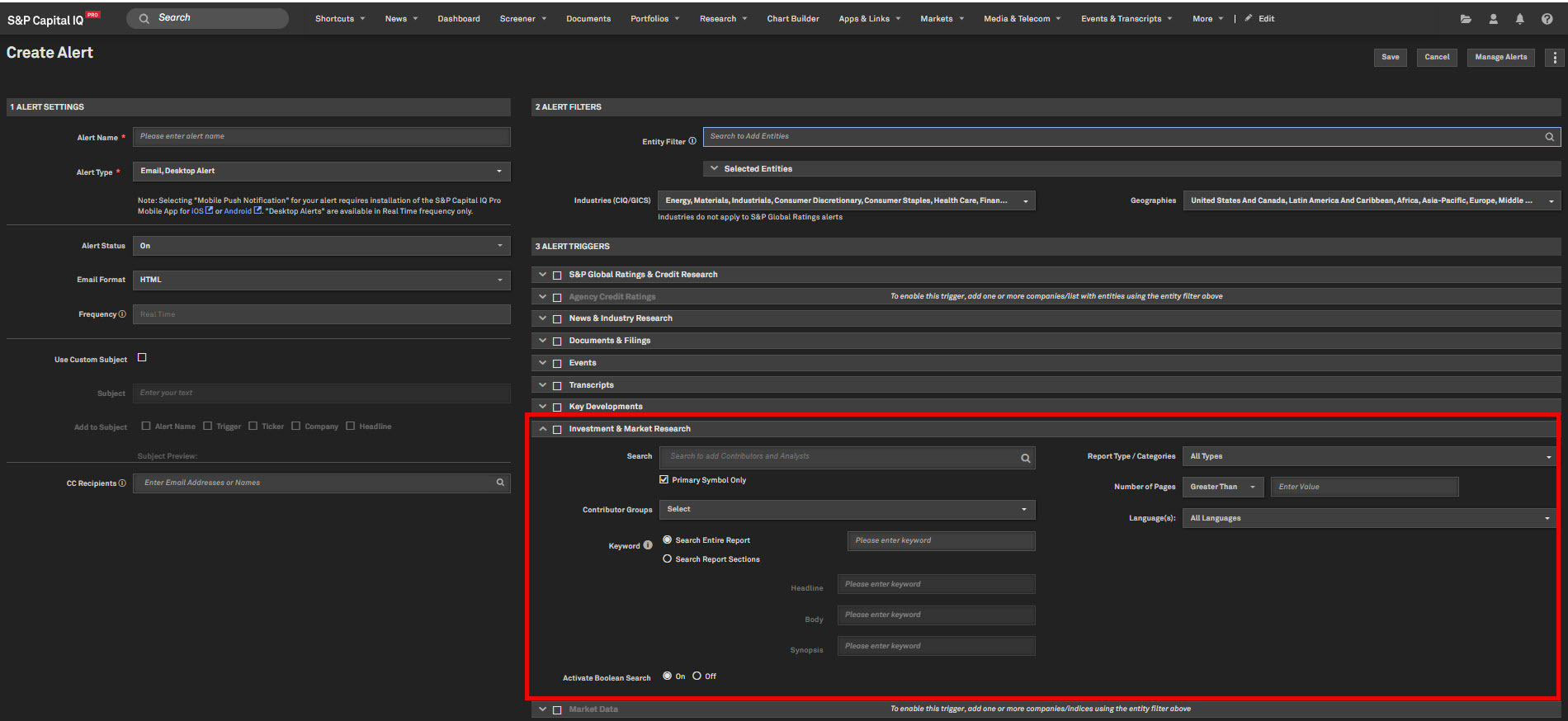
Investment & Market Research Alerts
Users can now receive alerts on the latest Investment and Market Research reports directly in their inbox or on their mobile device, enabling them to stay up-to-date with the most recent investment research for the companies and industries they follow.
Find it in the platform:
Click the Bell icon on the right-hand side of the top navigation to open the Desktop Alert panel
Navigate to Create New Alert from the panel
Select the necessary options from Alert settings, and under Alert filters
In Alert Triggers, select Investment & Market Research
Add additional Filters, including contributors, keywords, and report types, for matching results
Click Save on the top-right corner
New Subscription Center
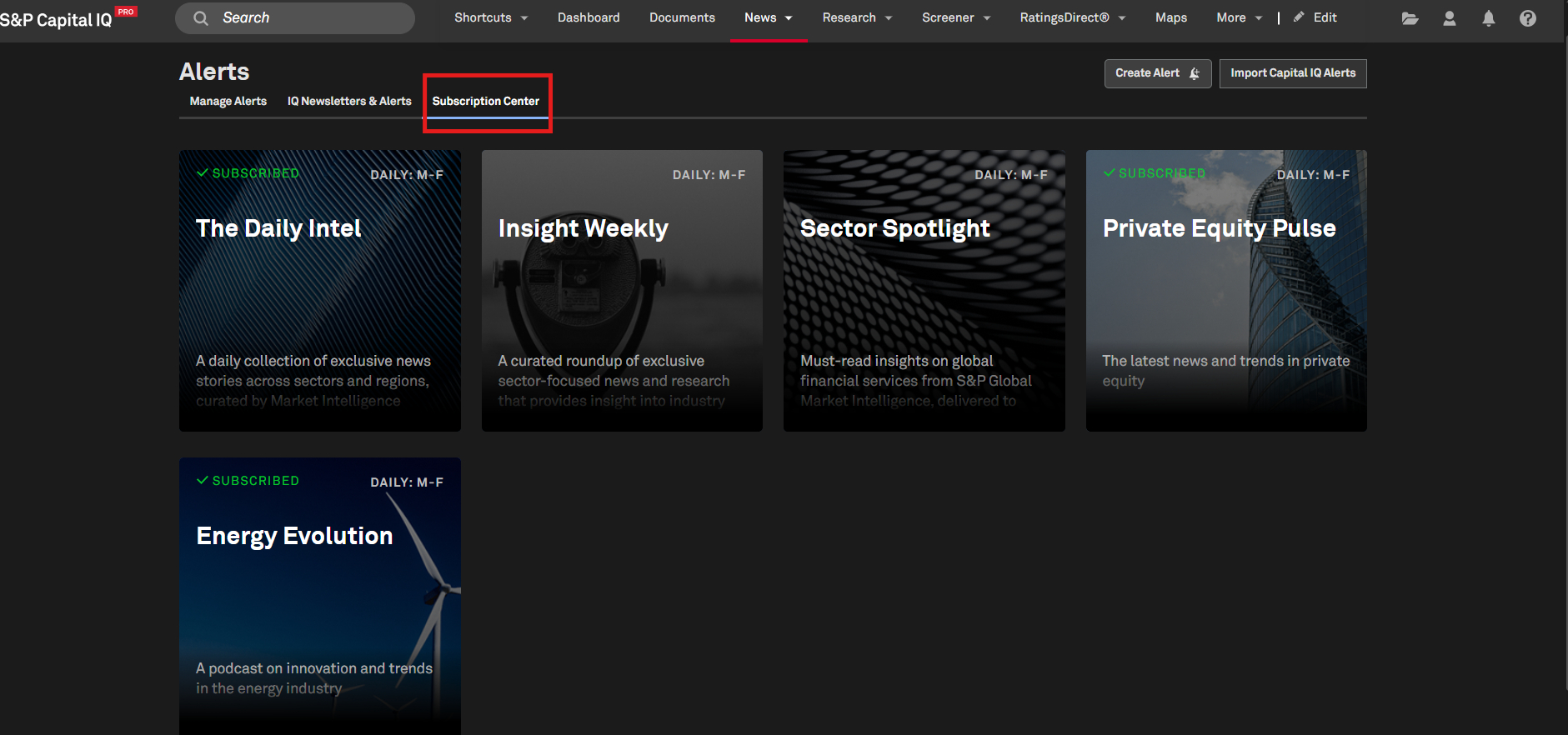
The new Subscription Center allows users to discover a curated selection of industry newsletters and recaps. This feature simplifies discovery and subscription management, making it easier to access valuable information from their preferred publications.
Find it in the platform:
Navigate to News from the top navigation and select Subscription Center
Hover over the cards and click Subscribe to start receiving email alerts from respective newsletter(s)
To unsubscribe from the alert, hover over the card and click Unsubscribe
Note: The IQ Newsletters are now available in their own tab, while still accessible from the link in the News top navigation
Non-US Coverage Expansion of Earnings IQ Alerts
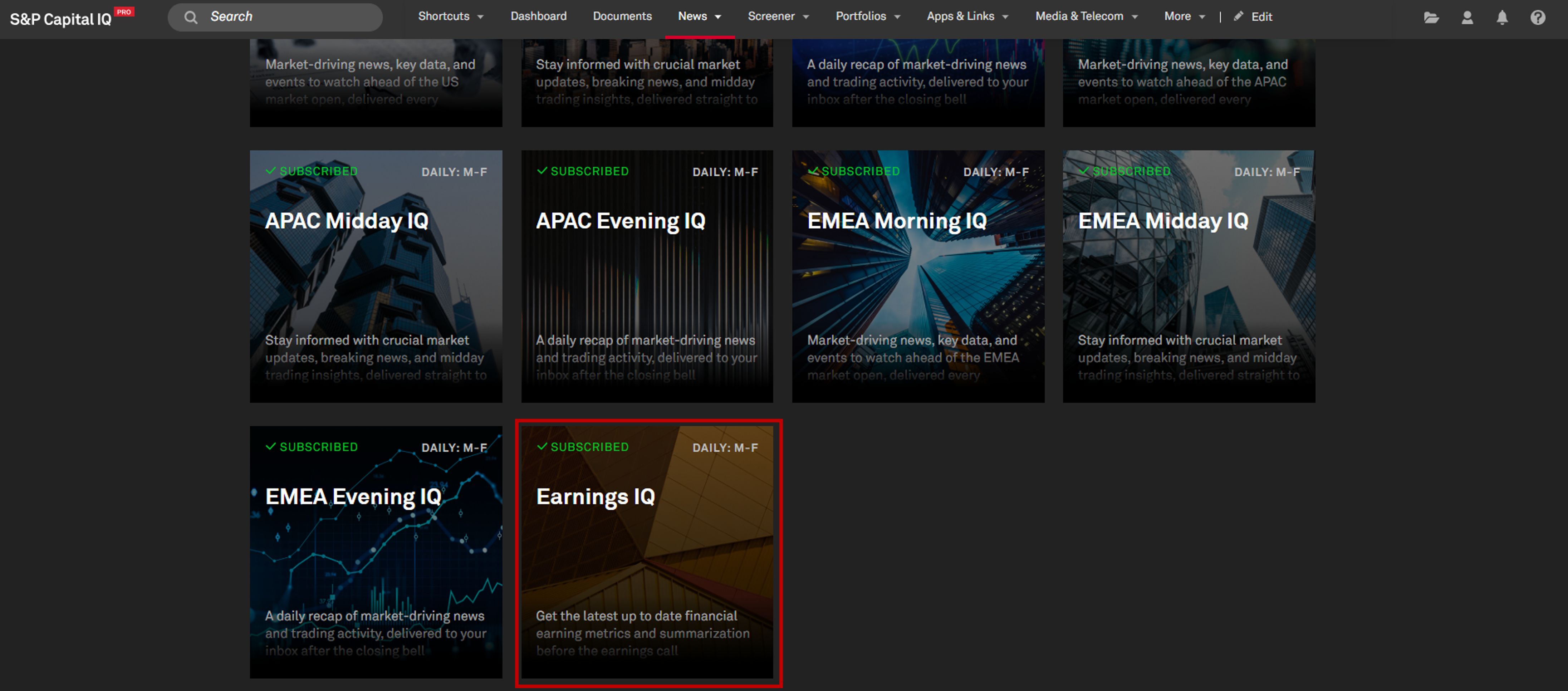
Users can now subscribe to Earnings IQ alerts to receive a summary of topline earnings metrics and key financial information as soon as they are publicly released via press release or SEC filing by publicly traded companies in the U.S., Canada, U.K., and Australia.
Find it in the platform:
Navigate to News from the top navigation and select IQ Newsletters under More Insight
Click Subscribe on the Earnings IQ to start personalizing the alert
Add companies, lists, or portfolios for which you wish to receive alerts. Click Subscribe in the bottom right-hand corner to subscribe to the Earnings IQ alerts
To edit the Earnings IQ alerts, hover over the Earnings IQ alert card and click Edit
To unsubscribe from the alert, click Unsubscribe
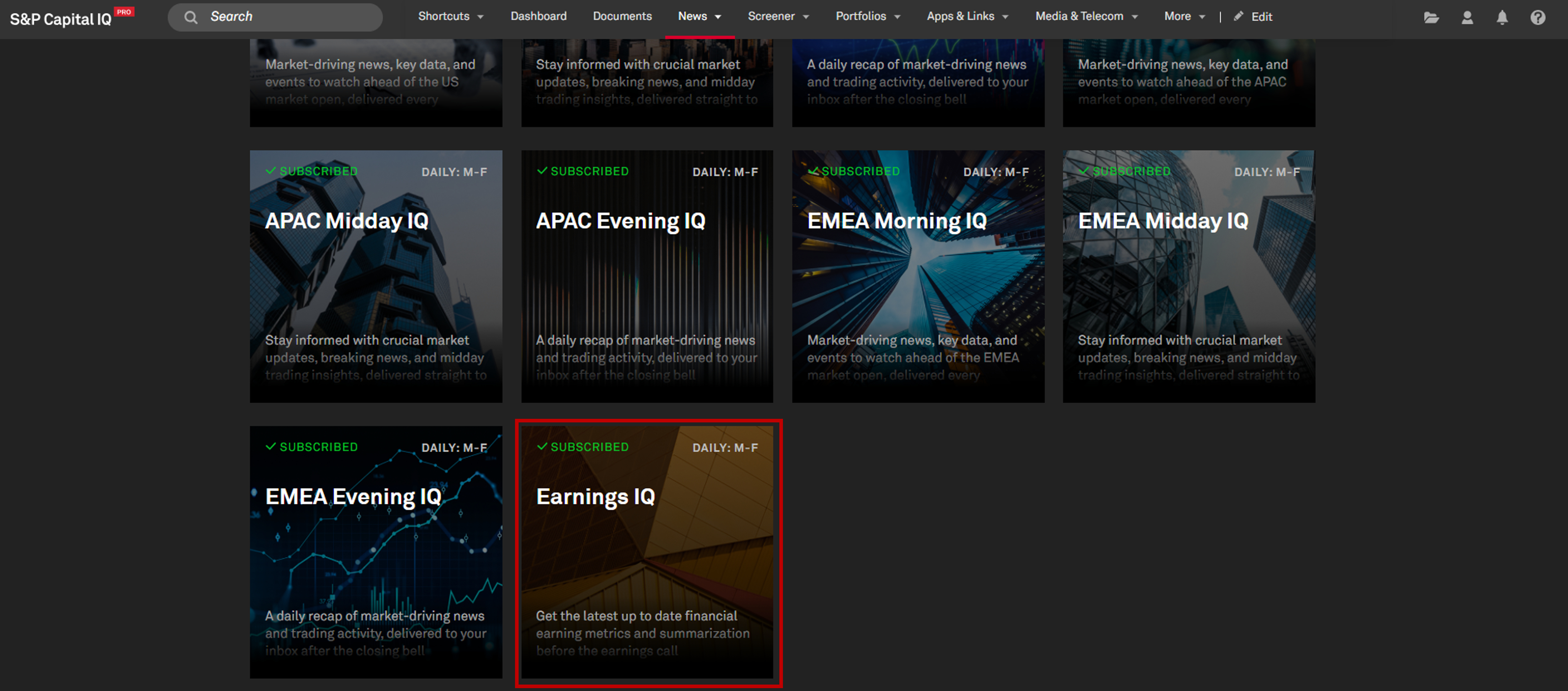
Earnings IQ with Filings
Users can subscribe to Earnings IQ alerts to receive a summary of topline earnings metrics and key financial information from additional filings, including 8-K, 6-K, 10-K, 10-Q, and 20-F documents, providing more diverse and relevant information. Notifications will be received as soon as the filings are publicly released via press release or when the SEC filing is available for publicly traded companies in the U.S., Canada, U.K., and Australia.
Find it in the platform:
Navigate to News from the top navigation and select IQ Newsletters under More Insight
Click Subscribe on the Earnings IQ to start personalizing the alert
Add companies, lists, or portfolios for which you wish to receive alerts. Click Subscribe in the bottom right-hand corner to subscribe to the Earnings IQ alerts
To edit the Earnings IQ alerts, hover over the Earnings IQ alert card and click Edit
To unsubscribe from the alert, click Unsubscribe
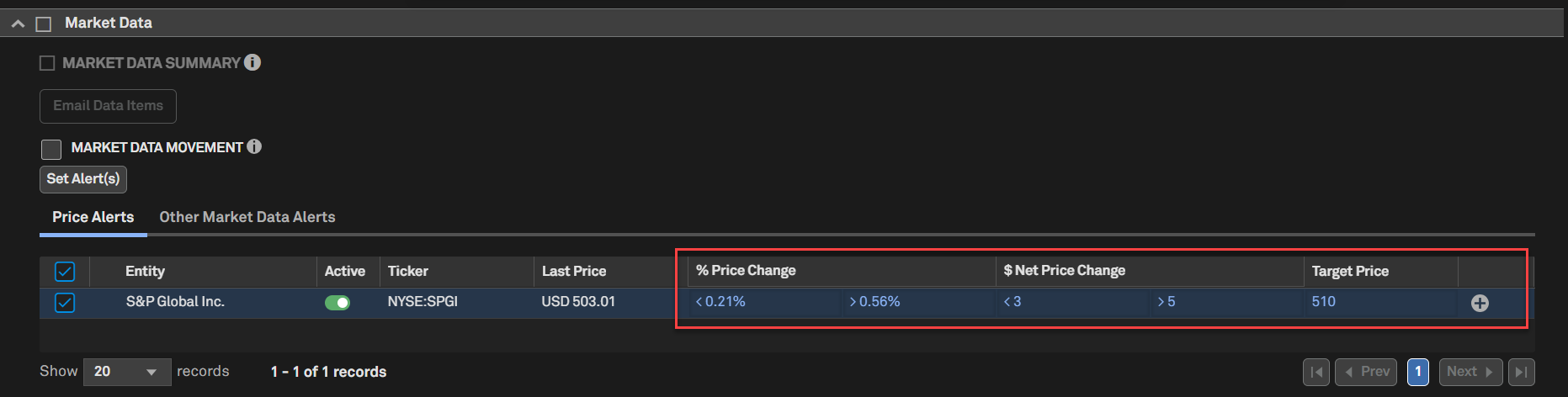
Market Data Alerts – Inline Table Editing
Users can now directly create and update Market Data alerts from within the table, eliminating the need to select through a separate modal. The table supports inline editing, dynamic row management, and quick action buttons, making it easier to monitor and adjust alert thresholds efficiently.
Find it in the platform:
Click the Bell icon on the right-hand side of the top navigation to open the Desktop Alert panel
Navigate to Create New Alert from the panel
Select the necessary options from Alert settings, and under Alert filters, add one or more entities to enable the Market Data trigger
In Alert Triggers, select Market Data, then click on Market Data Movement
Input the required values in the columns - % Price Change, $ Net Price Change, Target Price
Use the + or – action buttons to add or remove rows directly within the table
Click Save on the top-right corner
Charting
In this release, we enhanced the stock chart by incorporating annotations within the Chart Explainer and simplified peer comparison to a single click. Additionally, the Chart Builder now offers greater flexibility, allowing users to customize aggregates with both market cap and equal weight options, reindex values from 0% to 100%, and select a specific reindex date.
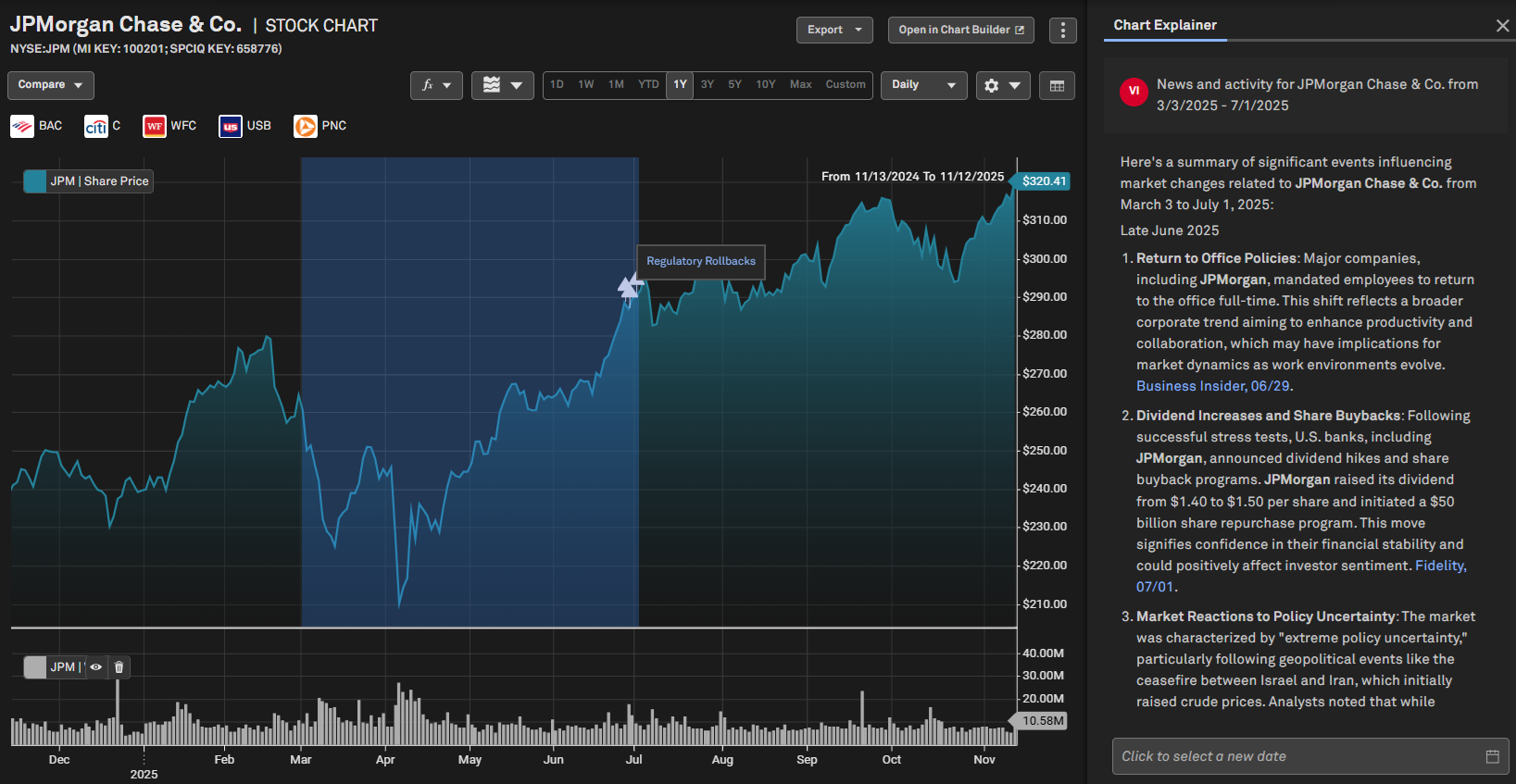
Annotations for Chart Explainer
Users can now plot annotations for news in Chart Explainer on the stock chart page, offering greater interactivity and relevance.
Find it in the platform:
Search for and select a public company in the top search bar e.g., NYSE:JPM
In the left-hand navigation menu, select Stock Chart
Click on the Chart Explainer to open the right-hand module that provides insights into the stock chart
Choose two distinct time points on the stock chart to generate a summary of the selected data
Hover over the annotations to see the News title and links
Click to pin the annotation to ensure it appears in all the exported charts
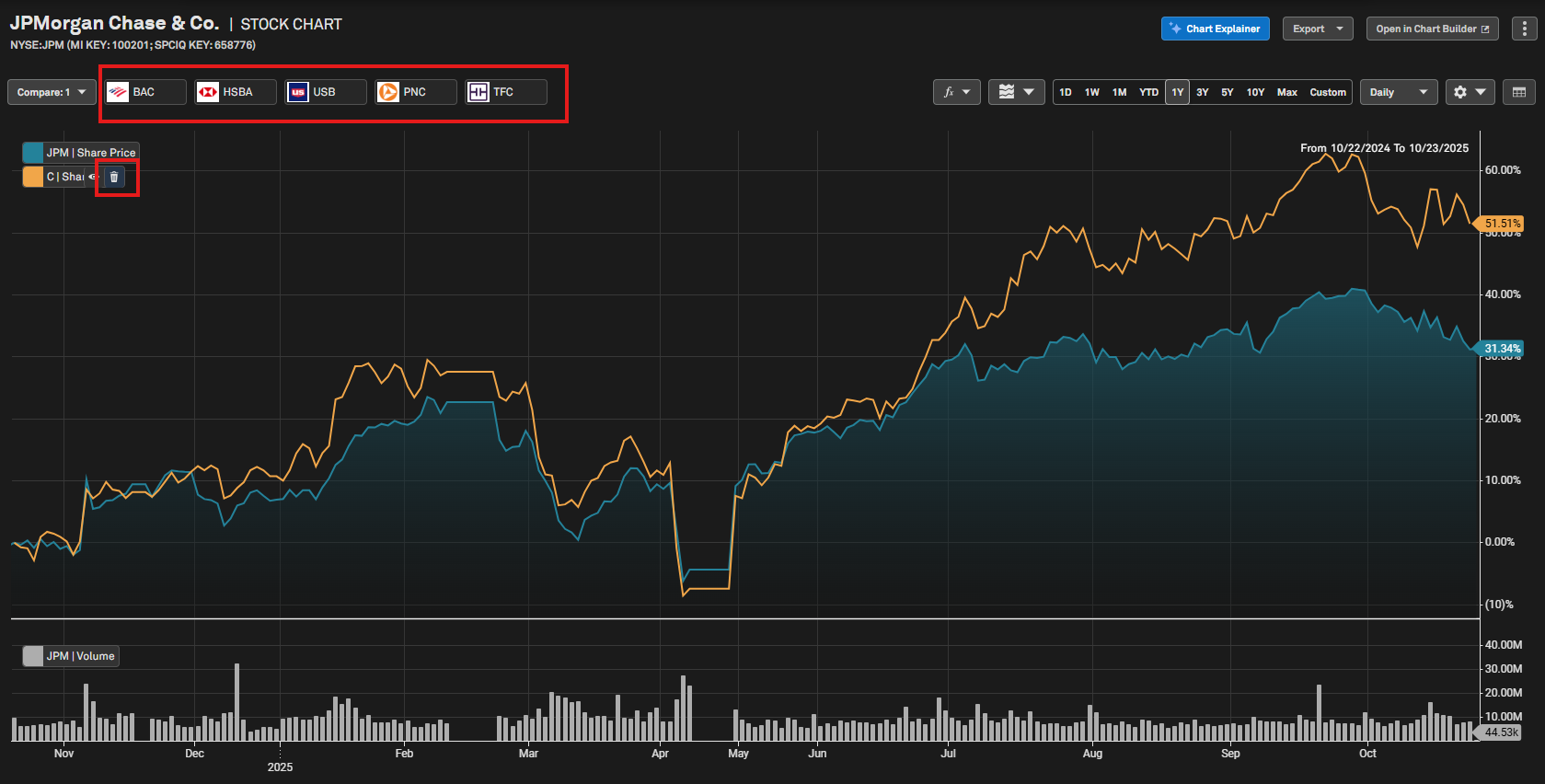
Peer Comps on Stock Chart
Users can now more easily add peers to stock charts, streamlining the process and allowing for quick and relevant peer comparisons.
Find it in the platform:
Search for and select a public company in the top search bar e.g., NYSE:JPM
In the left-hand navigation menu, select Stock Chart
Top 5 Peer Comps will appear in the top navigation bar
Click on any Peer Comp tile to add it to the Chart. Once a peer company is added, the next company in line will appear, always displaying the top 5 peer companies
To remove a peer comp, hover over the legends and click the Trash Icon
If the desired company is not among the top 5 peer comps, use the Compare Search feature to add it
Market Cap and Equal-weight option for Custom Aggregates
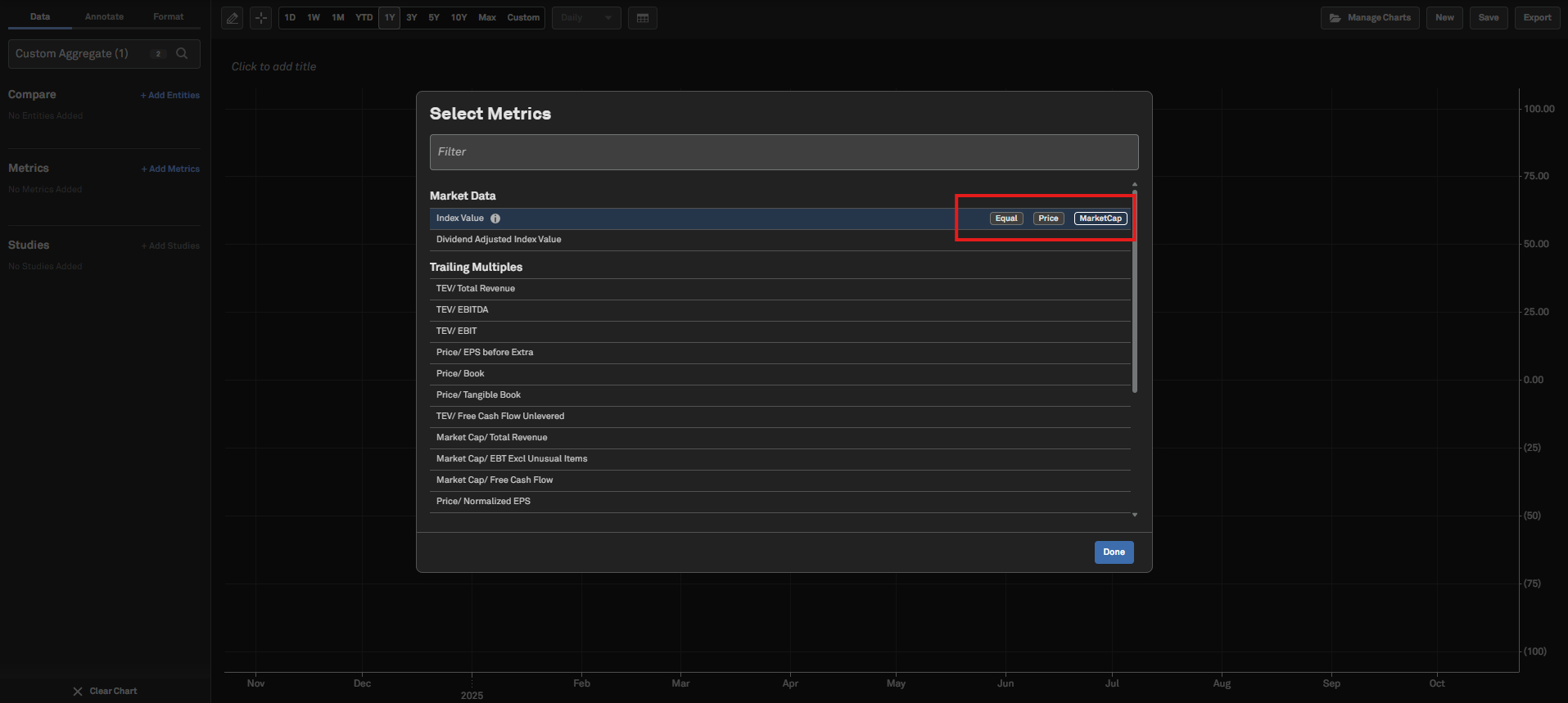
Users can now plot custom aggregates in the chart builder using two new weighting options — Market Cap and Equal Cap — for both Index Value and Dividend-Adjusted Index Value metrics.
Find it in the platform:
Navigate to Chart Builder from the top navigation or the Apps menu
In the Entity selector, click on Create an Aggregate
Select required companies or lists and click Continue
From the metric selector window, hover over to Index Value or Dividend Adjusted Index Value metric
Select any of the options Equal, Price or Market Cap and click Done to plot the chart
The weighting options can be replaced from the Metric selector in the left-hand navigation
Index to Date and Index to Value
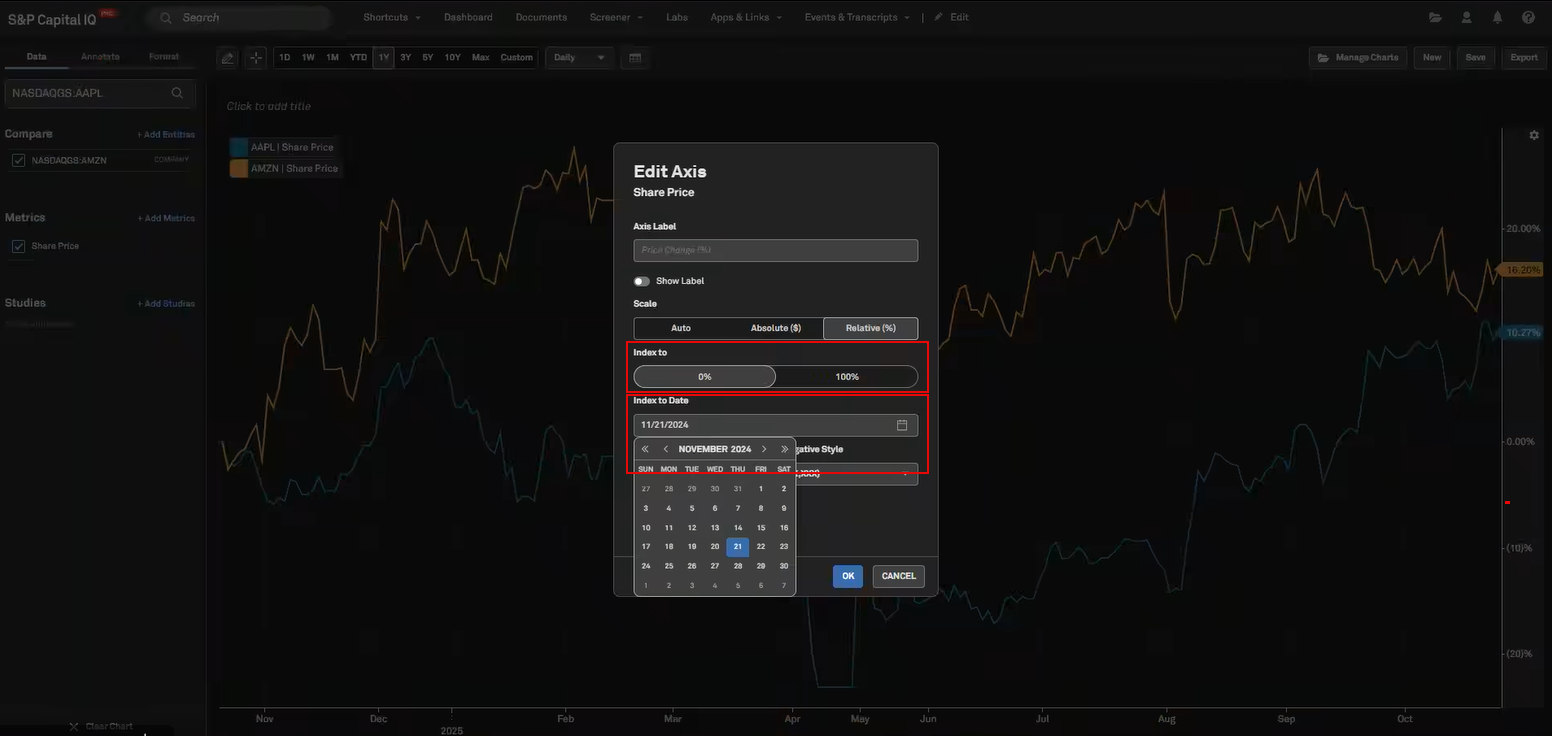
Users can now select a custom date option for all relative series, allowing them to specify the Index date and Index value, offering greater customization options in the Chart builder.
Find it in the platform:
Navigate to Chart Builder from the top navigation or the Apps menu
Search for and select a company to add it to the chart
From the metric selector window, select Share Price
In the left-hand navigation, click on Add Compare and select an entity
Hover over to the Y-axis and click on the settings gear icon on the top right
For Index Value, toggle to 0% or 100% to select
For Index to Date, select a date from the calendar icon
Click Ok to apply the changes
Coverage stats:
Relative series type, for price equivalent metrics
News
In this release, we introduced several new features for S&P Capital IQ Pro users to discover and curate relevant news and insights.
Redesigned Topic Pages
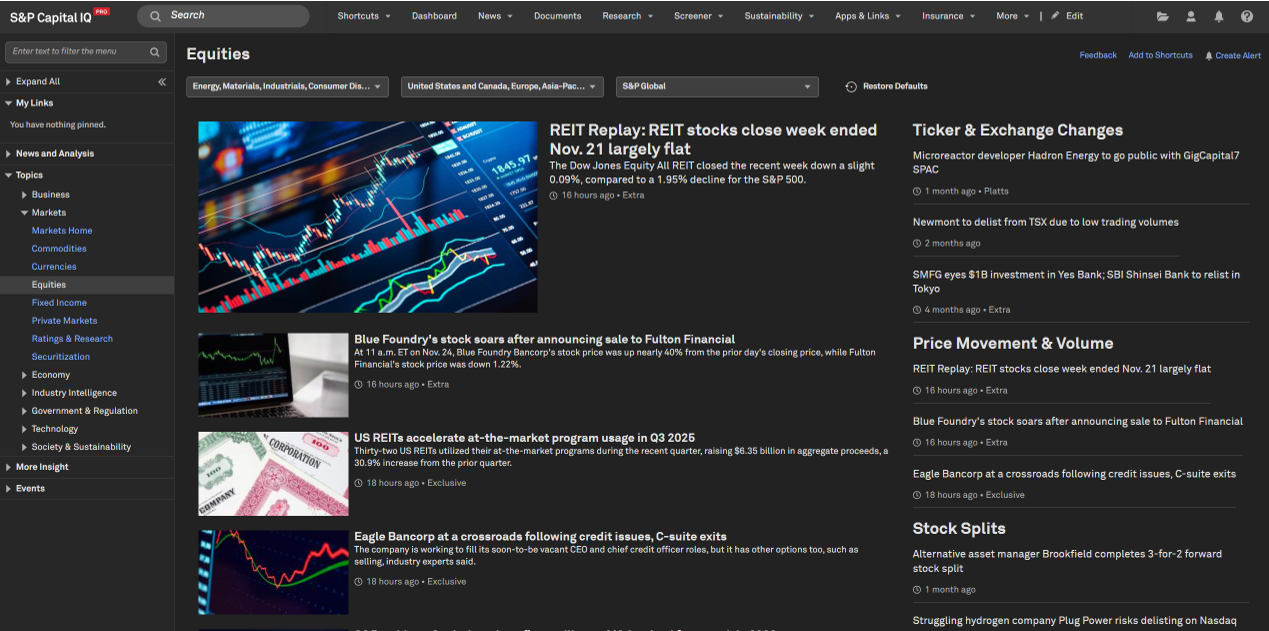
Users can discover news, analysis, and insights on topics of interest by navigating through the redesigned topic pages of S&P Capital IQ Pro.
Find it on the platform:
Navigate to News in the top navigation menu
Select any of the topics Business, Markets, Economy, Industry Intelligence, Economy, Government & Regulation, Technology, or Sustainability
Expand the Topics section in the left-hand navigation to explore more specific topics or click on the section headers for related Topics that appear on the right side of the page
Enhanced Related Content in Articles
Gain deeper insights into the topics and companies featured in articles with an enhanced Related Content experience. Click on the company or topic name to explore related news coverage or set up an alert to stay informed about future developments.
Find it on the platform:
Navigate to News in the top navigation menu and click into any News article
Scroll to the bottom of the article to see Related Content

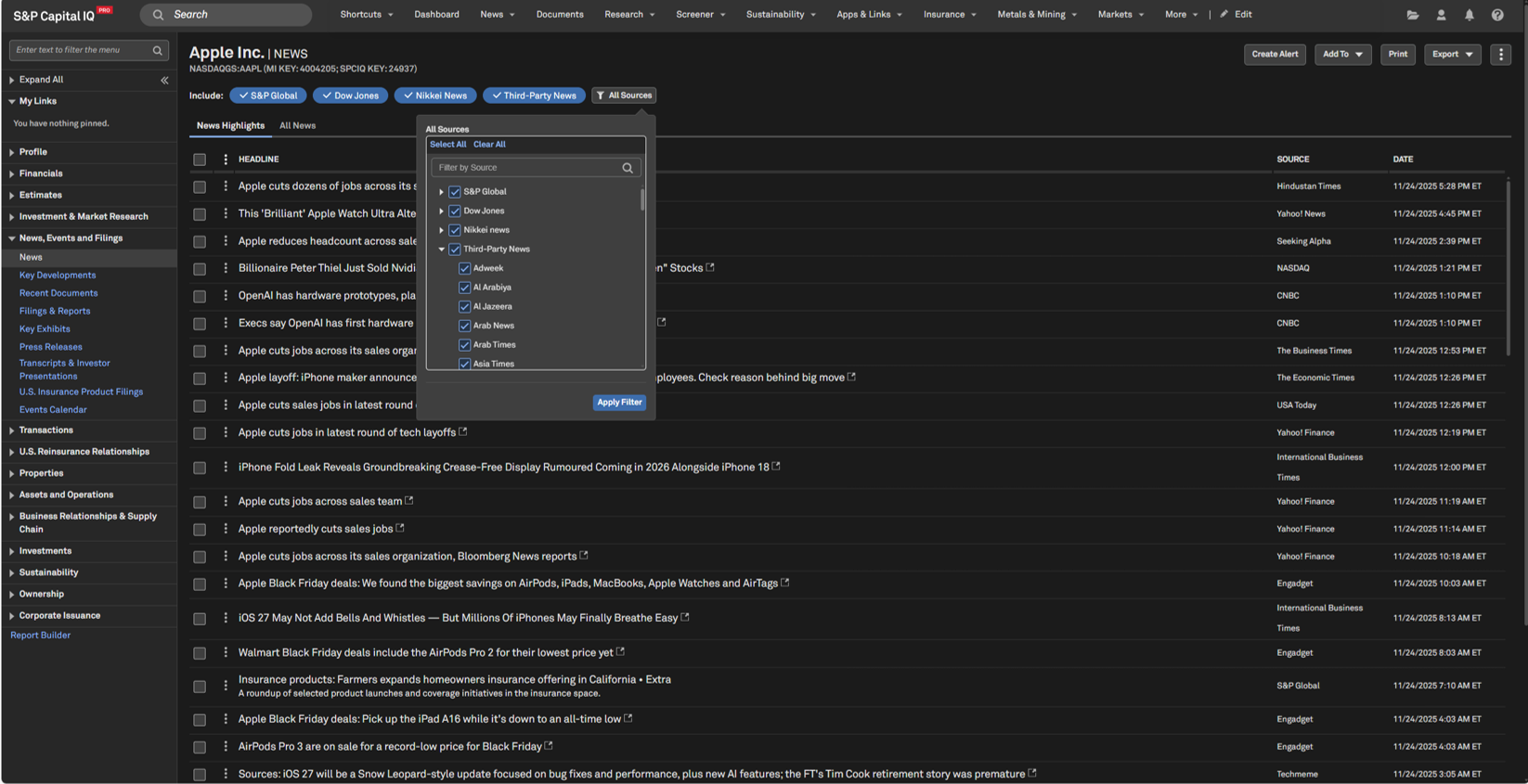
Advanced Filtering Options on Company News Page
Curate company-focused intelligence from S&P Global’s diverse product offerings and third-party news sources with advanced filtering options on the company news page.
Find it on the platform:
Search for and select a company from the top search and navigate to its Corporate Profile
In the left-hand navigation menu, select News
Click All Sources and select the desired options from the dropdown menu
Portfolio Analytics
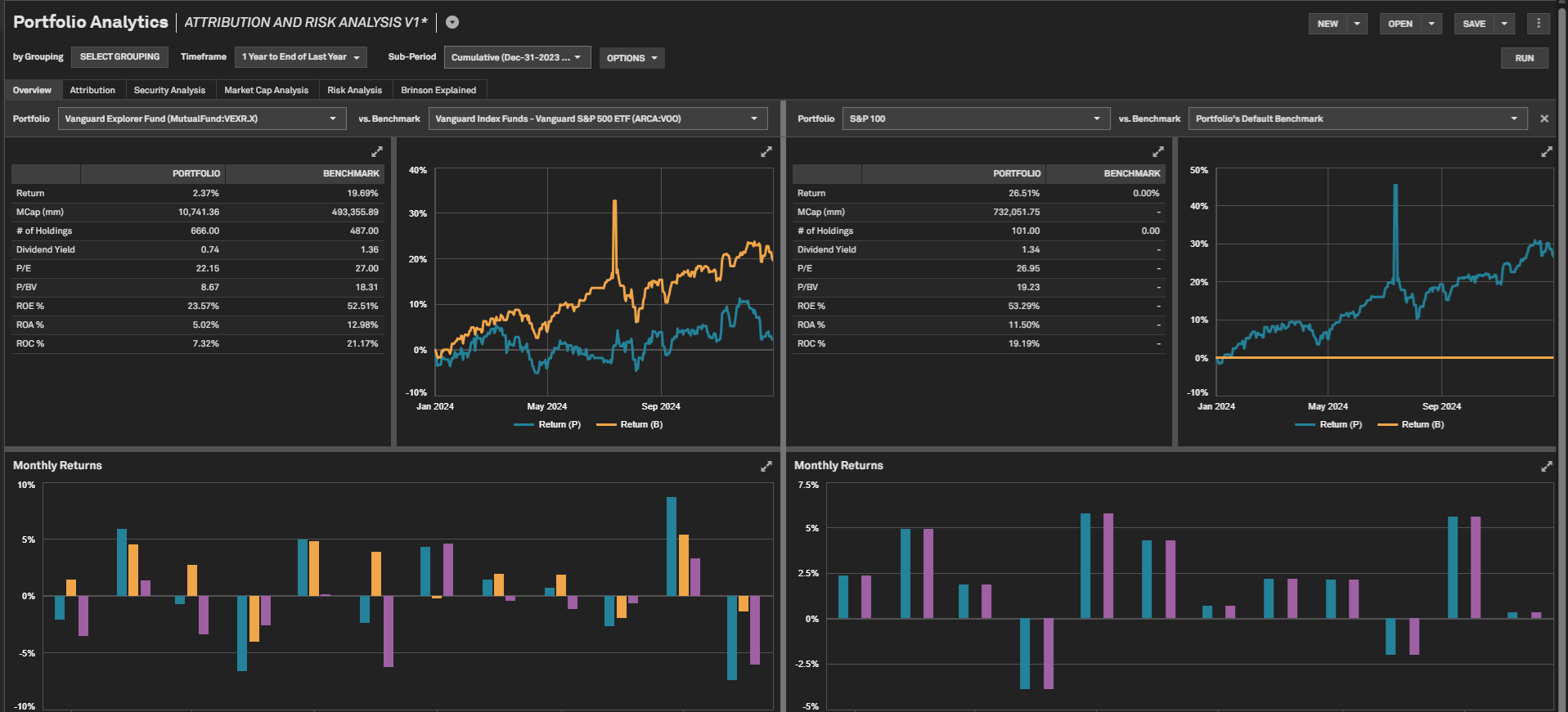
In this release, we enhanced usability by introducing personal folder organization for Portfolio Analytics reports and layouts. Users can Autosave reports as they are constructed and executed, and save a report in Portfolio Comparison view for a persistent side-by-side analysis.
Personal Folders
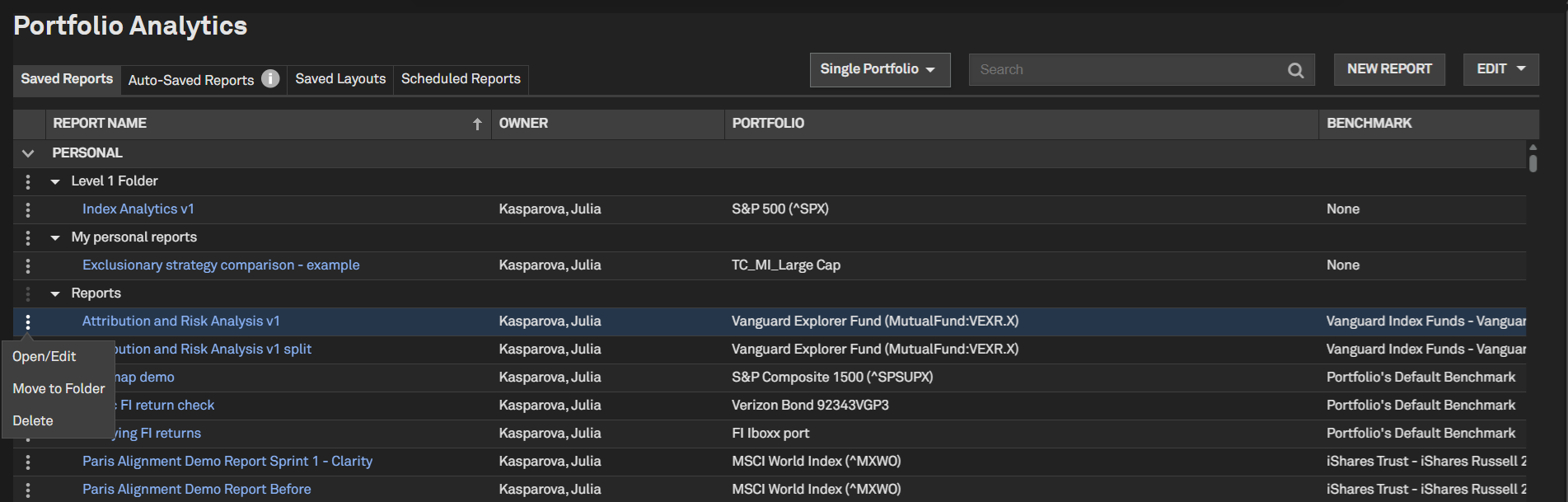
Users now have the ability to organize their Portfolio Analytics personal reports and layouts into folders for a more customized experience and better workflow organization.
Find it in the platform:
Navigate to the Portfolios tab from the top navigation
Click the left-hand menu icon next to the desired report or layout name and select Move to Folder
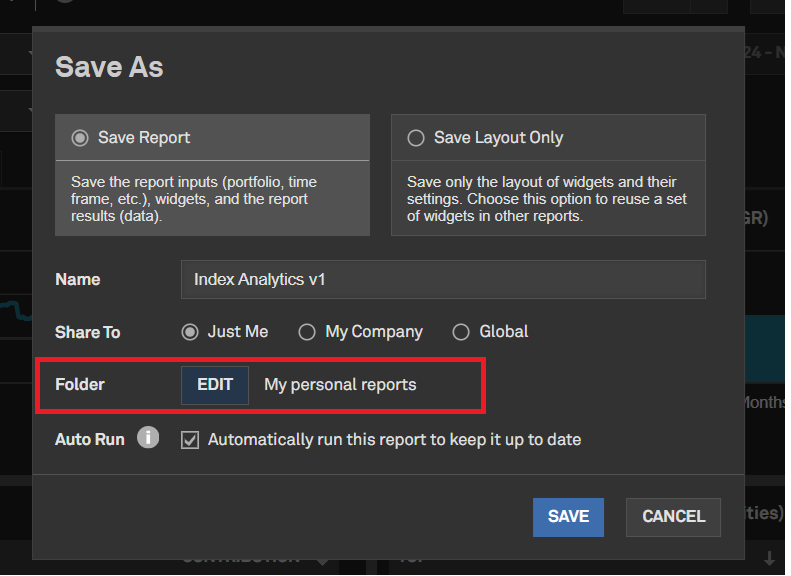
Save the item to an existing folder or create a new one by clicking on New Folder
Ensure the desired folder name is selected and click Save
Use the same dialog box to move items between different folders
Empty folders with no artifacts will not be displayed in the Reports tab, but they will still be available for saving reports or layouts
Additionally, when a report or a layout is open, select the Save or Save As options and choose the desired folder for the current item
For added convenience, the menu next to the report or layout name allows users to move the current item into a different folder
Folders can be deleted; however, to preserve items within the folder, ensure they are moved to the top Report level or to another folder before deleting
Autosave Reports
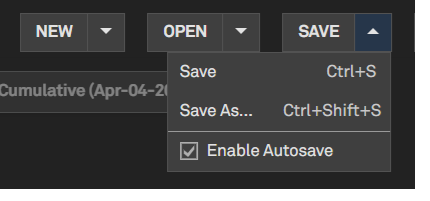
The new Autosave report feature will help to ensure that all reports will be periodically saved while users are constructing or re-running the reports before explicitly saving them.
Find it in the platform:
Navigate to the Portfolios tab from the top navigation and go to Reports
Enable the Autosave report feature under the Save menu after opening a report
The report will be periodically saved, generating an interim version named [Autosaved] or Untitled [Autosaved]
Autosaved reports are preserved for 7 days
Users can persist an Autosaved report by performing a Save or Save As action
Autosaved reports can be found in the Auto-Saved Reports tab

Saving Reports in Portfolio Comparison Mode
Users can save a report in Portfolio Comparison view mode, preserving the split version layout and portfolio comparison view side by side.
Find it in the platform:
Navigate to the Portfolios tab from the top navigation
Click on Reports and open an existing report or create a new one
Expand the dropdown arrow next to the report name and select Adjusted Portfolio Comparison
Choose a portfolio and benchmark on the right side of the split view
Click Update
Select Save or Save As, and the report will be saved in split mode, opening in the same mode the next time it is accessed
Sustainability
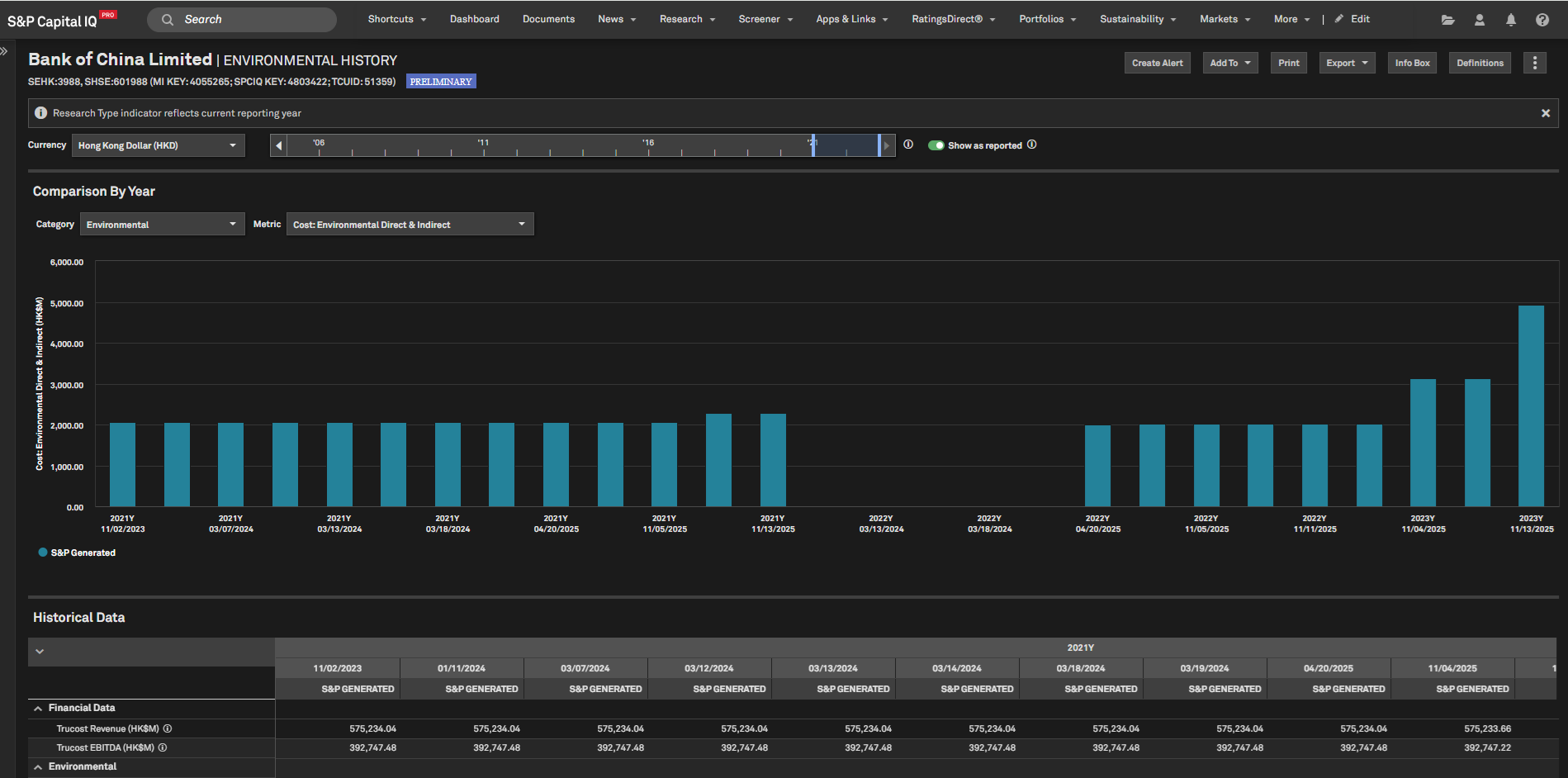
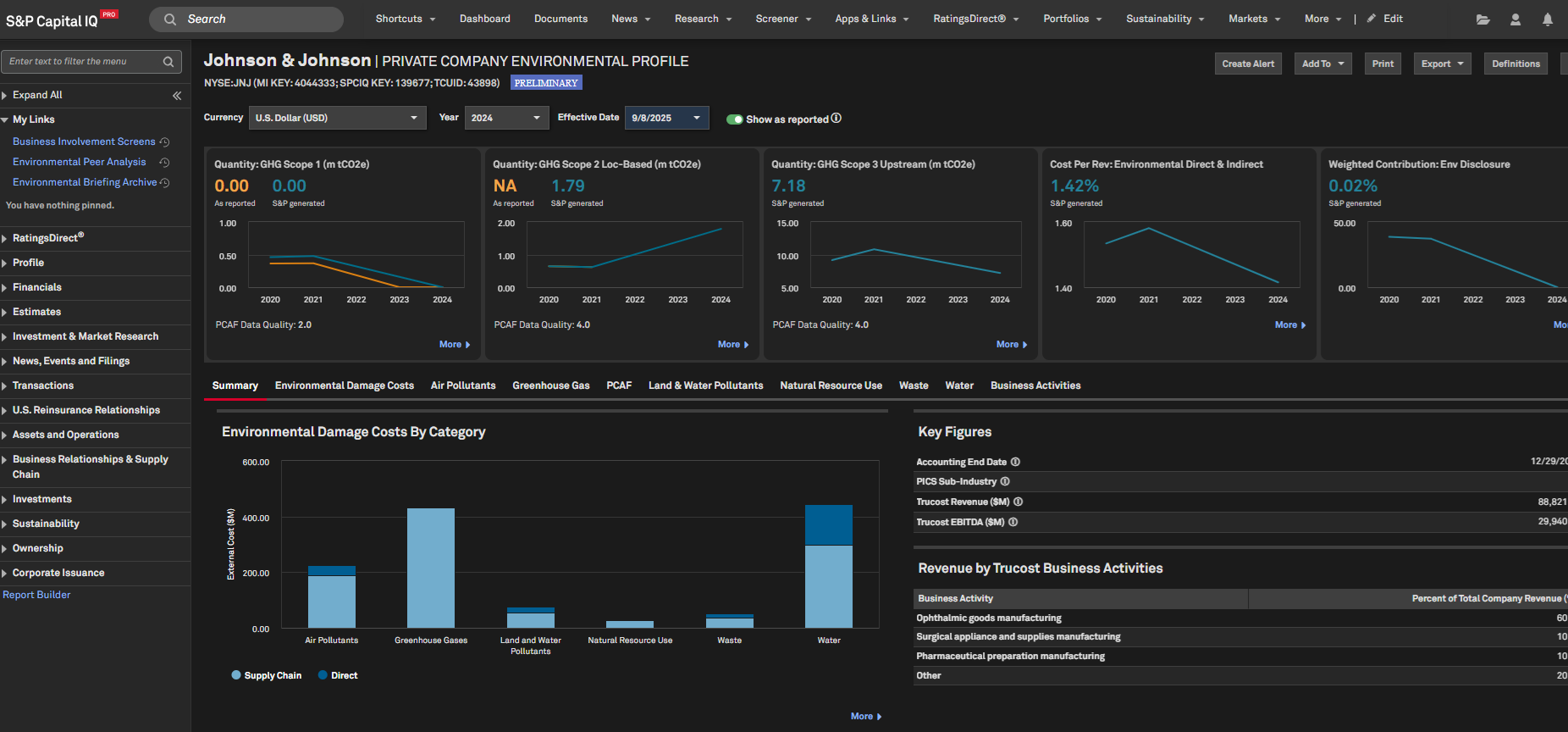
In this release, we enhanced our environmental data offering to provide faster access to emissions information. Clients can now benefit from earlier publication of Preliminary Environmental Profiles during the research cycle using as-reported data where available, helping them gain timely visibility and make informed decisions.
Preliminary Environmental Profiles
Users can access Preliminary profiles for all companies before Trucost’s fully researched process is complete, improving timeliness and providing immediate insights into a company’s emissions details. These profiles will be generated using the company’s published as-reported data,where available, and will be identified by the research type flag 'Preliminary' on the Environmental profile pages, Screener, and S&P Capital IQ Pro Plug-in.
Find it in the platform:
Environmental Profile
o Search for and select a target company in the top search bar and navigate to its Corporate Profile
o From the left menu, navigate to Sustainability > Environmental Analytics and select any of the pages Environmental Profile, Environmental Peer Analysis, Environmental History, Environmental Briefing Archive
o Or view the list of covered companies on the Sustainability Coverage List page under the Sustainability menu in the top navigation
o In the row for your company of interest, locate the Environmental column and click Yes to navigate to the company’s Environmental Profile
Screener:
o Navigate to Screener from the top navigation or from the Apps menu and select Companies
o Under Browse Criteria in the left, expand Sustainability > Environmental folder to select desired metrics
S&P Capital IQ Pro Plug-in:
o In Excel, launch S&P Capital IQ Plug-in and open Formula Builder
o Under Data Items, expand Sustainability > Environmental folder to select desired metrics
Dashboard:
o Navigate to Dashboard from the top navigation
o Select List or Portfolio or Quote widget from the Add Widget menu at the top right
o Within the Field Selector, expand Sustainability > Environmental folder to access metrics with related data
Note: Access to the Environmental dataset requires an additional subscription, please contact your account team for details.
Banks & Credit Unions
In this release, we added new Balance Sheet Composition fields within the Uniform Bank Performance Report, as well as Cost of Deposits fields for Credit Unions and Bank Holding Companies. Additionally, we introduced Deposit and Loan Beta fields for Banks and Bank Holding Companies, and incorporated As-Reported Financial Ratios for Global Banks, as well as Regulatory Capital fields for Global Broker-Dealers. These enhancements will enable users to better assess liquidity positions and cost management strategies, facilitating more precise evaluations of financial health and operational efficiency.
New Uniform Bank Performance Report and Summary Bank Regulatory fields in Screener
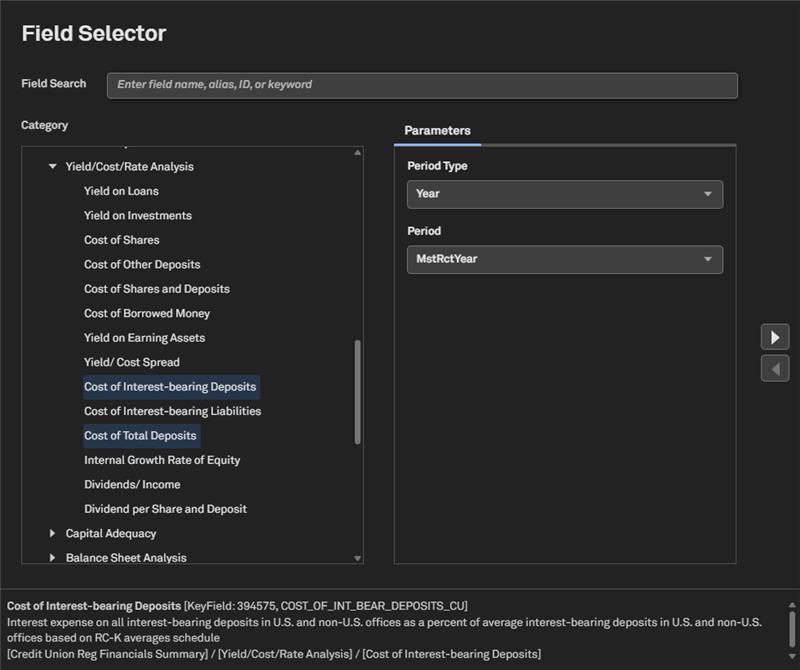
Users can now find new Balance Sheet Composition fields on Page 6 of the Screener. Additionally, we introduced the Cost of Interest-Bearing Deposits, the Cost of Deposits for Credit Unions, and the Cost of Deposits for Bank Holding Companies.
Find it in the platform:
Navigate to Screener from the top navigation or the Apps menu
Select Industry & Asset Data > Financials > Regulated Depositories (U.S.)
Within Criteria, select Company Type as Commercial Banks and set the Entity Type dropdown to Companies
Select Display Columns, go to Bank Reg Financials (UBPR) to find the new fields within UBPR Balance Sheet (P6)
Expand Credit Union Reg Financials Summary or Holding Company Reg Financials Summary > Yield/Cost/Rate Analysis to find the Cost of Deposit data items
Similarly, within the Companies dataset, expand U.S. Bank Regulatory Financials to find the same data items
New Deposit and Loan Beta fields in Screener
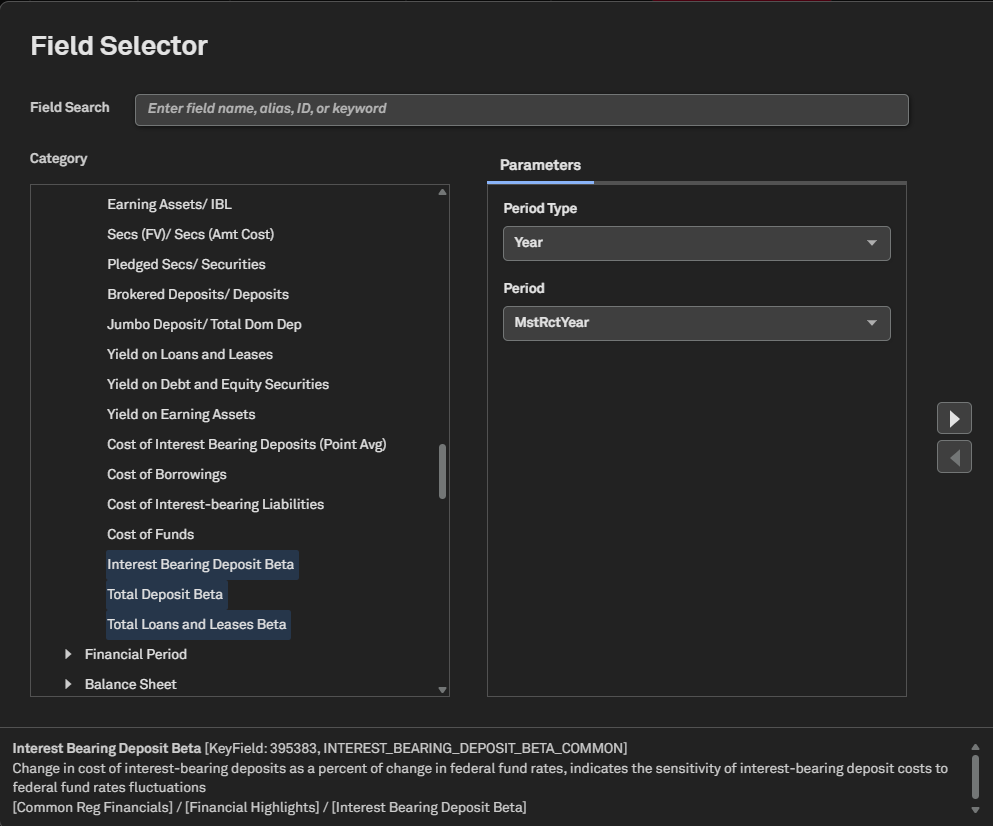
Users can now access new Interest-Bearing Deposits, Total Deposits, and Loan Beta fields specifically designed for Banks and Bank Holding Companies. These fields reflect the sensitivity of deposit and loan costs to fluctuations in the federal funds rate and are available for Annual, Quarterly, and Last Twelve Months period types in the Screener.
Find it in the platform:
Navigate to Screener from the top navigation or the Apps menu
Select Industry & Asset Data > Financials > Regulated Depositories (U.S.)
Within Criteria, select Company Type as Commercial Banks and Bank Holding Company and set the Entity Type dropdown to Companies
Select Display Columns, go to Common Reg Financials to find the new fields within Financial Highlights
Similarly, within the Companies dataset, expand U.S. Bank Regulatory Financials to find the same data items
New As-Reported Financial and Regulatory Capital Fields for Global Banks and Broker Dealers
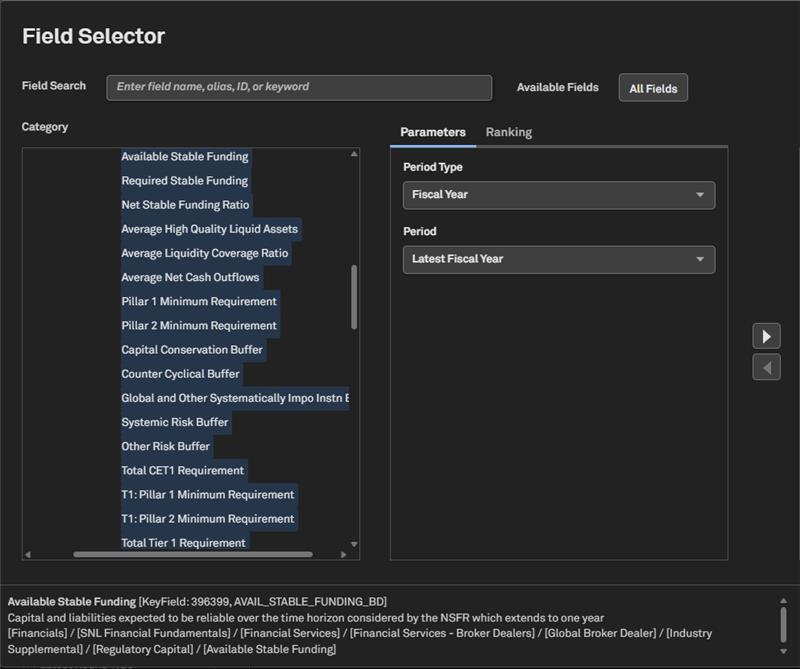
Users can now access new metrics for global banks, including the Countercyclical Leverage Ratio Buffer, Additional Leverage Ratio Buffer, Reported NPL Coverage Ratio, Reported ROAA, and Reported ROAE. For Indian Banks, the available metrics include Unconsolidated Reported NPL Coverage Ratio, Unconsolidated Reported ROAE, and Unconsolidated Reported ROAA. Additionally, we introduced the Net Stable Funding Ratio, Minimum Capital Requirement, various buffers, and Basel III Leverage Ratio-related metrics for Global Broker Dealers.
Find it in the platform:
Navigate to Screener from the top navigation or the Apps menu
Select Companies > Financials > SNL Financials Fundamentals > Banks - Global Summary > As Reported
Select Companies > Financials > SNL Financials Fundamentals > Banks - Non - U.S. > Country - Specific – Metrics > Indian Unconsolidated Ratios to find the new financial fields
Additionally select Companies > Financials > SNL Financials Fundamentals > Financial Services Broker Dealer > Global Broker Dealer > Regulatory Capital to find the new fields
Similarly, in the Companies (Classic) section, select Financials > As Reported > Securities & Investment industry > Broker-Dealer
Media & Telecommunications
In this release, we are excited to announce a transition to Comscore as our new source for TV Network Ratings data. This change in source enhances data accuracy and provides comprehensive insights into audience behavior.
TV Network Ratings data
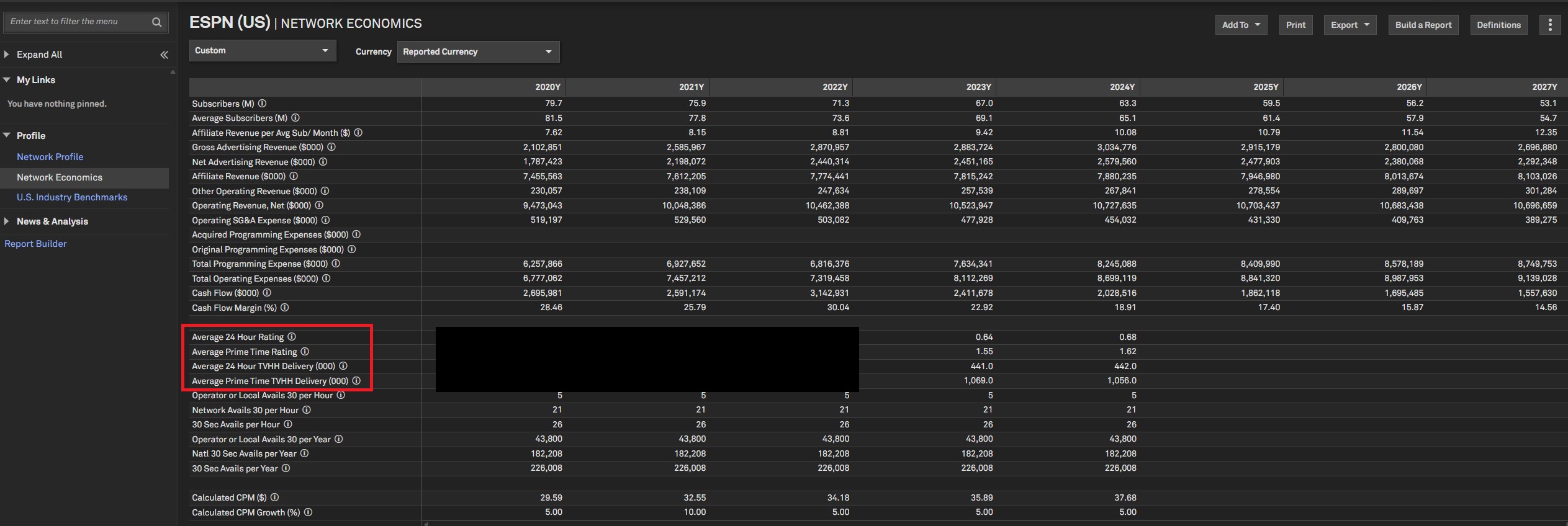
We are pleased to announce that we transitioned our TV Network ratings source to Comscore. This coverage will support over 200 National and Regional Sports Networks (RSN). This change is driven by our commitment to providing our clients with data that is recognized for its accuracy in measuring viewer engagement and audience size.
Find it in the platform:
Navigate to Media & Telecom tab in the top navigation
Click on TV Network under Sector Highlights
Select TV Network Summary
Find Ratings data in the Financial Item filter of the report or open any network profile (e.g. ESPN) and click on Network Economics from the left-hand navigation
Energy
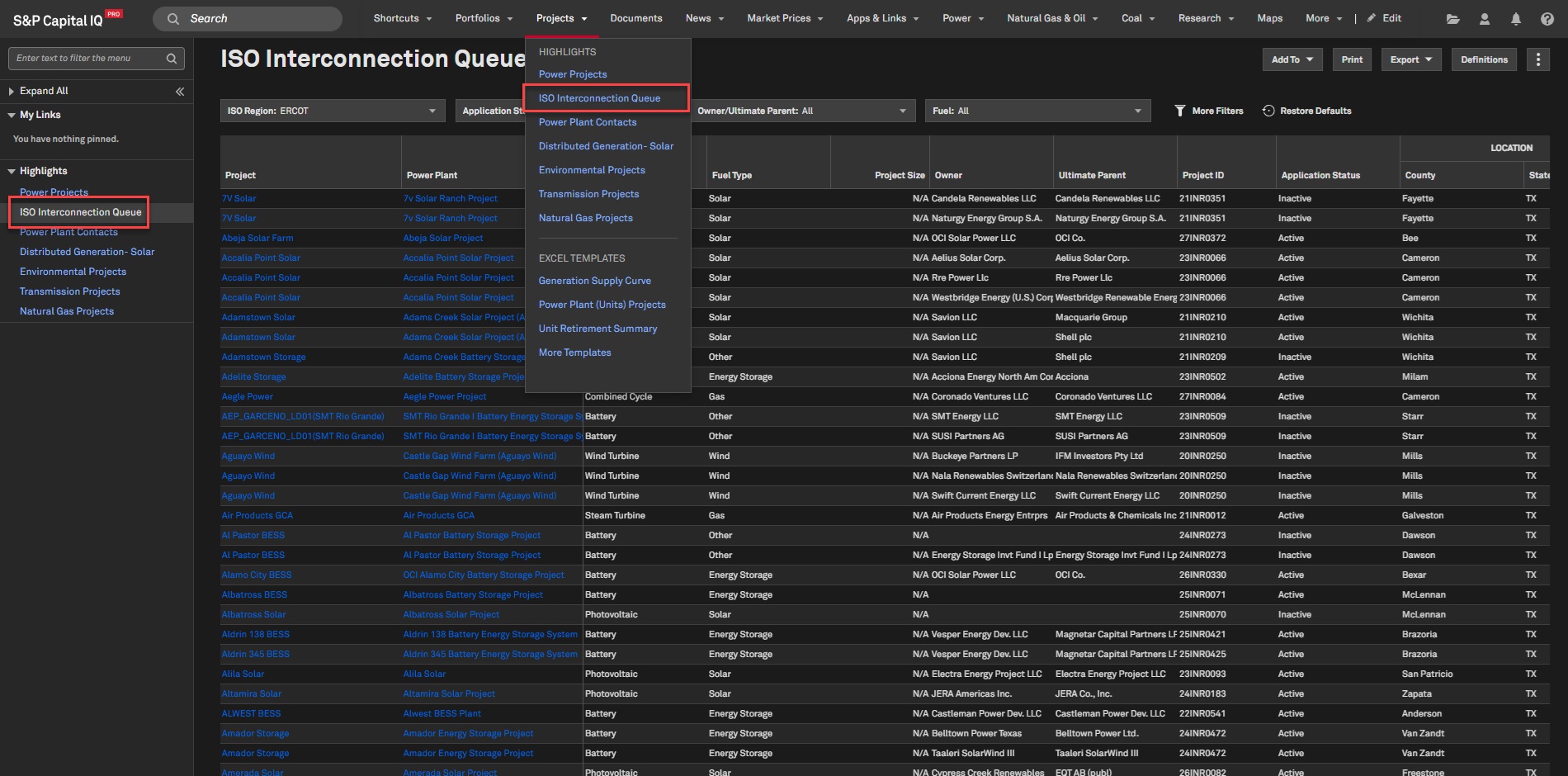
In this release, we introduced the ISO Interconnection Queue page, featuring Interconnection Queue data along with relevant metrics. We added the Electric Reliability Council of Texas (ERCOT) Interconnection Queue as the first market on this page. The Interconnection Queue page enables users to easily track projects, their application status, fuel types, technology risks, and more.
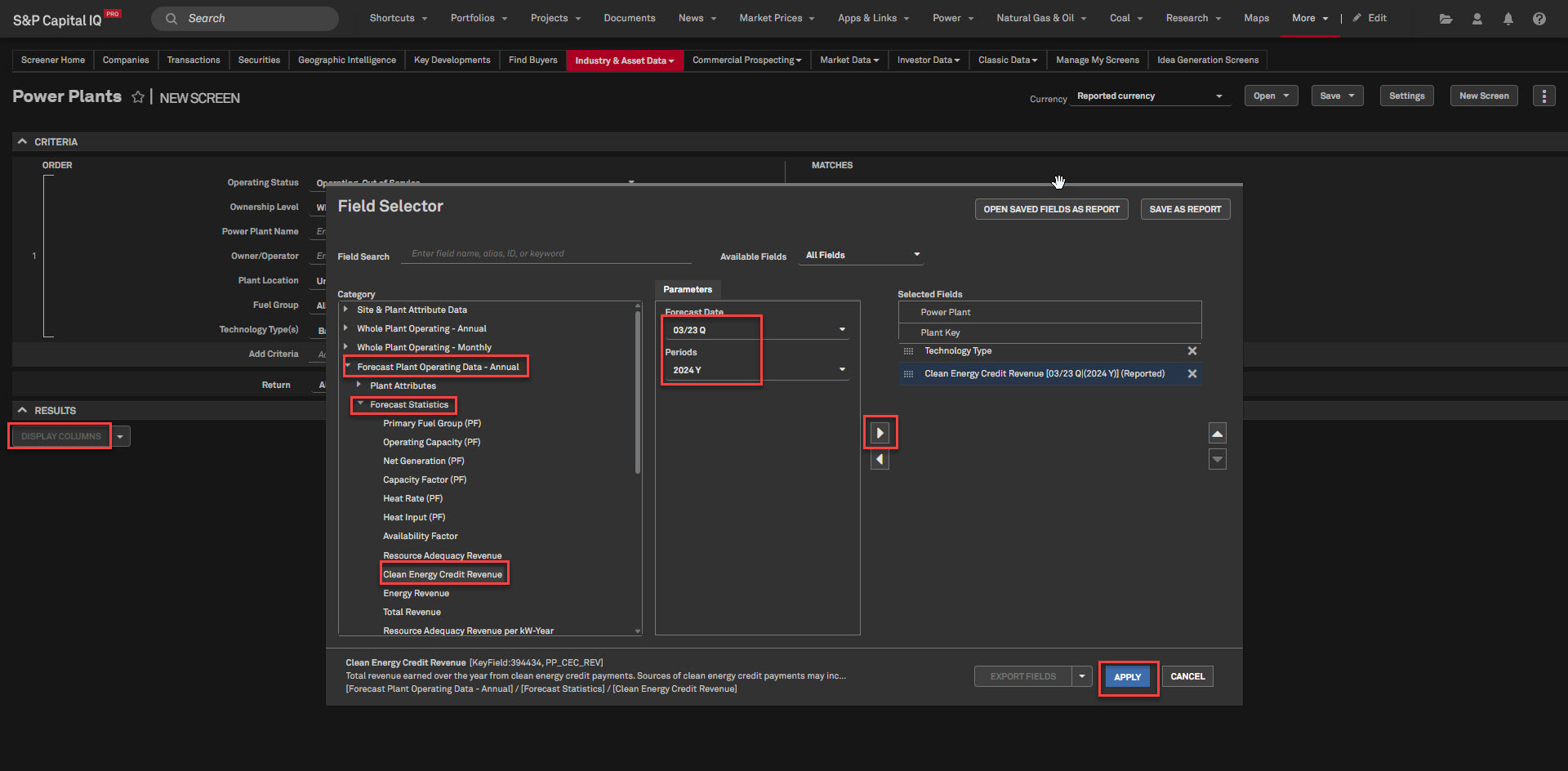
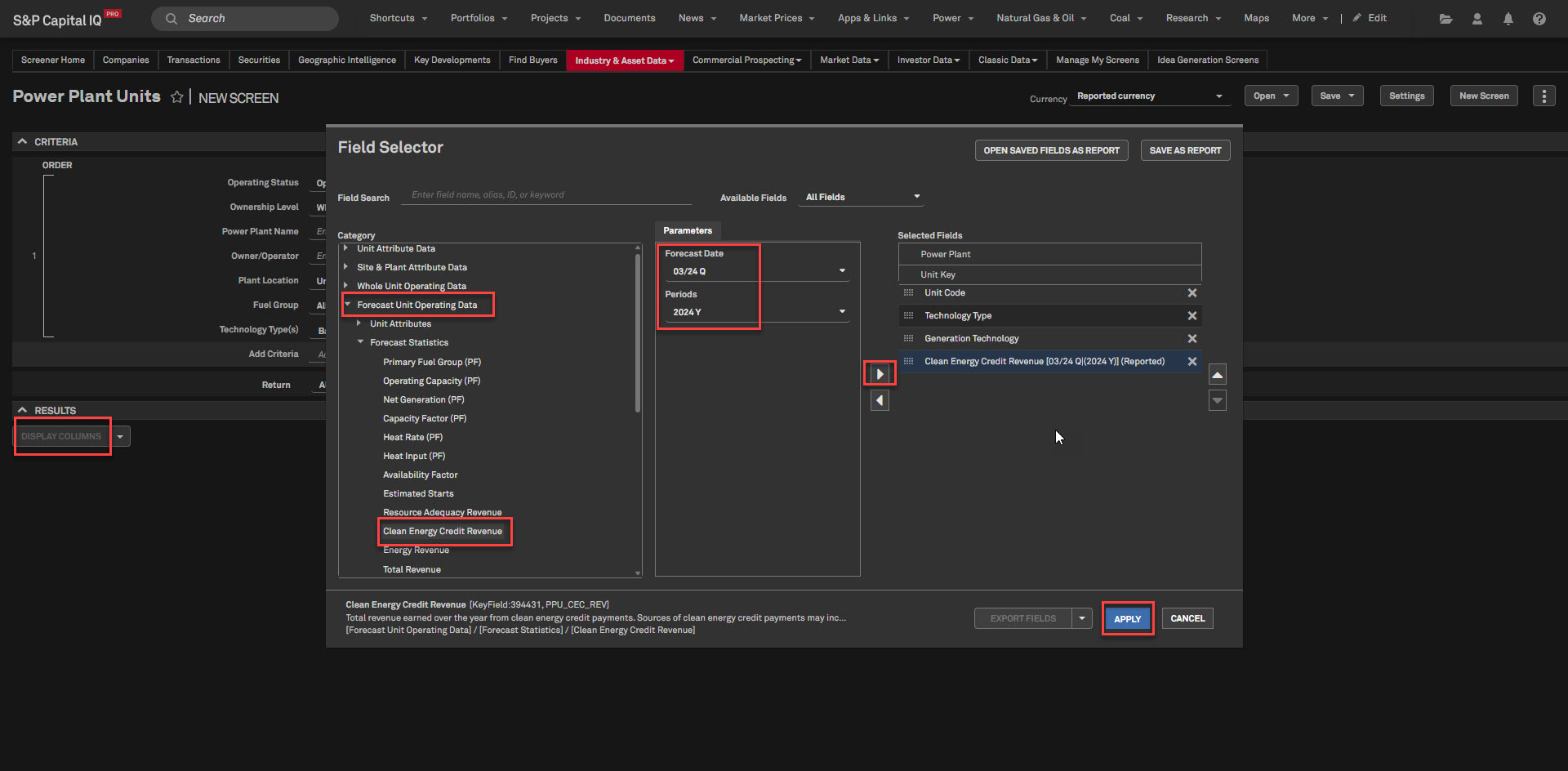
Additionally, we integrated Clean Energy Credit data into the Power Plant & Power Plant Unit Screener perspectives, enabling users to quickly screen forecasted clean energy credit revenue for multiple power assets across various power markets in the U.S.
ERCOT Interconnection Queue
Users can access ERCOT Interconnection Queue information on the ISO Interconnection Queue page available under the Projects tab. This information enables users to monitor shifts in electricity demand, track load defection, and further safeguard against energy transition and technological risks associated with the energy transition and technological advancements.
Find it in the platform:
On the Energy profile specialization, navigate to Projects from the top navigation menu
Select ISO Interconnection Queues
Coverage stats:
All projects available in the ERCOT Interconnection queue, starting in 2022
Clean Energy Credits
Users can access the Clean Energy Credit data within the Power Plant and Power Plant Unit screener perspectives. This information allows users to gain deeper insights into the forecasted renewable revenue and build valuation models for renewable power plants.
Find it in the platform:
Navigate to Screener from the top navigation or the Apps menu
Select Industry & Asset Data > Energy & Utilities > Power Plants or Power Plant Units
Go to Display Columns and navigate to Forecast Statistics category within Forecast Plant Operating Data-Annual or Forecast Unit Forecast Data
Set the desired parameters and move Clean Energy Credit fields to the Selected Fields column
Click Apply and Run Screen
Coverage stats:
Power plants within the following markets: ERCOT, FRC, ISO-NE, MISO, NYISO, PJM, SERC-SE, SPP, TVA, VACAR, West-Basin, West-CAISO, West-COWY, West-NWPP and West-SRSG
Metals & Mining
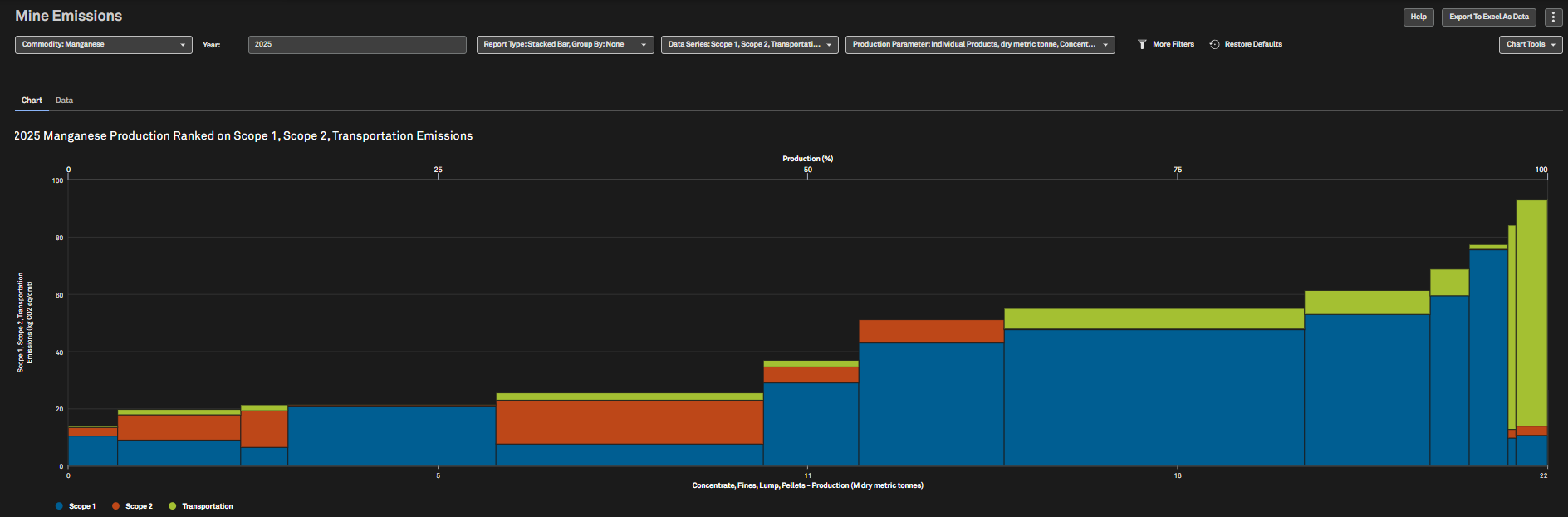
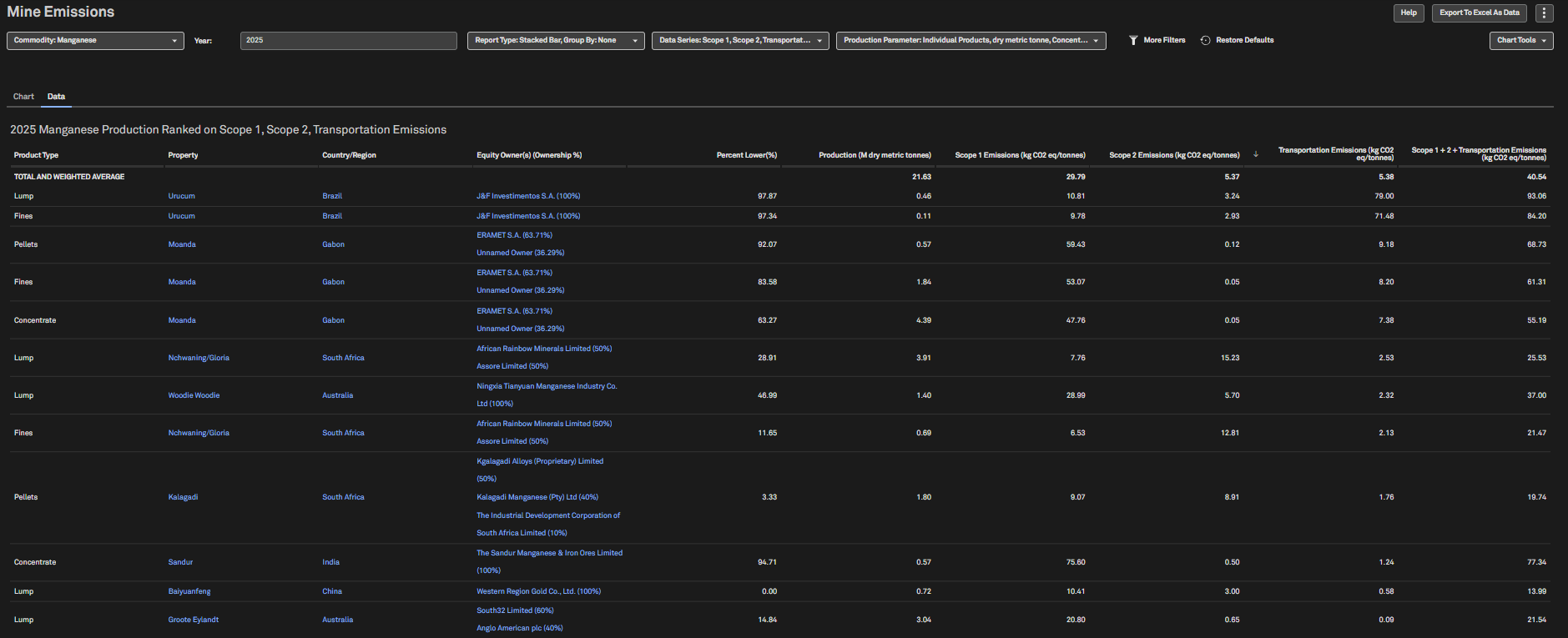
In this release, we expanded coverage of Mine Emissions Curve to include Manganese, providing direct, indirect, and newly introduced transportation emissions for both Iron Ore and Manganese from the mine site. We made additions to Screener and S&P Capital IQ Pro Plug-in, including Manganese Mine Economics costs and Actual–Estimated Emissions reporting. Additionally, we enhanced our Commodity Briefing Service reports for Lithium with Spodumene data, Steel with Indian Steel Mill Margin, and US hot-dipped galvanized steel data.
Manganese Added to Mine Emissions Curve
Users can now access Manganese, which has been added to the Mine Emissions Curve. The curve provides Scope 1, Scope 2, and transportation emissions data for both Iron Ore and Manganese from 1991 to 2050. The Emissions curve is designed to provide users with a comprehensive view of emissions data and assess environmental impact.
Find it in the platform:
Navigate to Metals & Mining from the top navigation
Click on Mine Emissions to access Emissions data
Coverage stats:
Global Coverage for Manganese
Note: Access to the Mine Emissions dataset requires an additional subscription. Please contact your account team for more information.
Manganese Mine Economics Costs in Screener and S&P Capital IQ Pro Plug-In
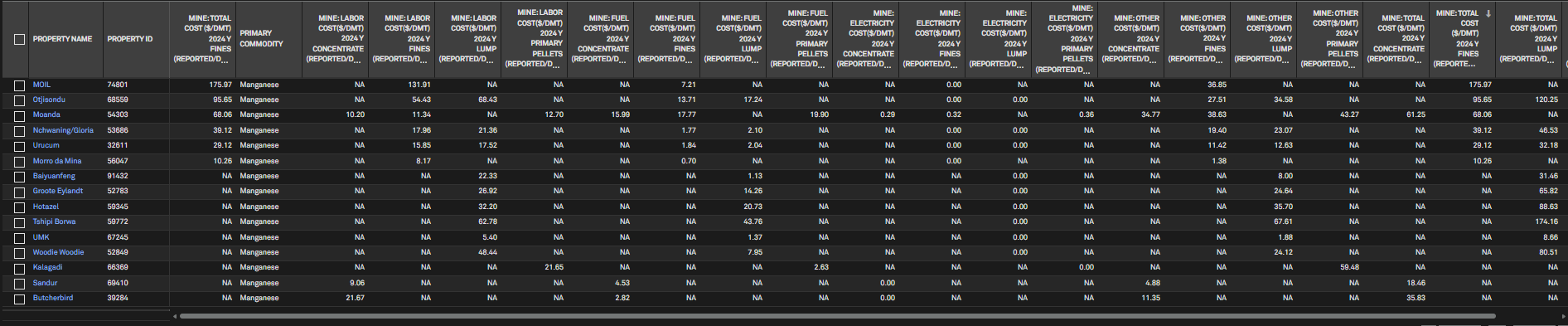
Users can now access Manganese Mine Economics cost data in Screener and the S&P Capital IQ Pro Plug-in, enabling assessment of operational and production costs, while identifying cost-saving opportunities through the analysis of yearly trends.
Find it in the platform:
Navigate to Screener from the top navigation or from the Apps menu
Select Metals & Mining Properties dataset, go to Display Columns and expand Mine Econ- Modeled Data category
Expand individual sub-categories to find the newly added Manganese Cost data
Coverage stats:
Global Coverage for Manganese
Actual–Estimated Emissions Reporting in Screener
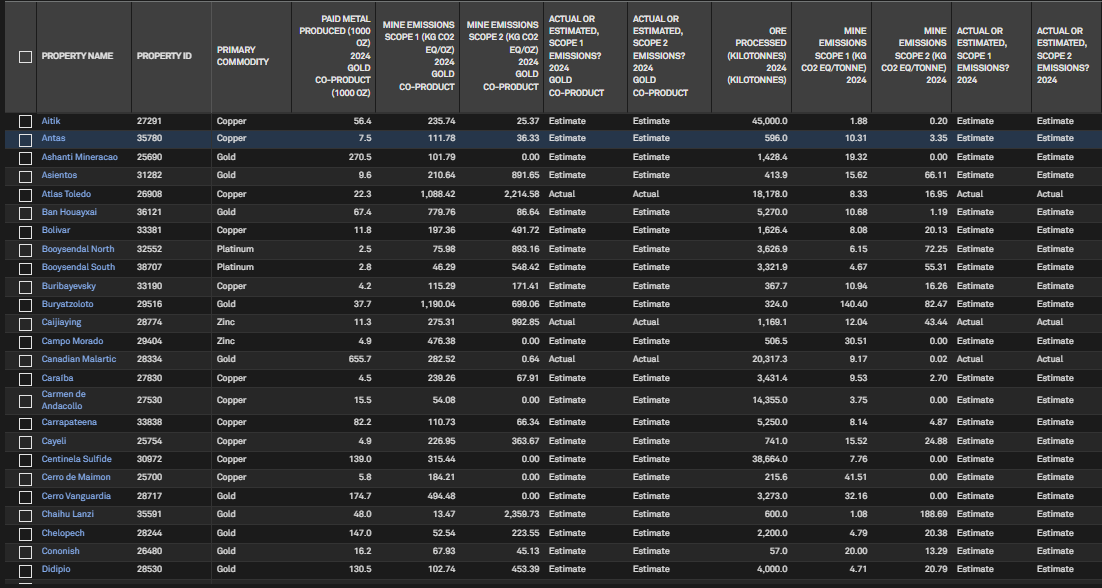
Users subscribed to Mine Emissions data can access a new Actual–Estimated reporting field for emissions data in Screener and the S&P Capital IQ Pro Plug-In. This enhances transparency and accuracy for users, enabling more informed environmental impact assessments and regulatory reporting.
Find it in the platform:
Navigate to Screener from the top navigation or from the Apps menu
Select Metals & Mining Properties dataset, go to Display Columns and expand Mine Econ- Modeled Data category
Expand individual sub-categories to find the newly added data items
Enhanced Commodity Briefing Service Reports for Lithium and Steel
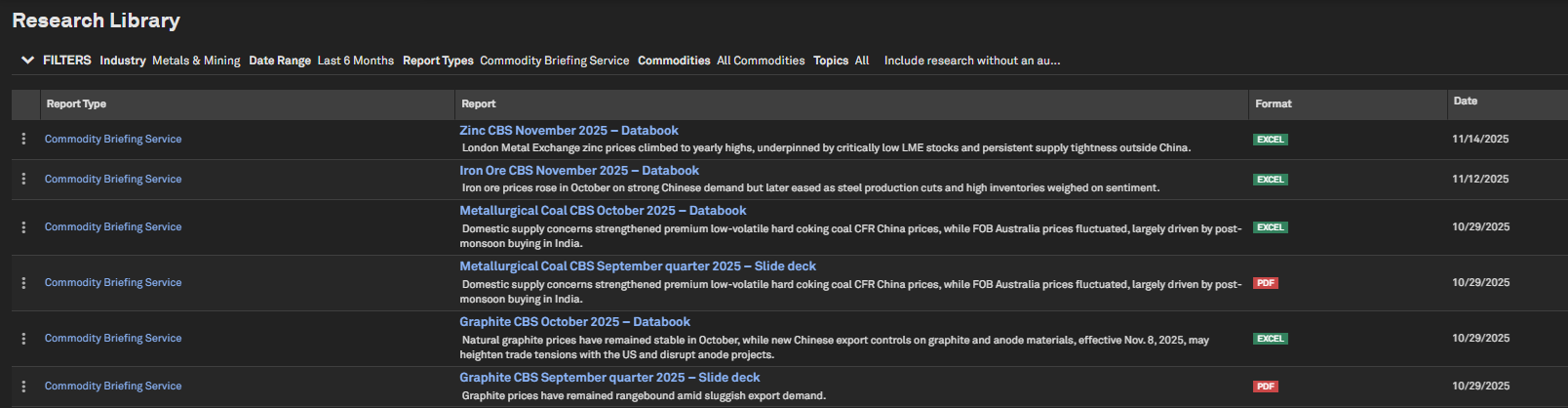
Users can access Commodity Briefing Service reports for Lithium and Steel, which include Lithium Spodumene, Indian Steel Mill Margins, and US hot-dipped galvanize respectively. These reports provide users with comprehensive market outlooks, supply-demand analysis, price forecasts, and Indian mill utilization rates, along with margins to support strategic decision-making.
Find it in the platform:
Navigate to Research from the top navigation and select Market Intelligence Research Library
In the Research Library page, select Metals & Mining as the desired industry
Select Commodity Briefing Service as Report Type
RatingsDirect
This release is headlined by Credit Transition Product (Beta), a statistical model developed by S&P Global Market Intelligence’s Quantitative Risk Modeling team. This new model quantifies the probability of credit quality improvement and deterioration for Corporate and Bank issuers, helping users anticipate opportunities and risks. The feature is in a beta phase and will see expanded coverage in early 2026.
Additional enhancements focus on improving accessibility throughout the platform. Credit Monitor makes it easier to find custom lists and includes investment-grade versus speculative grade classifications. Research coverage now includes commentary articles published in Chinese, Arabic, Spanish, and Portuguese, making it easier for users to access content in their preferred language.
A new Data Visualizations page has been introduced to consolidate and spotlight S&P Ratings visualizations, making it easier to find relevant content while continuing to expand the scope of interactive data displays.
Please note that in October 2025, we enhanced the U.S. Public Finance CreditStats Direct financial pages with a refresh of available data items and the introduction of a new display option that shows Pre-Adjusted Financials and Analyst-Adjusted Financials in a single view. As of this release, the data item changes now reflect in the Excel Plug-In and Screener.
Credit Transition Product (Beta)
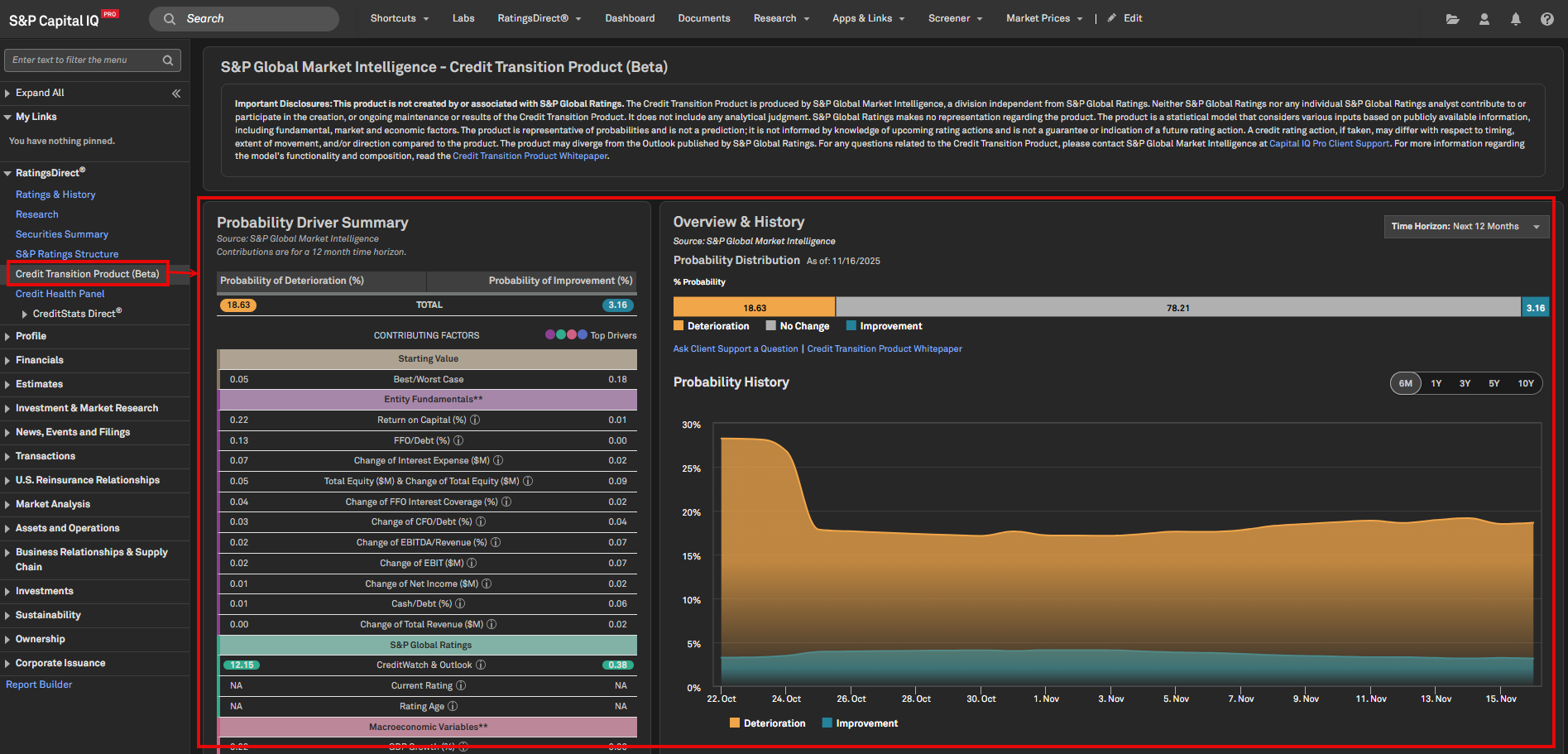
The new Credit Transition Product (Beta) displays the probability of future improvement and deterioration in an entity’s credit quality over various time horizons. This significantly enhances a user’s ability to evaluate portfolio risk and proactively monitor the probability of credit quality changes. The model incorporates inputs such as ratings history, CreditWatch/Outlook, financials, macroeconomic data, and Credit Analytics scores. As mentioned in the below disclosure, this is a statistical model, not a prediction, and is not a guarantee or indication of a future rating action.
Please refer to the white paper for more details.
Find it in the platform:
Entity Profile
o Search for and select a covered entity in the top search bar
o Navigate to the Corporate Profile and view the Credit Transition Product (Beta) widget
o In the left-hand menu, navigate to RatingsDirect
> Credit Transition Product (Beta) for more detailsScreener:
o Navigate to Screener from the top navigation or from the Apps menu and select Companies
o Under Browse Criteria in the left, expand Company Details > Issuer Ratings > S&P > Credit Transition Product
S&P Capital IQ Pro Plug-In
o In Excel, launch S&P Capital IQ Plug-in and open Formula Builder
o Under Data Items, expand Company Details > Issuer Ratings > S&P > Credit Transition Product
Coverage stats:
Coverage includes Corporates and Banks in North America and Europe, with plans to expand coverage to all Banks and Insurance in early 2026.
Important Disclosure: This product is not created or maintained by, associated with or representative of any S&P Global Ratings credit rating or Outlook. The Credit Transition Product (Beta) is produced by S&P Global Market Intelligence, a division independent from S&P Global Ratings. S&P Global Ratings makes no representation regarding the product. The product is a statistical model that considers inputs based on publicly available information. The product is representative of probabilities and is not a prediction; it is not informed by knowledge of upcoming rating actions and is not a guarantee or indication of a future rating action. A credit rating action, if taken, may differ regarding timing, extent of movement, and/or direction compared to the product. The product may diverge from the Outlook published by S&P Global Ratings. For questions, contact S&P Global Market Intelligence at support.capiqpro@spglobal.com. For more information, see the Credit Transition Product Whitepaper.
Credit Monitor - Credit Transition Product (Beta)
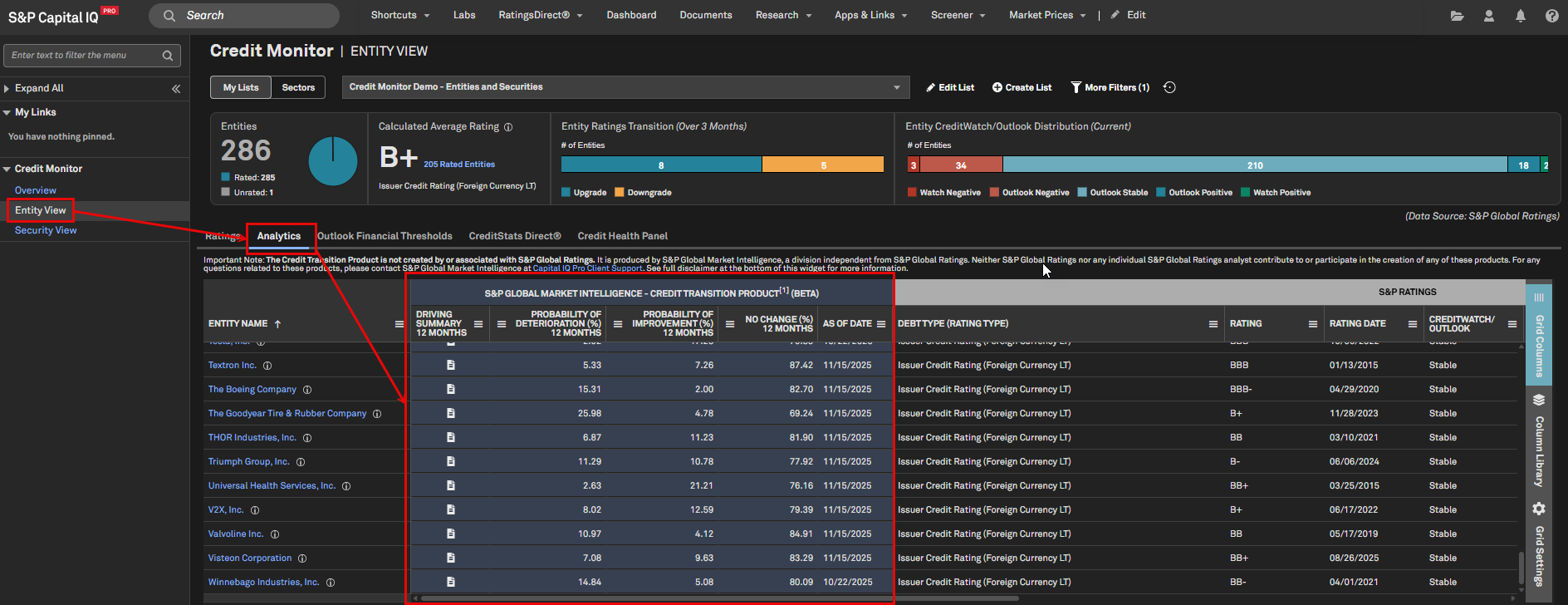
RatingsDirect users can view the probability of credit quality improvement or deterioration directly in the Credit Monitor. This enhances the ability to quickly identify risks and opportunities across a list or sector. As mentioned in the disclosure, this is a statistical model, not a prediction, and is not a guarantee or indication of a future rating action.
Find it in the platform:
Navigate to the RatingsDirect
menu from the top navigation and select Credit MonitorIn the left-hand menu, select Entity View
In the entity grid, select Analytics tab
Credit Monitor - S&P Credit Grade
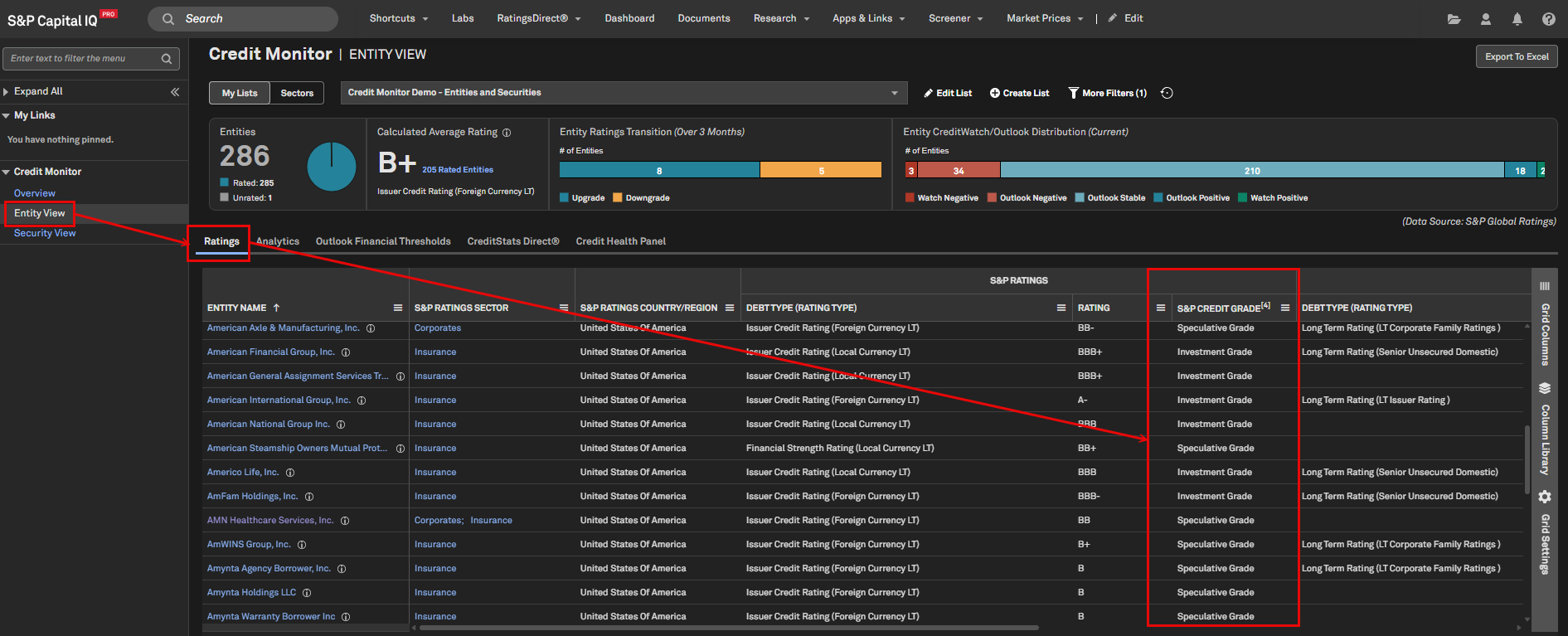
Users can now view Investment Grade versus Speculative Grade classification for ratings within a list or sector in Credit Monitor to simplify portfolio risk analysis. The Credit Grade classification is determined by S&P Global Market Intelligence and is independent of the S&P Global Ratings credit rating process.
Find it in the platform:
Navigate to the RatingsDirect
menu from the top navigation and select Credit MonitorIn the left-hand menu, select Entity View
In the entity grid, select Ratings tab and scroll right to view S&P Credit Grade column
Credit Monitor – List Enhancements
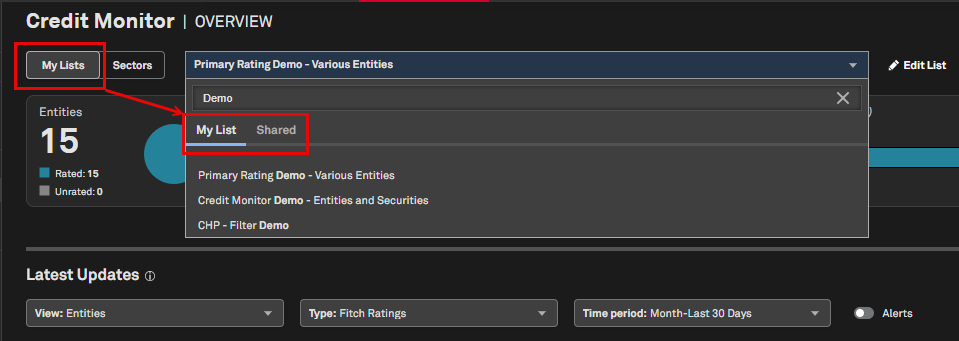
The Credit Monitor list dropdown now displays separate tabs for My Lists and Shared Lists, making it easier to find user-created content. Plans are underway to add a CIQ Pro Lists tab for indices and other prebuilt lists.
Find it in the platform:
Navigate to the RatingsDirect
menu from the top navigation and select Credit MonitorSelect My Lists workflow
Select the list dropdown to see a search bar with tabs for My Lists and Shared Lists
Commentary Articles in Arabic, Chinese, Portuguese, and Spanish
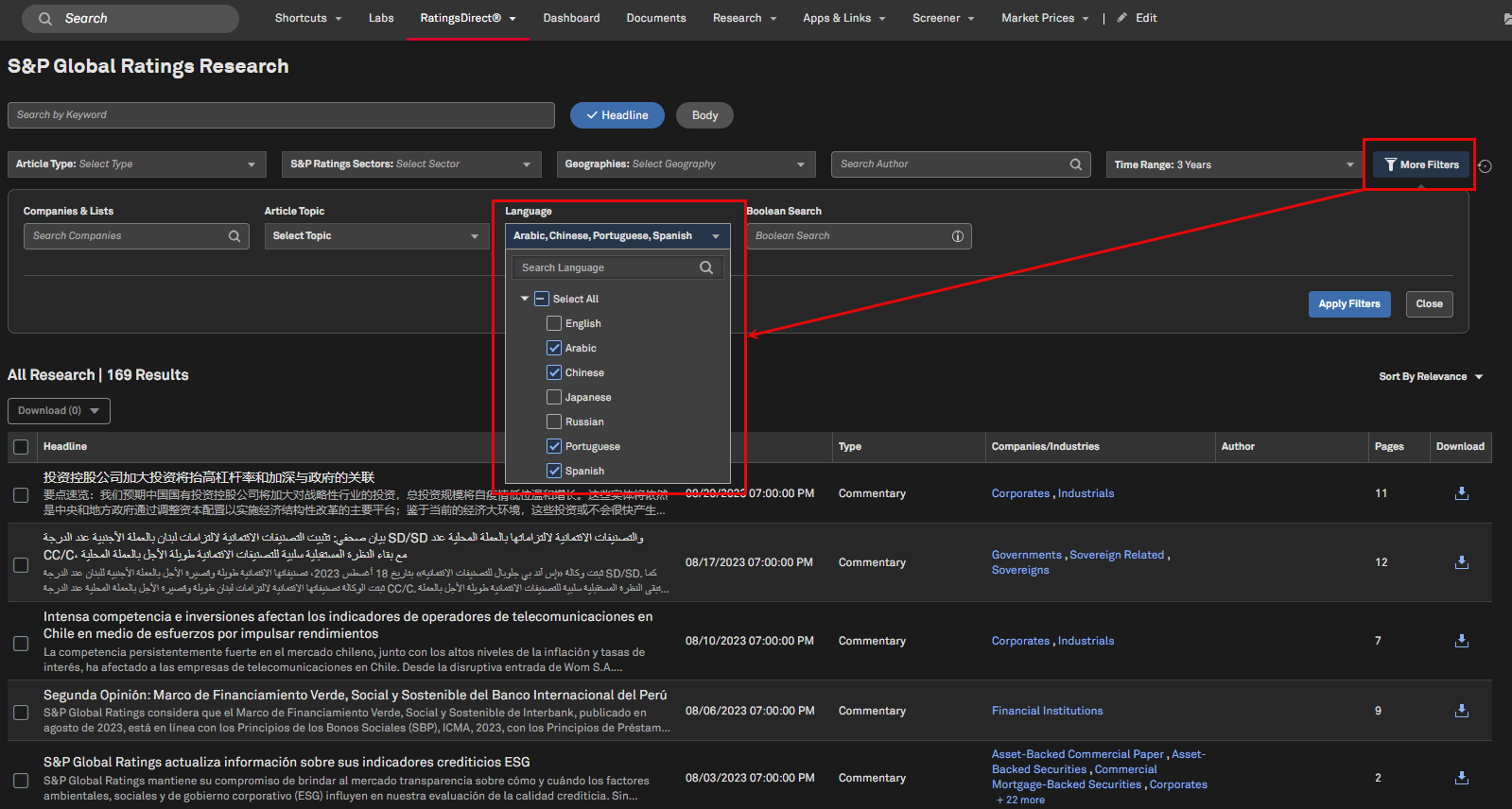
RatingsDirect now displays commentary articles that are published in Arabic, Chinese, Portuguese, and Spanish. This enhances research accessibility, enabling users to access select articles in their preferred language.
Find it in the platform:
Navigate to the user profile icon on the top right of the platform and select Research Settings
In the Research Settings page, ensure relevant languages are enabled in the Research Language Preferences section
Navigate to Research Search from the RatingsDirect
top navigation, open More Filters, and select relevant languages before running a search
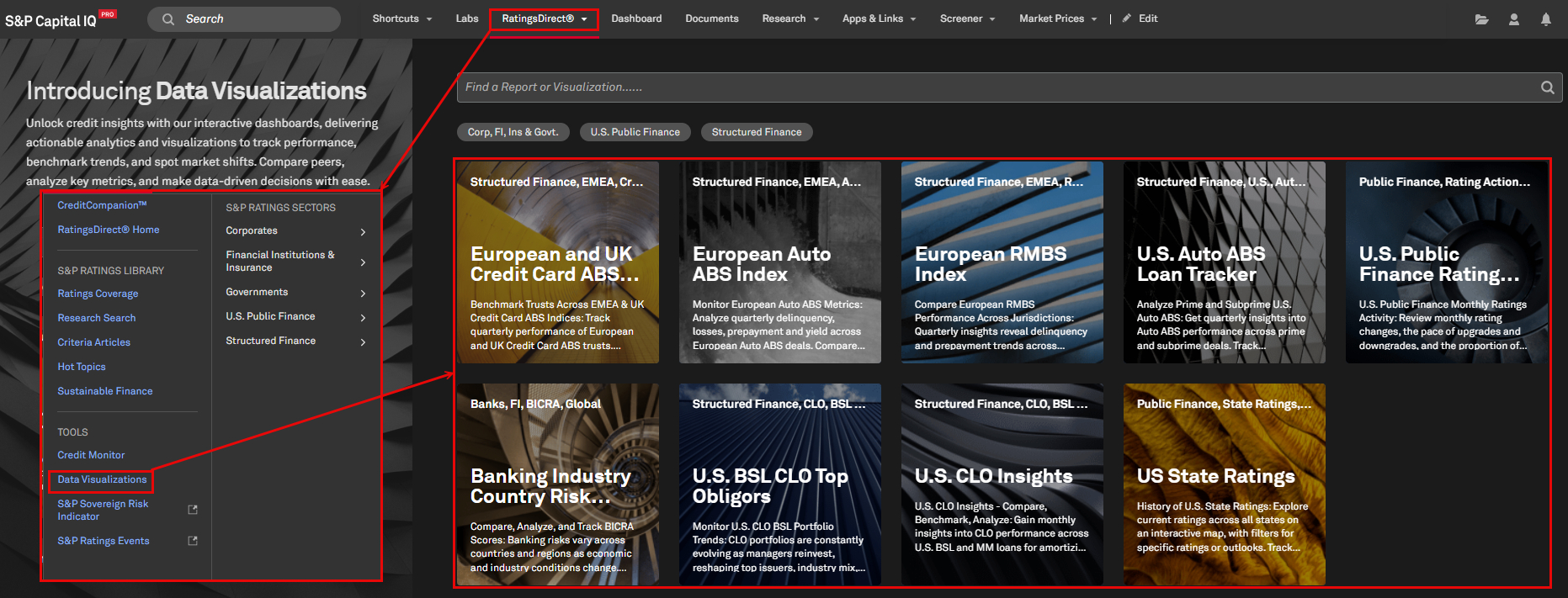
New Data Visualizations Landing Page
S&P Ratings data visualizations, leveraging Power BI, are consolidated into a new page, making it easier to find relevant content. New visualizations include:
European and UK Credit Card ABS Index
European Auto ABS Index
European RMBS Index
U.S. Auto ABS Loan Tracker
U.S. Public Finance Ratings Activity
Banking Industry Country Risk Assessment (BICRA)
Please note that select visualizations not utilizing Power BI will remain available in the existing Structured Finance flyout from the RatingsDirect top navigation menu.
Find it in the platform:
Navigate to the RatingsDirect
menu from the top navigation and select Data Visualizations
U.S. Public Finance CreditStats Direct Bifurcated Financials
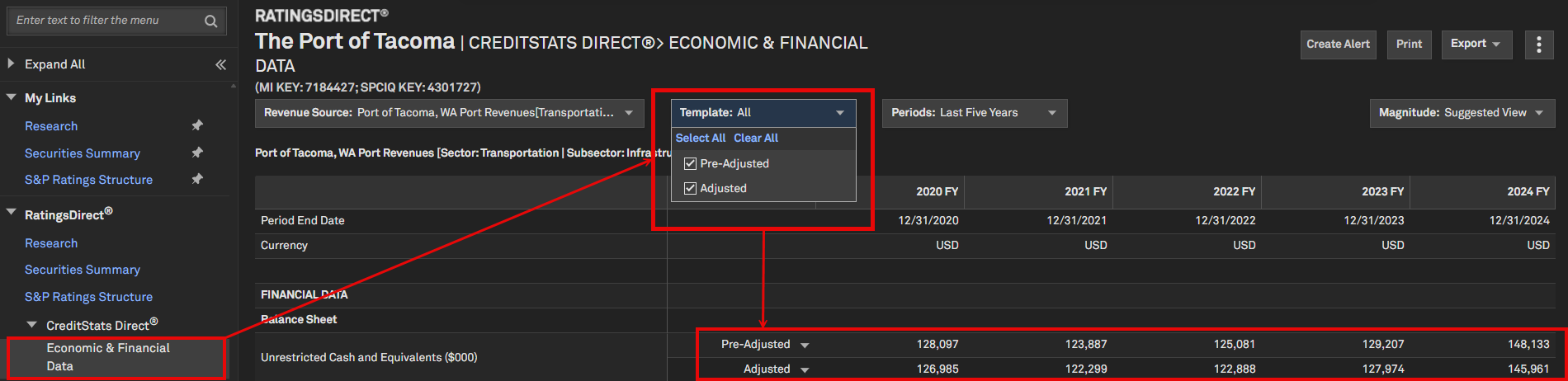
Users can access U.S. Public Finance CreditStats Direct financials with new data items and a display option for both Pre-Adjusted Financials and Analyst-Adjusted Financials in a single view. These features are now available in the S&P Capital IQ Pro Plug-In and Screener.
This bifurcation provides transparency regarding the data points modified by S&P Ratings analysts, enhancing clarity and enabling users to conduct more in-depth credit analysis while facilitating the identification of opportunities and risks. Additionally, the U.S. Public Finance templates are updated to include new data items, remove data items that are no longer relevant to the S&P Ratings process, and rename others for improved consistency.
Find it in the platform:
Search for and select an entity within the U.S. Public Finance sector in the top search e.g. Port of Tacoma
In the left-hand menu, navigate to CreditStats Direct
> Economic & Financial DataClick the Template drop-down and select both Pre-Adjusted and Adjusted
CreditCompanion by RatingsDirect
We are excited to announce that CreditCompanion has transitioned out of the Beta phase. This milestone release emphasizes enhanced response quality, with special focus on list (data query) type responses and more complex questions. We've introduced additional functionalities that provide users with greater control over content focus. The system continues to improve in key areas, including article retrieval (recency and relevance), response cohesiveness, and solution routing. See below for a comprehensive list of all updates.
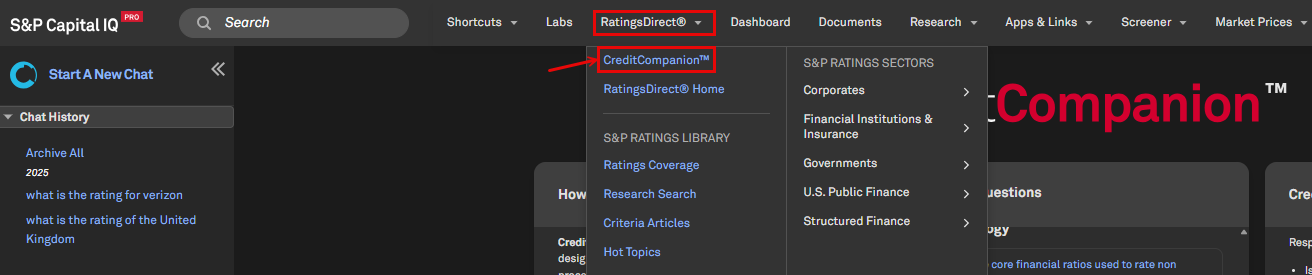
Finding CreditCompanion in S&P Capital IQ Pro
Users can access the tool by navigating through the RatingsDirect menu. If you would like to leave feedback on the tool, please select either 'thumbs up' or 'thumbs down' and provide a note. We review and appreciate all feedback.
Find it in the platform:
Navigate to the RatingsDirect
menu from the top navigation and select CreditCompanion

Content Focus Functionality
New content focus options give users greater control when refining responses, allowing them to either dive deeper into research by narrowing the tool’s focus to a specific set of articles or to troubleshoot an initial answer that isn’t quite right.
Find it in the platform:
Navigate to the RatingsDirect
menu from the top navigation and select CreditCompanionInvoke using the # sign in the Ask a Question bar
Or expand the Response not quite right? section at the bottom of a response

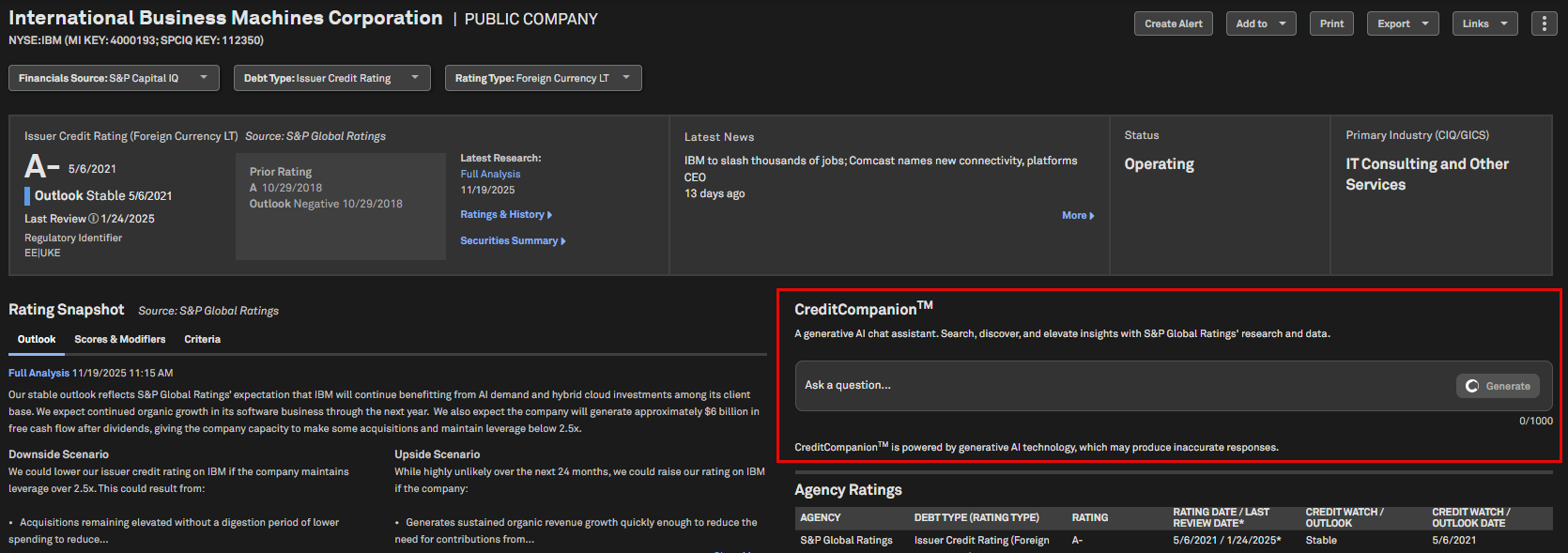
CreditCompanion on the Corporate Profile
Users can now easily ask questions directly from a company’s Corporate Profile page, improving ease of use and fitting seamlessly into existing workflows.
Find it in the platform:
Search for any RatingsDirect entity in the top search and navigate to its Corporate Profile
CreditCompanion is available at the top right of the page
Data Query Improvements
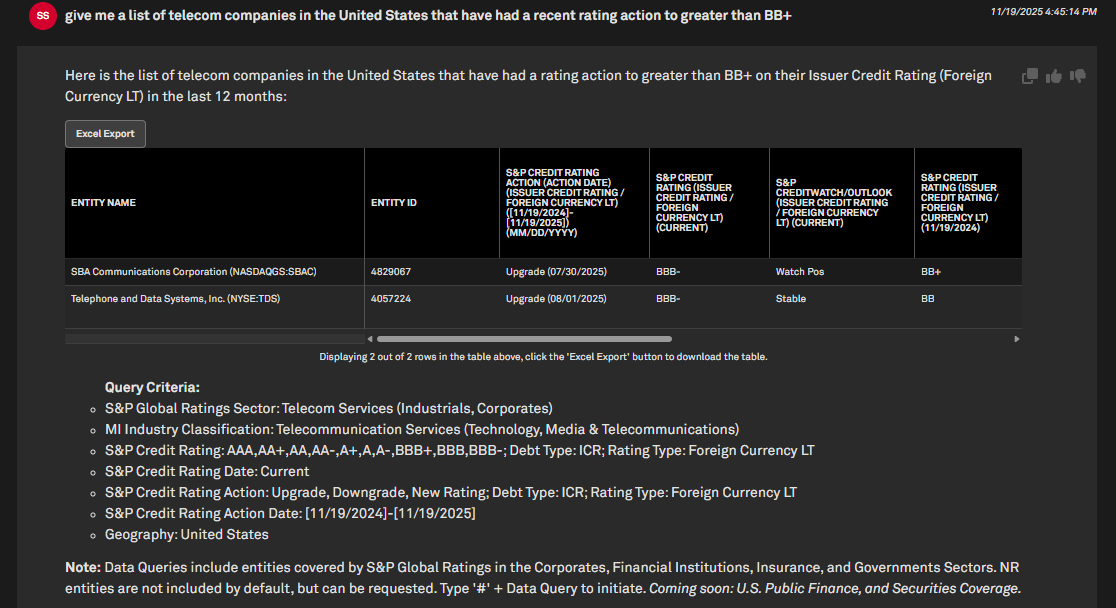
We have significantly improved data query functionality, which allows users to create custom data queries on Ratings, Sectors, and Financials. Users can now ask more complex questions including questions about more specific industries (by leveraging MI Sectors), geographies, ratings above or below a specified level, or make specific requests for a CreditWatch or Outlook.
Find it in the platform:
Navigate to the RatingsDirect
menu from the top navigation and select CreditCompanionRequest a list of companies in the tool or use # + Data Query to invoke directly
Complex Query Example: ‘Give me a list of telecom companies in the United States that have had a recent rating action to greater than BB+’
Multi-Data Asset Request Support
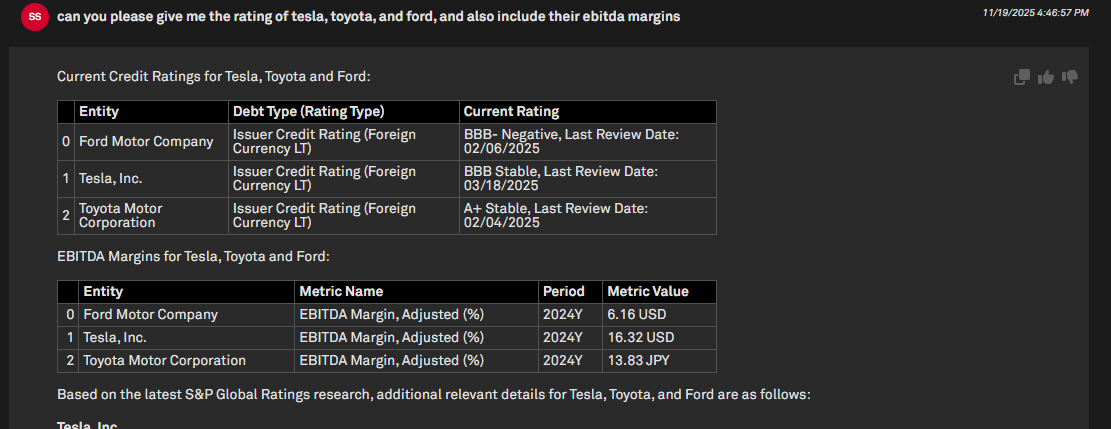
Complex questions that involve multiple data sets (directly from our database) or multiple companies are now supported. Current Ratings, Rating Actions, and Financials are supported for Corporates, Financial Institutions, and Insurance companies. These responses enable clients to conduct more complex analyses using data directly from our database, rather than relying on research articles.
Find it in the platform:
Navigate to the RatingsDirect
menu from the top navigation and select CreditCompanionAsk a question on multiple data sets
E.g. ‘Give me the rating of Tesla, Toyota, and Ford and include their EBITDA margins’
Search
In this release, we added Credit Default Swap (CDS) data to the Search functionality across the S&P Capital IQ Pro platform.
Credit Default Swap (CDS) Data in Search
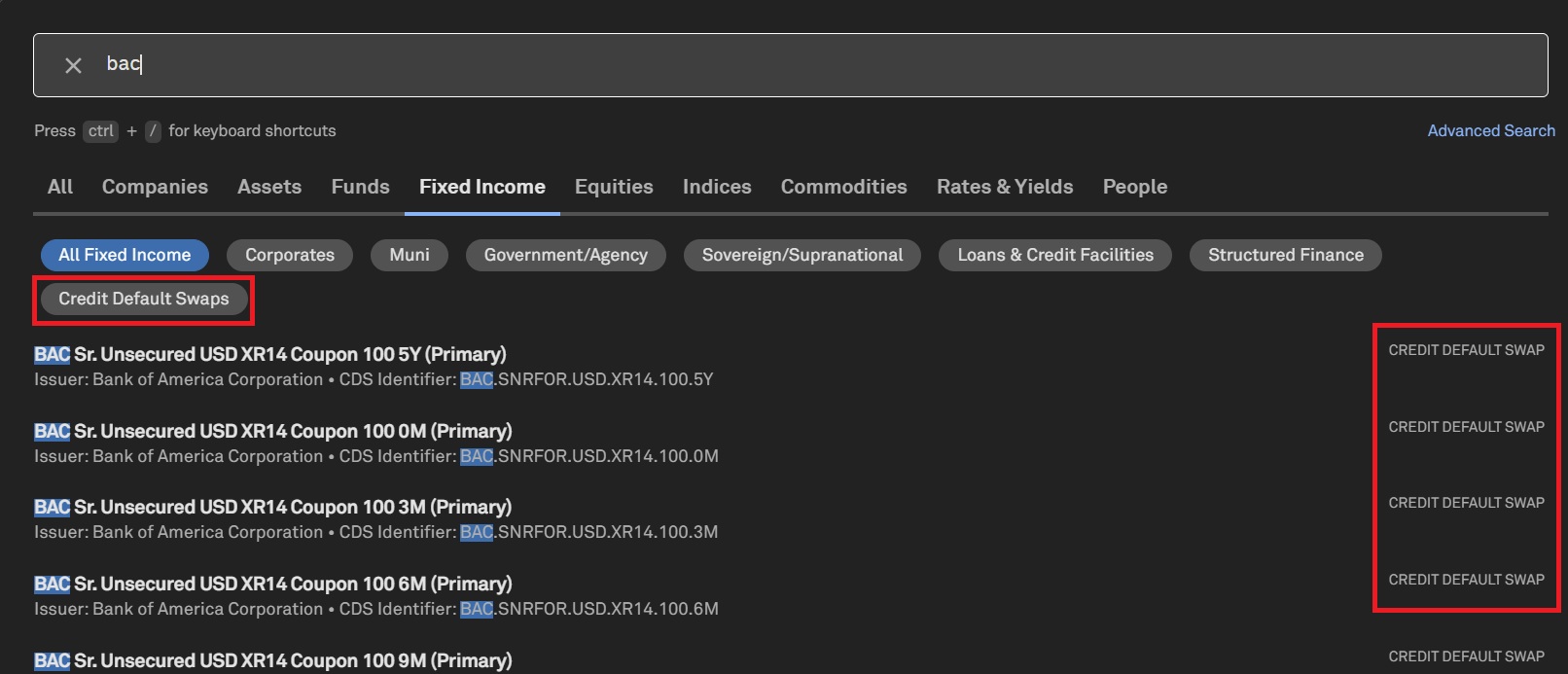
Users can now access and search for Credit Default Swap (CDS) data, allowing them to seamlessly use this data in Dashboards and Lists workflows. This enhancement ensures a more integrated and efficient experience for users analyzing CDS-related information across multiple platform components.
Find it in the platform:
Click on the top search bar on the platform
Enter a query related to CDS data
In the Fixed Income tab, a separate capsule is available for Credit Default Swaps
Users can also search CDS data under the Indices tab
In Advanced Search, users can filter the left pane as Credit Default Swaps
Financials
In this release, we expanded coverage of the S&P Capital IQ Financials offering by adding data collected from Franchise Disclosure Documents (FDD) for approximately 1,100 companies. These documents contain comprehensive financial information and can be used for valuations, benchmarking, and M&A analysis. Additionally, we introduced new European Public Real Estate Association (EPRA) NAV metrics for REITs and additional data items for insurance companies, as reported under IFRS 17 accounting guidelines.
Franchise Disclosure Documents Financials for US Private Companies
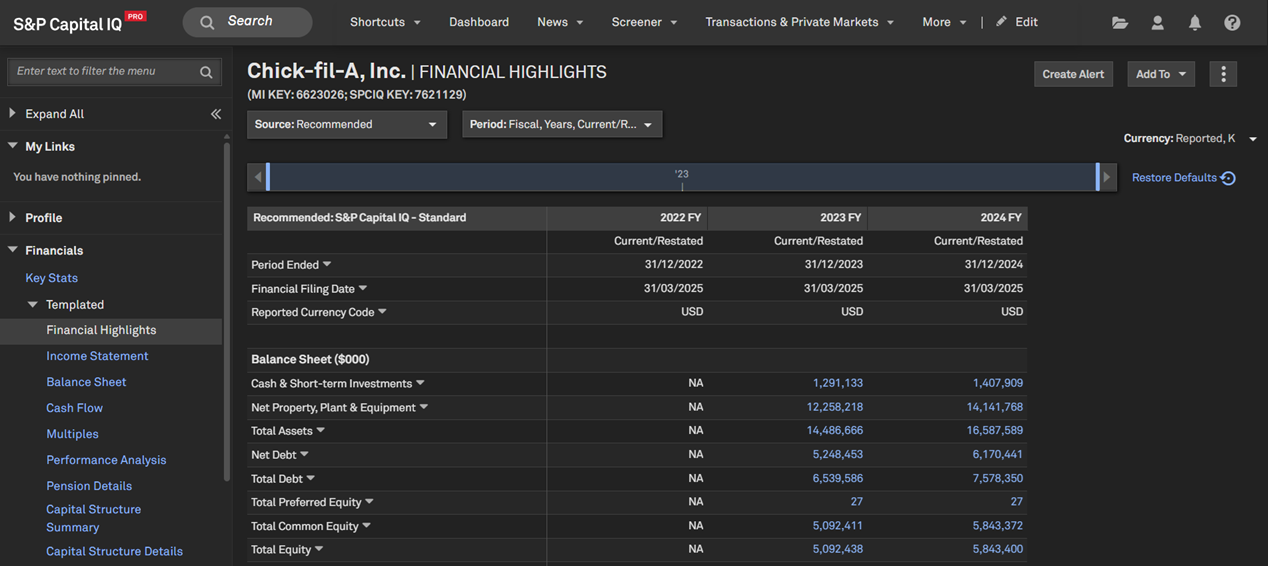
Users can access S&P Capital IQ financials for US private companies sourced from Franchise Disclosure Documents. This coverage expansion includes three years of historical financials for over 1,100 companies. We expect to add approximately 300 additional companies by the end of 2025.
Find it in the platform:
Search for and select a company from the top search and navigate to its Corporate Profile e.g., Chick-Fil-A
In the left-hand navigation, expand Financials and select the required tab
Coverage stats:
Three years of historical financials for over 1,100 companies
Franchise Disclosure Documents In Document Intelligence
Users can now access and interact with the Franchise Disclosure Documents within Document Intelligence.
Find it in the platform:
Navigate to the Documents tab in the top navigation to access the Document Intelligence page
Select Franchise Disclosure Documents from the Document Type filter
Analyze a single document or select multiple documents to conduct research using multi-doc functionality
New EPRA NAV Data Items
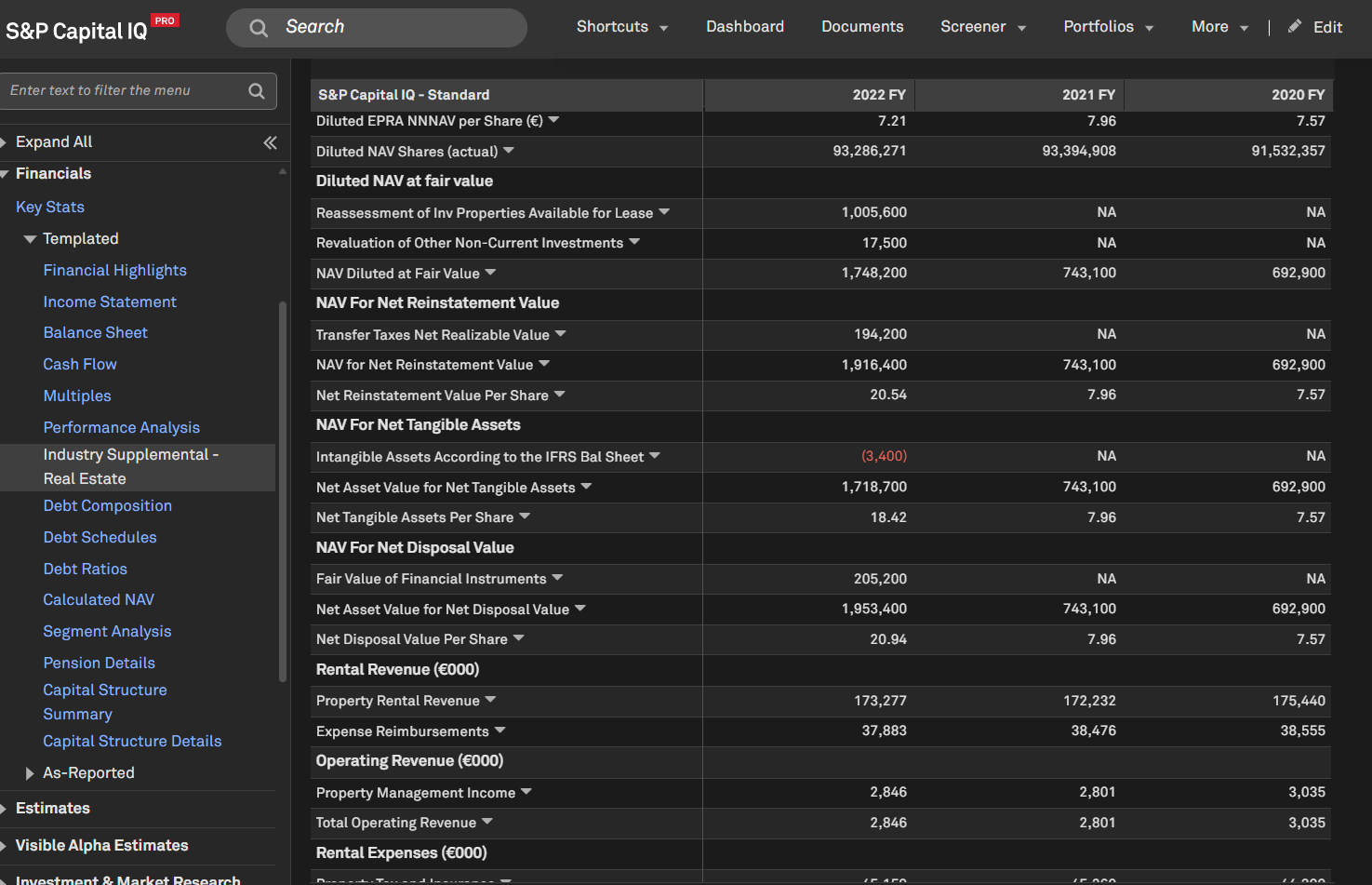
Users can now access 22 new European Public Real Estate Association (EPRA) NAV metrics for REITs in S&P Capital IQ financials.
Find it in the platform:
Company Profile
o Search for and select a European REIT company from the top search and navigate to its Corporate Profile
o In the left-hand navigation, expand Financials > Templated > Industry Supplemental - Real Estate
Screener
o Navigate to Screener from the top navigation or the Apps menu
o In the Companies dataset, select Financials > S&P Capital IQ Fundamentals > Industry Supplemental > Real Estate > EPRA Net Asset Value Reconciliation
S&P Capital IQ Pro Plug-in:
o In Excel, launch S&P Capital IQ Plug-in and open Formula Builder
o Under Data Items, expand Financials > S&P Capital IQ Fundamentals > Industry Supplemental > Real Estate > EPRA Net Asset Value Reconciliation
Dashboard:
o Navigate to Dashboard from the top navigation
o Select List widget from the Add Widget menu at the top right
o Within the Field Selector, expand Financials > S&P Capital IQ Fundamentals > Industry Supplemental > Real Estate > EPRA Net Asset Value Reconciliation
Macroeconomic Data
In this release, we introduced Demographic data projections for the period 2026-2031, offering essential insights into anticipated shifts in the U.S. population. This enhancement focuses on age distribution and regional trends, enabling users to make informed decisions by leveraging these insights.
U.S. Demographics Projections
Users can now access a comprehensive analysis of projected demographic changes in the United States for the period from 2026 to 2031. This feature highlights key findings, including overall population growth and significant regional developments, showcasing the diverse demographic trends across the country.
Find it in the platform:
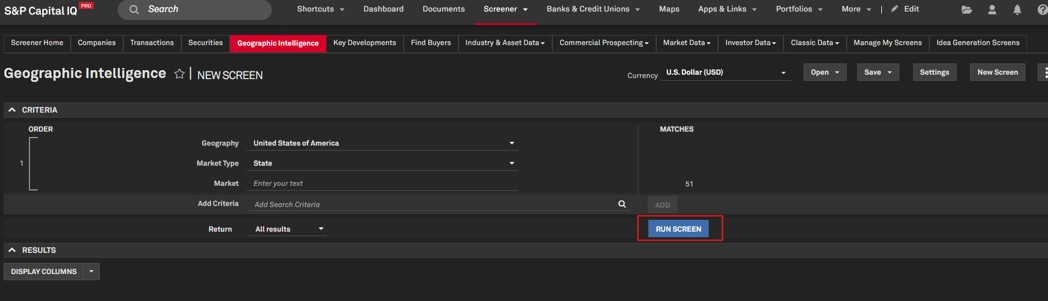
Navigate to Screener from the top navigation or the Apps menu
Select Geographic intelligence
Run Screen with the default criteria
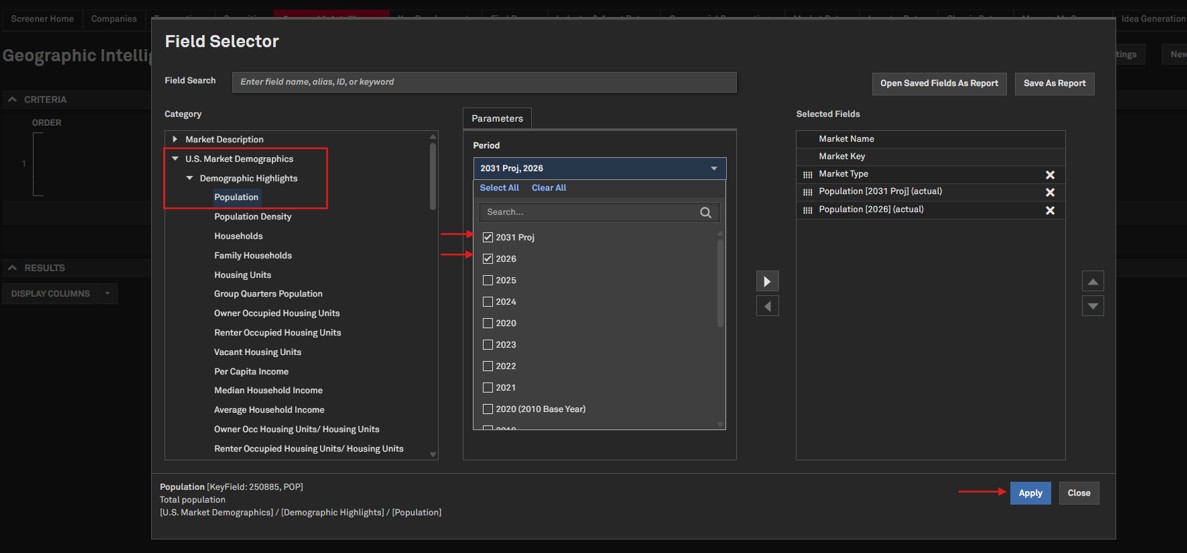
Select Display Columns
Expand U.S. Market Demographics > Demographics -Highlights, Population By Age, Population By Race, etc, to view trends as per the requirement
Market Data
In this release, we are excited to introduce CDX and iTraxx Credit Default Swap Indices across Index pages, Dashboard, and List Manager. Additionally, we have introduced support for Fixed Income index data metrics in the S&P Capital IQ Pro Plug-in.
CDS Index Profile and Constituents Pages
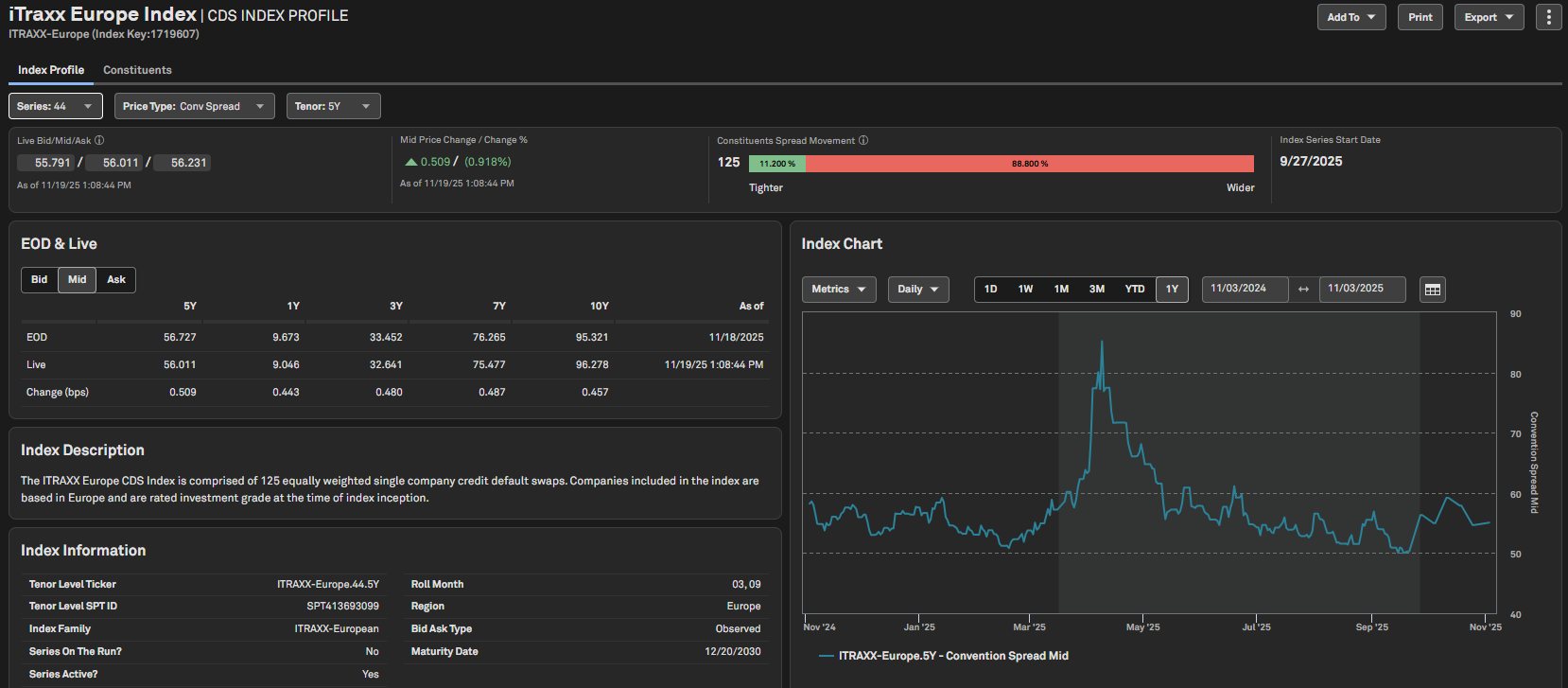
Users can now access CDX and iTraxx CDS indices in the S&P Capital IQ Pro platform. The CDS Index Profile and Constituents pages offer detailed information about the selected index, including its constituent-level data.
Find it in the platform:
CDS Index Profile:
o Search for and select a CDX or iTraxx index (alongside required series and tenor) within the top search
o Navigate to the Index Profile page
CDS Index Constituents
o Search for and select a CDX or iTraxx index (alongside required series and tenor) within the top search
o Navigate to the Index Profile page
o Select the Constituents tab below the page header to view index constituents
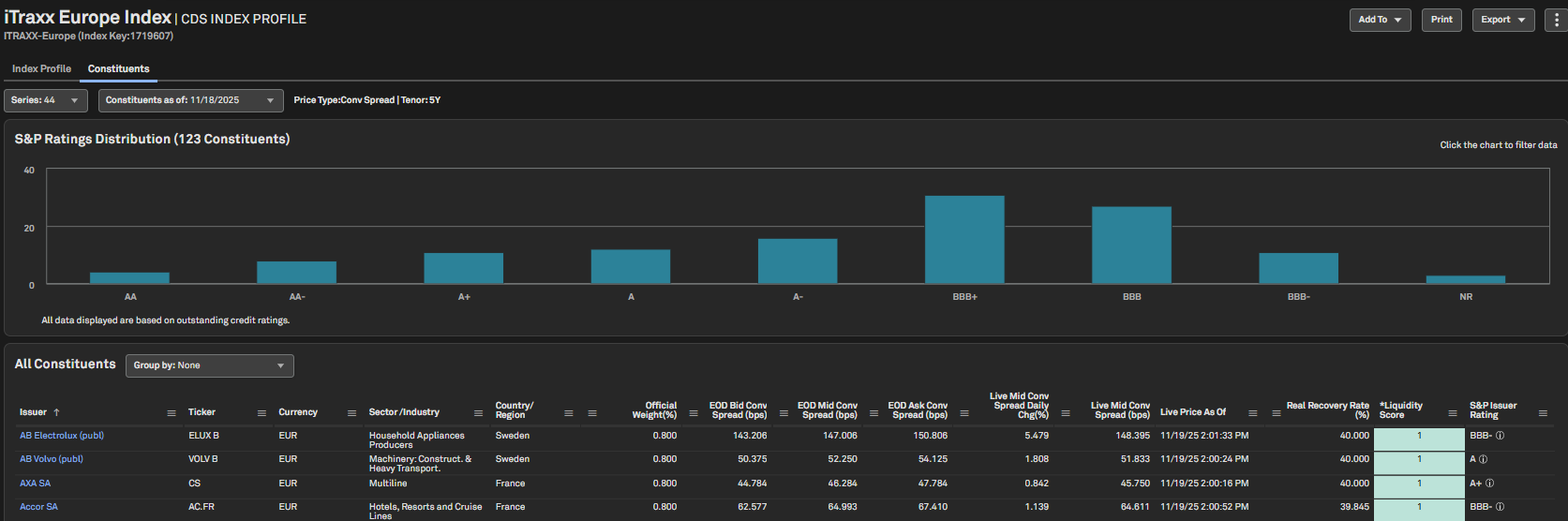
CDS Indices on Dashboard
Users can now access CDS Indices on the Dashboard’s List and Quote widgets. This will facilitate seamless integration within workflows and ease of access to critical data.
Find it in the platform:
Navigate to the Dashboard and open Add Widget menu on the top right
Select and add List and Quote widgets
Within the List widget, click the gear icon at the top-right corner and search for any CDS Index
Open the Field Selector from the three-dot menu near the gear icon
Navigate to Market Data > Index Data > CDS Indices folder
Select the required metrics and click Apply
Click on the Index ticker to broadcast it to the Quote widget
The selected index will now be visible across both List and Quote widgets

CDS Indices Integration in List Manager
Users can now access CDS Indices in List Manager, enabling them to create, save, and manage lists of CDS indices for streamlined tracking and analysis across the platform.
Find it in the platform:
Click on the Saved Items icon in the right-hand corner of the platform
Expand Lists & Screens and select Create List
Enter a List Name and select the List Type as General
On the List Manager page, click on Search to add entities
Select the Indices tab or CDS Indices sub-tab
Search for CDS indices of your choice and add to the list
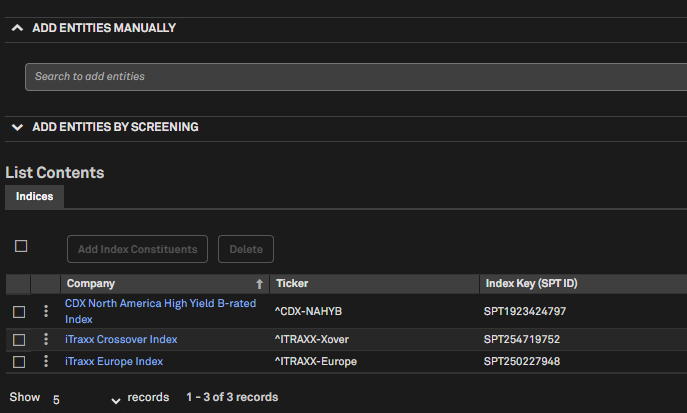
Fixed Income Indices Support in S&P Capital IQ Pro Plug-in
Users can now retrieve iBoxx and Morningstar Leveraged Loan indices data from the S&P Capital IQ Pro Plug-in, which will enhance integration of critical data across workflow streams.
Below is the list of available fields:
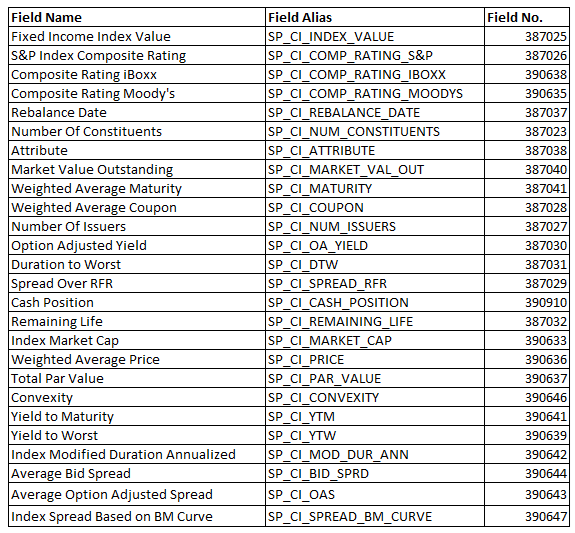
Find it in the platform:
In Excel, launch S&P Capital IQ Pro Plug-in and open Formula Builder
Navigate to Indices > Fixed Income Indices folder
Select a Fixed Income Index, required metrics and parameters to build the desired formula
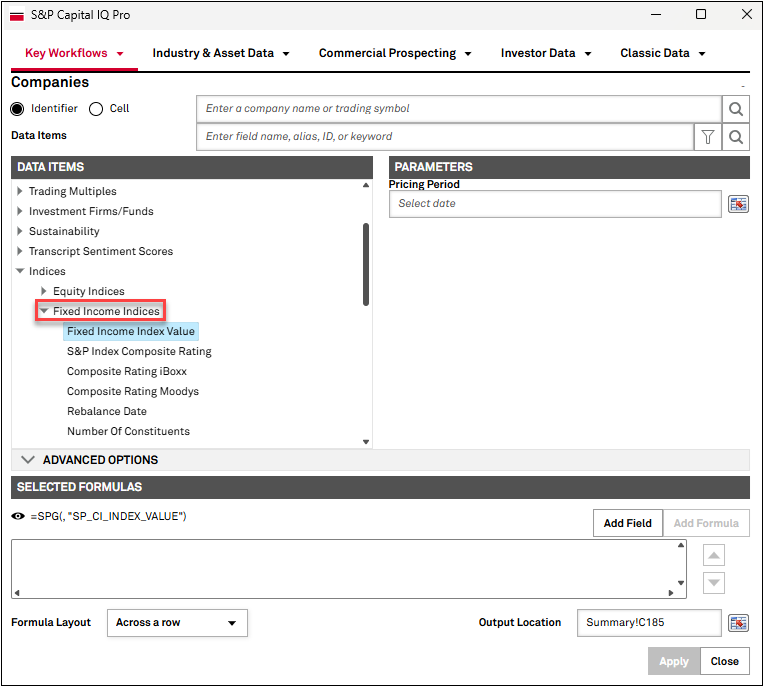
Transactions
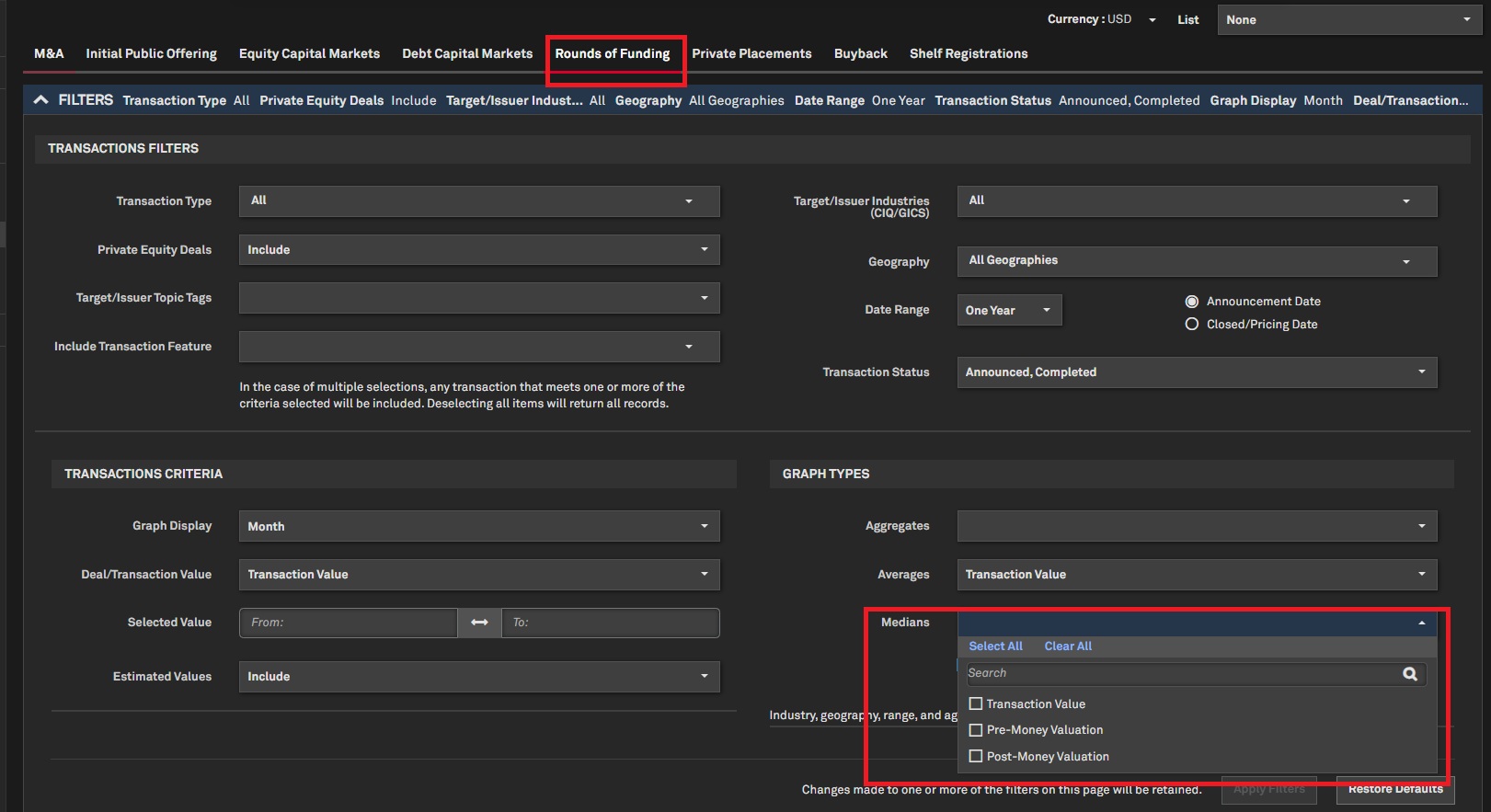
In this release, we introduced the Median metric for valuation data points on the Transaction Statistics page for Rounds of Funding.
Median Metric for Rounds of Funding in Transaction Statistics
Users can now apply the Median metric to analyze valuation data points for Rounds of Funding on the Transaction Statistics page. This enhancement helps reduce data skewness and minimizes the influence of outliers, providing a more accurate representation of transaction trends.
Find it in the platform:
Navigate to Transactions & Private Markets in the top navigation and select Transaction Statistics
Select the Rounds of Funding tab
Expand Filters, under Graph Types, view the Medians filter with three options to choose from
o Transaction Value
o Pre-Money Valuation
o Post-Money Valuation
S&P Capital IQ Pro Plug-in
In this release, we added several new or enhanced Excel templates to meet your data analysis needs.
Excel Template Library
Supply Chain Footprint Analysis
This template uses a spending-based approach to estimate Scope 3 Categories 1 & 2 (Supply Chain) GHG emissions, helping assess environmental impact and guide initiatives to effectively reduce the supply chain’s carbon footprint.
Regulatory Bank & BHC Historical Financials
View 16 periods of regulatory data on 30+ schedules for holding companies (Y-9C, Y-9SP, Y-9LP) & subsidiaries (Call Report - 031/041/051). Ideal for building out projections or trend analysis using the most granular banking data available in the U.S.
CreditStats Direct - Industrials & Utilities
View S&P Ratings, scores, and other market derived signals, along with the pre-adjusted and adjusted RatingsDirect financials for industrial and utility companies.
Private Companies Insights with Headcount Data
Identify relevant private companies along with a brief overview of their headcount analytics to enable a deeper analysis of company performance, funding history, and growth trends over time.
Securities Summary
This template presents an overview of an entity's fixed income issuances with details for each security.
The model rates the financial performance of a group of selected P&C companies over a specified time period. It uses a standardization process across 13 metrics and assigns scores to each company based on its relative position to the sample mean of each metric.
Access a comprehensive summary of estimates, including detailed information by broker, and generate customized consensus estimates.
This model offers a centralized view to assess a broker’s estimates versus consensus across key financial metrics. Users can input the VA Excel broker code to populate estimates, enabling seamless side-by-side analysis of multiple companies.
Health - RBC Estimate (2024)
Approximates 2024 risk-based capital (RBC) for individual Health insurers and includes sensitivity analysis for predicting RBC changes over 5 future annual periods.
Approximates 2024 risk-based capital (RBC) for individual life insurers, allows for an estimate of mid-year RBC, and includes sensitivity analysis for predicting RBC changes over 5 future annual periods.
Mobile App
In this release, the Capital IQ Pro mobile app harnesses the power of Generative AI to enhance users' research capabilities, providing seamless access to essential insights. Key highlights include the integration of GenAI-powered ChatIQ throughout the app, including the Document Viewer page.
ChatIQ in Mobile App
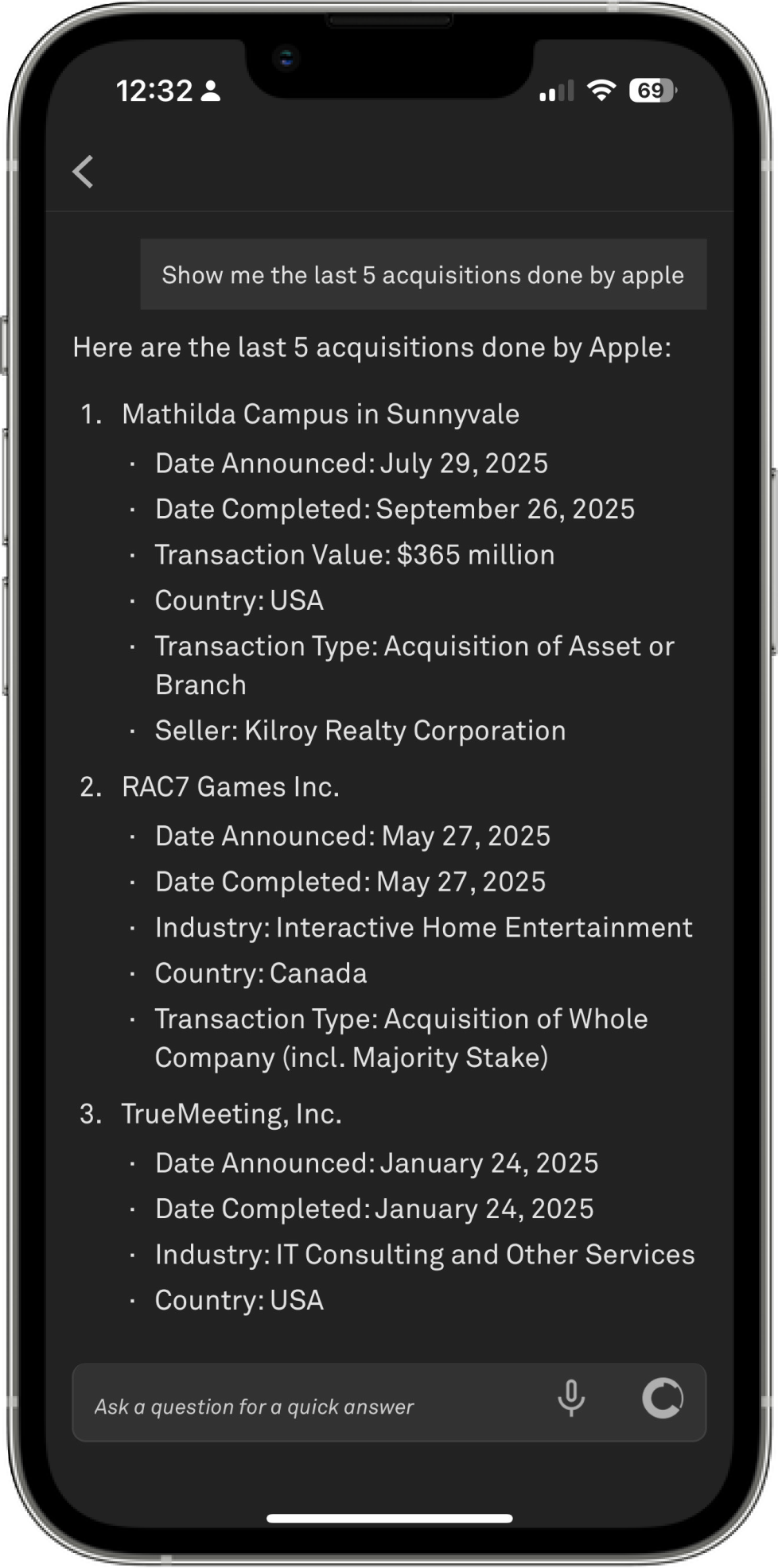
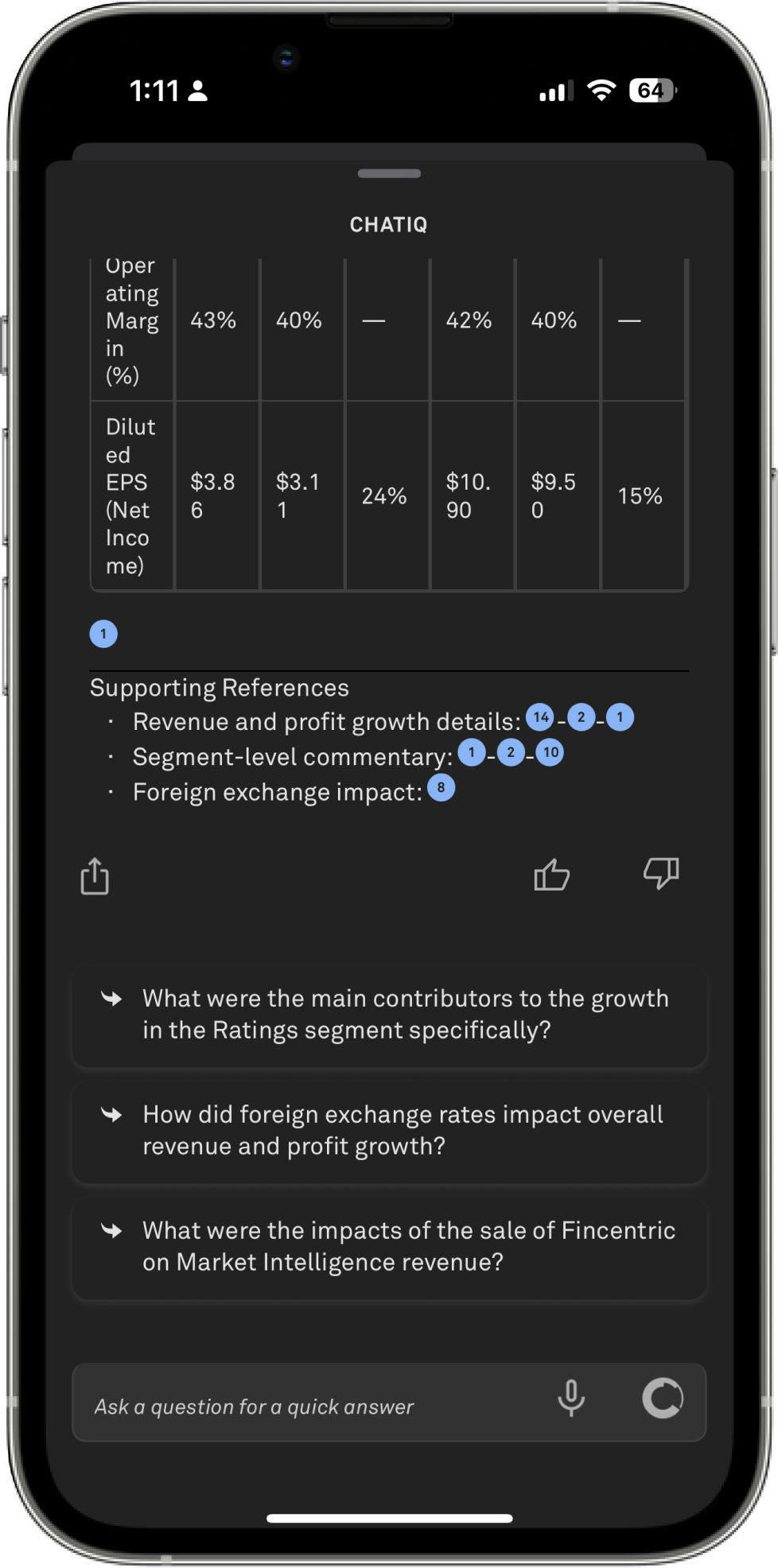
We are excited to announce that ChatIQ is now fully integrated into the Capital IQ Pro mobile app, elevating your research and document review experience to new heights with the power of Generative AI. Users can utilize this interactive tool for quick access to data, insights, and information, mirroring the powerful capabilities of the desktop version while on the go.
Release Date: December 11, 2025
Version Numbers:
iOS: 2.19.1
Android: 2.24.8
Scan the QR Code
Or Download the app for mobile push alerts and anytime access to essential intelligence


Find it in the Mobile App:
Log in to the Capital IQ Pro Mobile App
Look for the conversation icon in the top navigation or open any document in the app and tap the conversation icon
Ask questions related to your preferred content or for insights specific to the documents you’re reviewing
Marketplace Data & Solutions Communiqué
The Marketplace Data & Solutions Communiqué reflects developments in the S&P Global Marketplace, your discovery tool for differentiated data and robust solutions with an integrated support site.
Marketplace Data & Solutions Communiqué
Data: Leverage premium fundamental and alternative datasets available seamlessly, along with expert analysis, to accelerate your journey from data to insight.
Solutions: Gain maximum value from your big data with technology solutions designed to enhance your workflow, increase your insights, and complement your datasets. Our solutions, including Snowflake, Kensho NERD, Xpressfeed, Xpressfeed Loader, and API Solutions, help you make the most of all your data.
If you wish to subscribe, sign up on the Communiqué Marketplace site.